

Movement Decision Tool
The Movement Decision Tool is the TrainersEye clinical decision hub. Choose how you want to start.
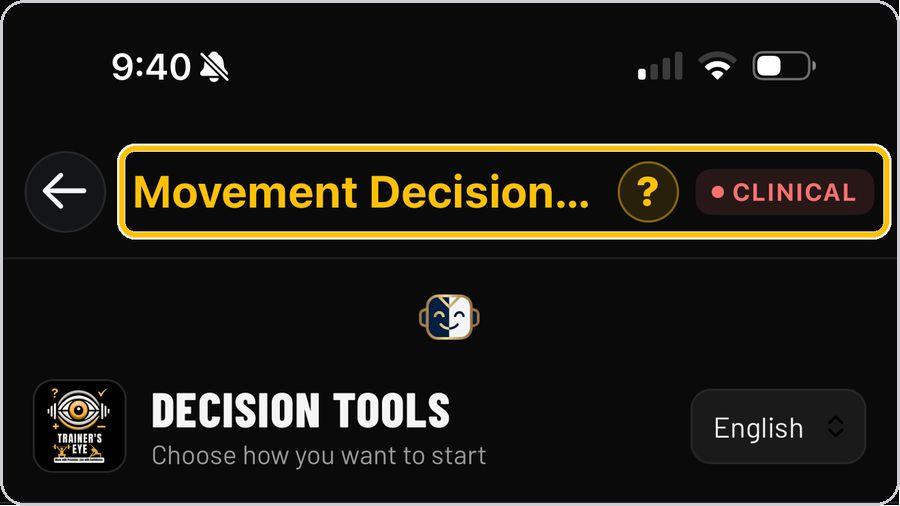 1 Open the toolFrom the Dashboard, tap Movement Decision Tool. | 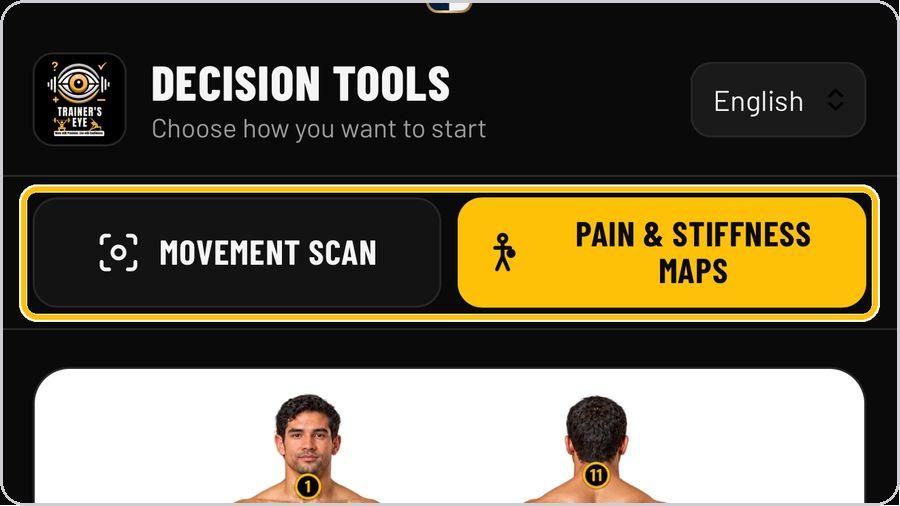 2 Choose how you want to startTwo doors: Movement Scan — the camera scan of a lift — and Pain & Stiffness Maps — the clinical maps from where it hurts. | 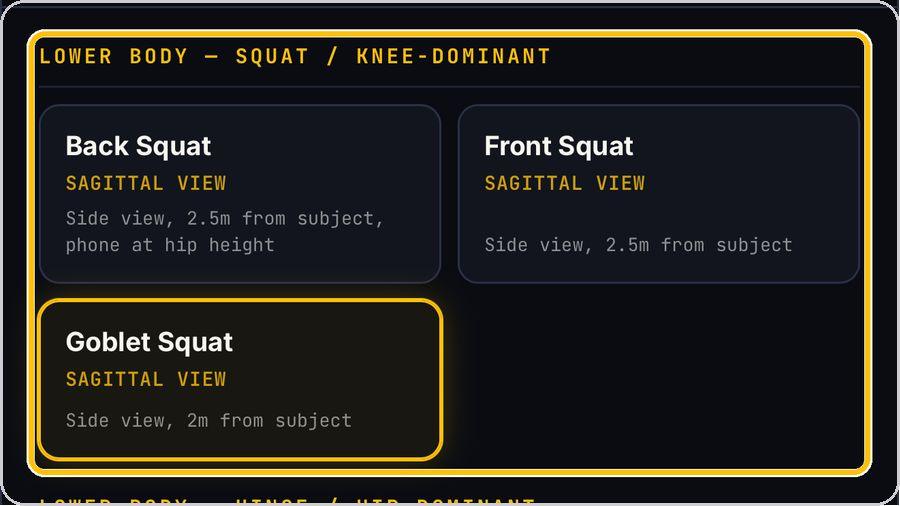 3 Select the target movementThe Movement Library groups lifts by pattern — squat and knee-dominant, hinge and hip-dominant, single-leg and split-stance. | 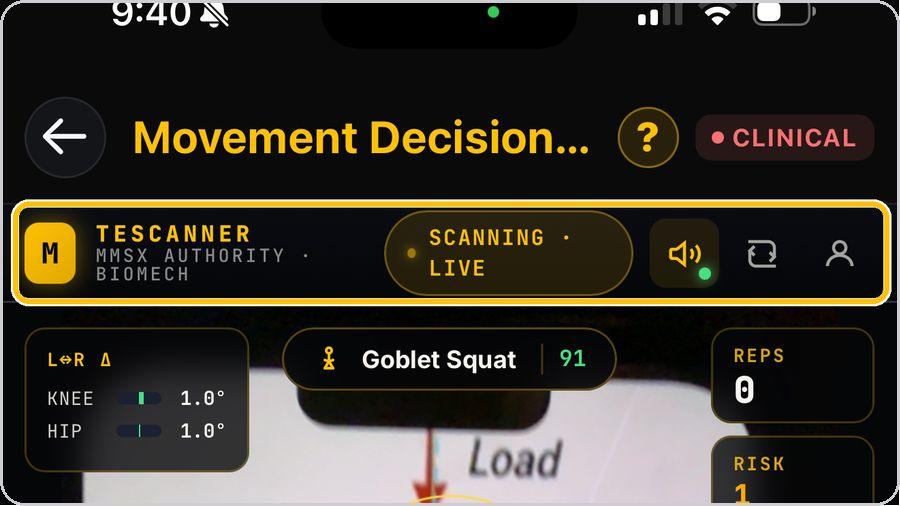 4 The scanner controlsThe TEScanner header shows the status — Scanning · Live — the voice cue toggle, the camera flip and the subject profile. |
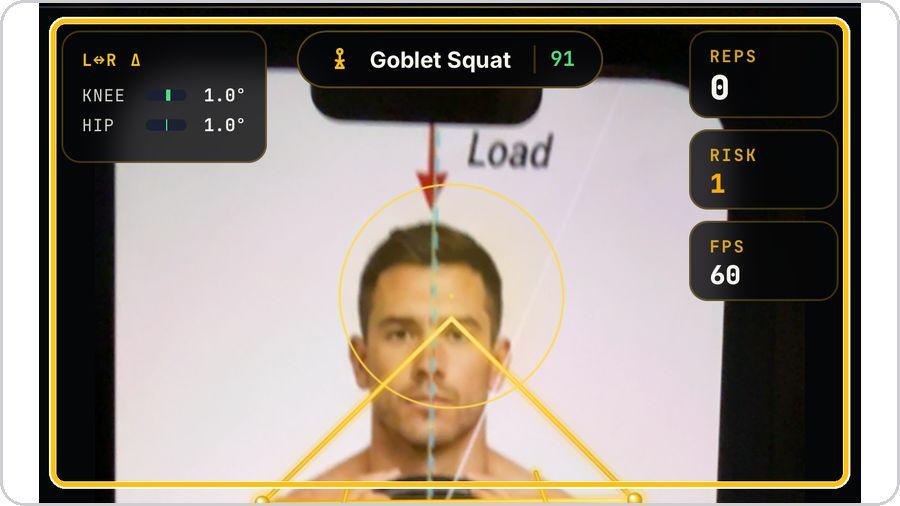 5 Scan liveThe skeleton draws over the client. | 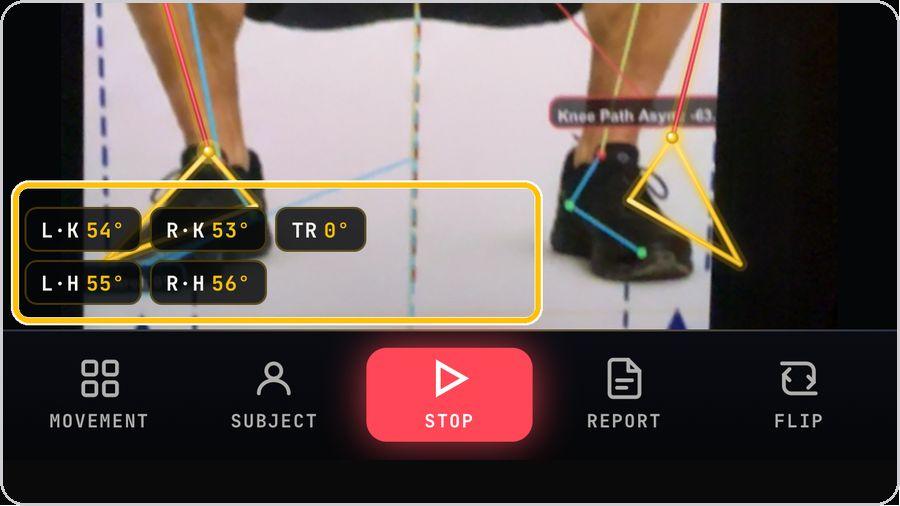 6 Read the live angles, then stopThe chips along the bottom give left and right knee, left and right hip and trunk angle, live. | 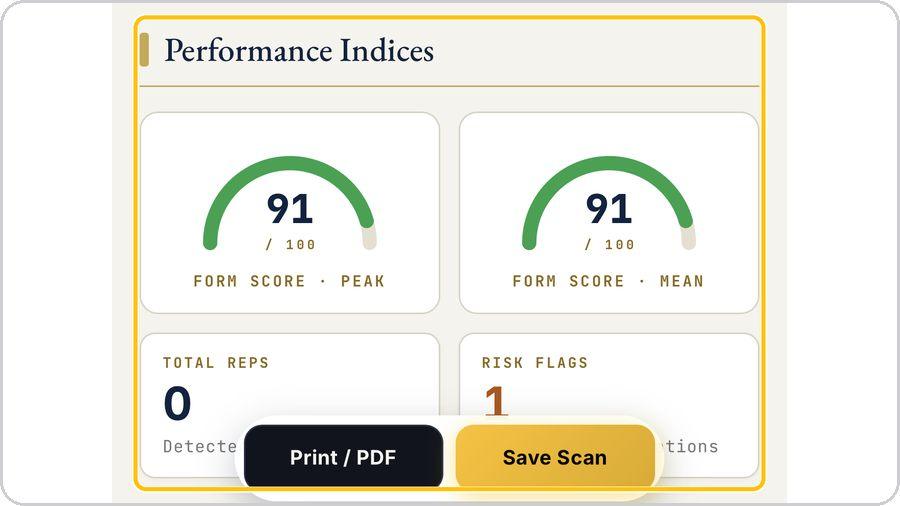 7 The Movement Decision DocumentReport opens the scan report: subject and session — anthropometry, movement, duration, reps, capture rate — then the performance indices: form score peak and mean out of 100, total reps and risk flags. | 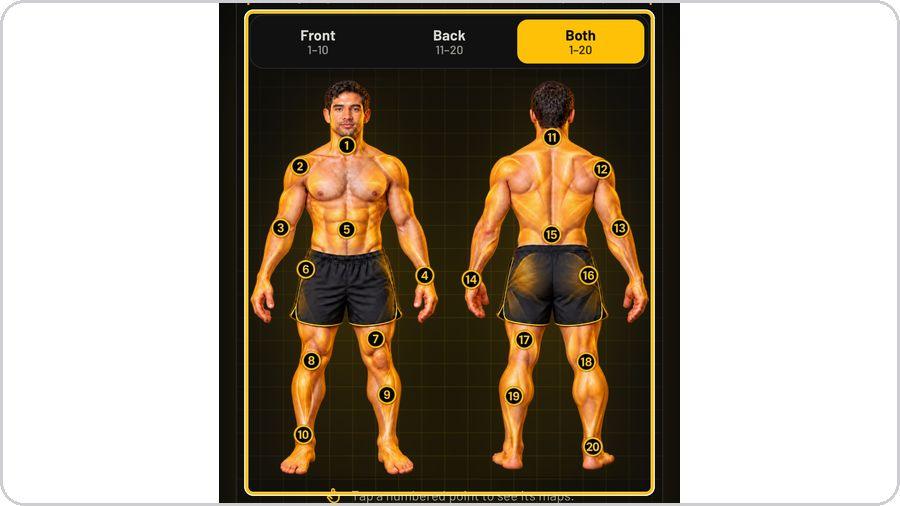 8 Where does it hurtThe body map has 20 numbered points: 1 to 10 on the front, 11 to 20 on the back — Front, Back or Both. |
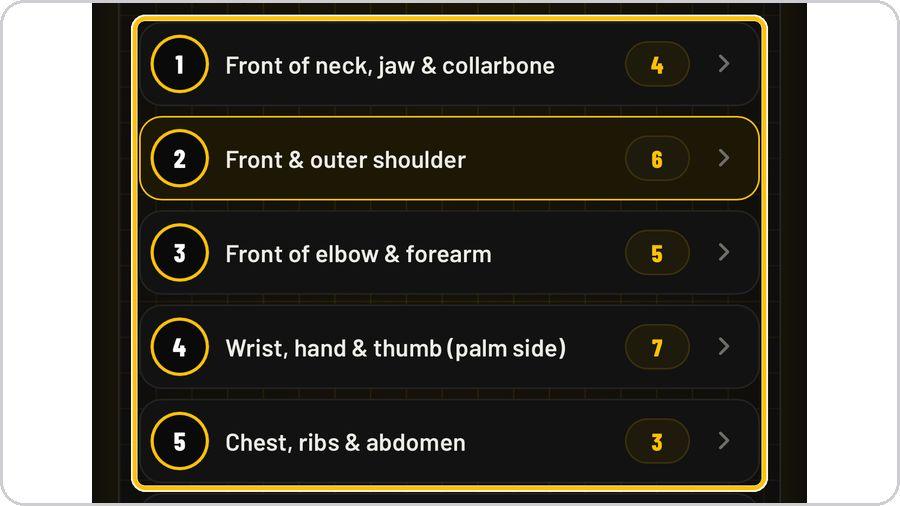 9 Pick the pointUnder the map, every point is listed by name with the number of clinical maps behind it — front of neck, jaw and collarbone; front and outer shoulder; knee and kneecap; ankle, foot and toes. | 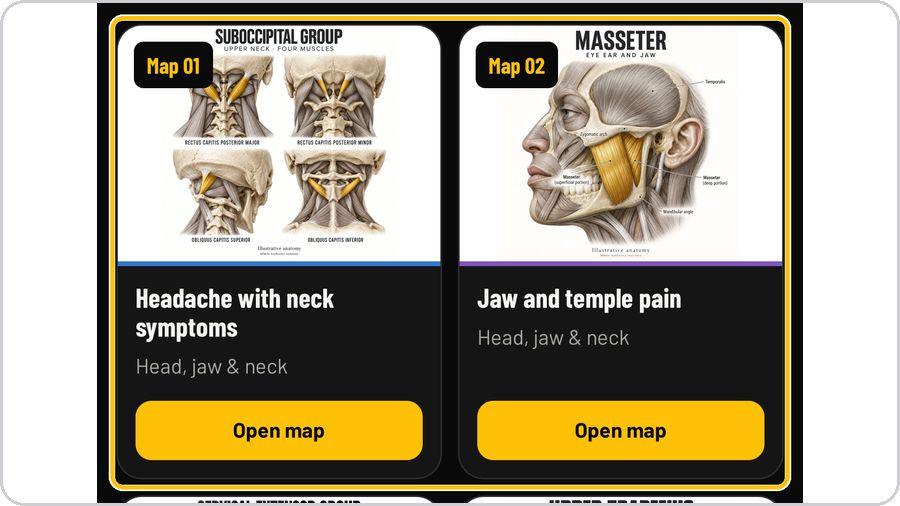 10 Open a mapEach map card shows the anatomy plate, the complaint it covers and its region. Tap Open Map. | 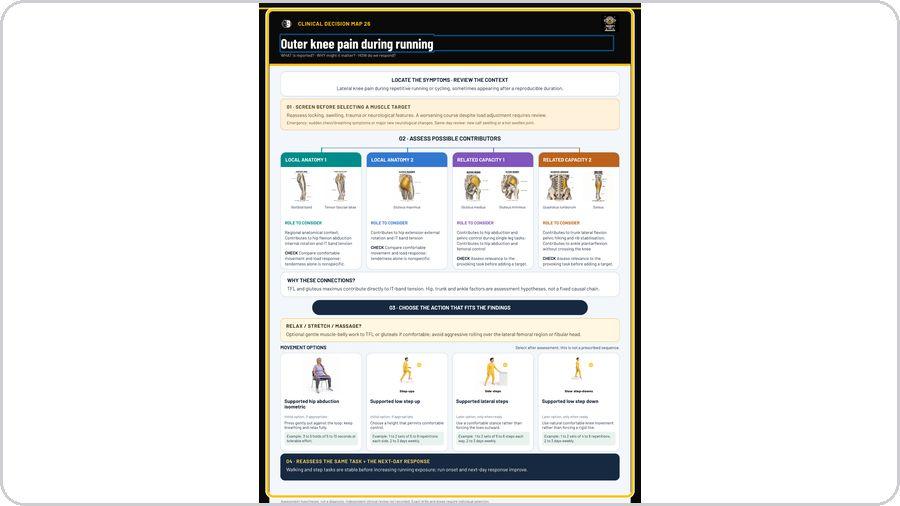 11 Read the decision mapEvery map runs the same way: locate the symptoms and review the context; 01 screen before selecting a muscle target; 02 assess the possible contributors — local anatomy and related capacity, each with a role to consider and a check; 03 choose the action that fits, with movement options and example doses; 04 reassess the same task and the next-day response. | 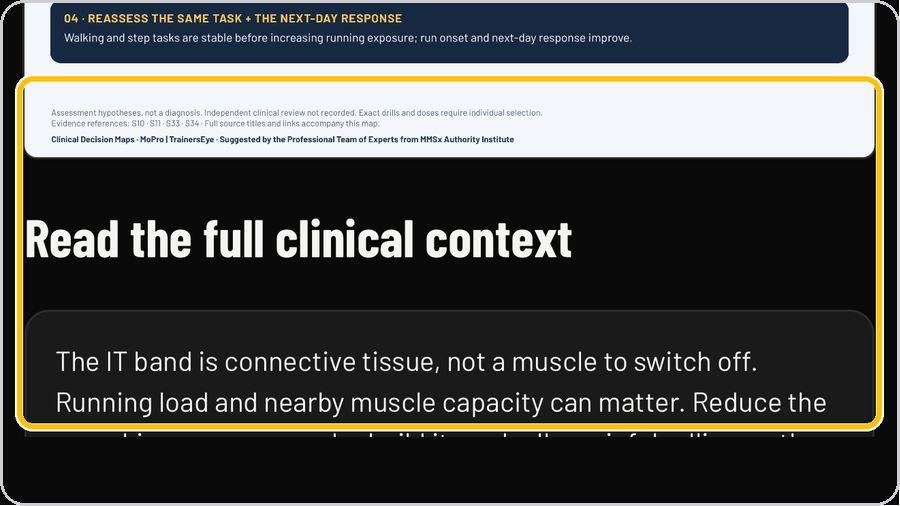 12 The full clinical context and the evidenceBelow the map, Read the Full Clinical Context explains the reasoning in plain language, and the footer lists the evidence references and states that these are assessment hypotheses, not a diagnosis. |
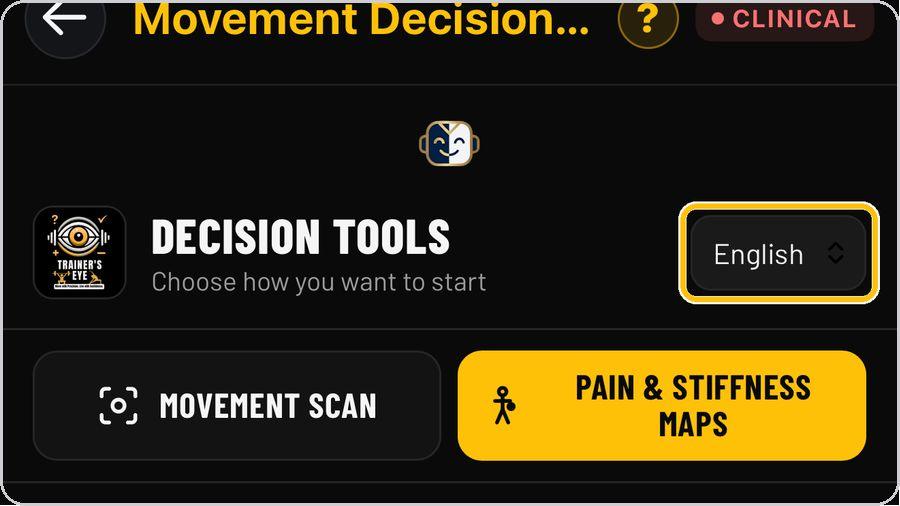 13 Language and helpThe language selector on the hub sets English, Hindi, Spanish or Arabic; the question mark at the top opens help on every screen. | ✓ You're readyThat's it. Open the Movement Decision Tool, choose how you want to start, and make the decision on evidence. | In a decision mapMap number and title · Locate the symptoms · Screen first · Assess possible contributors · Role to consider and check · Why these connections · Choose the action · Reassess | |