

Rehab Builder
Rehab Builder gives a practitioner a complete, phased rehabilitation plan for a client's pain point in seconds.
 1 Open the toolFrom the Dashboard, tap Rehab Builder. | 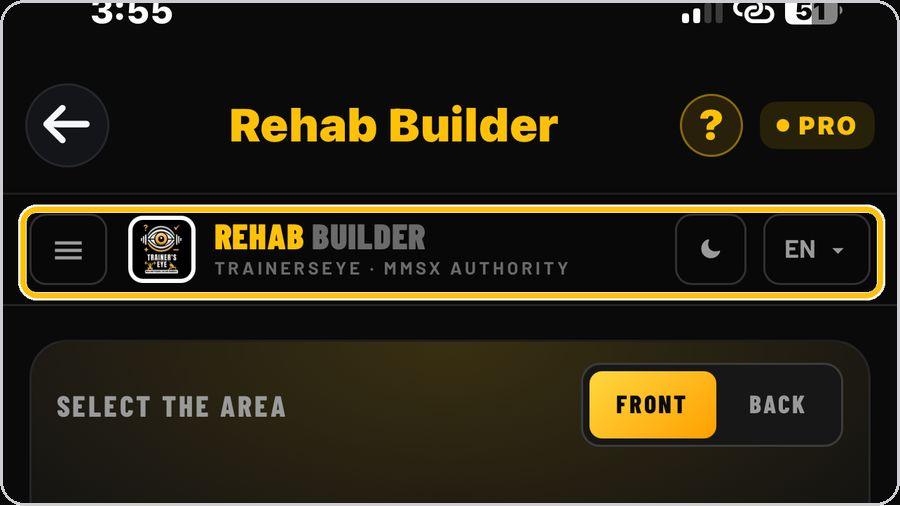 2 Menu, look and languageThe menu button opens the region list; the moon and sun switch the dark and light look; EN sets the language — English, Hindi, Spanish or Arabic. | 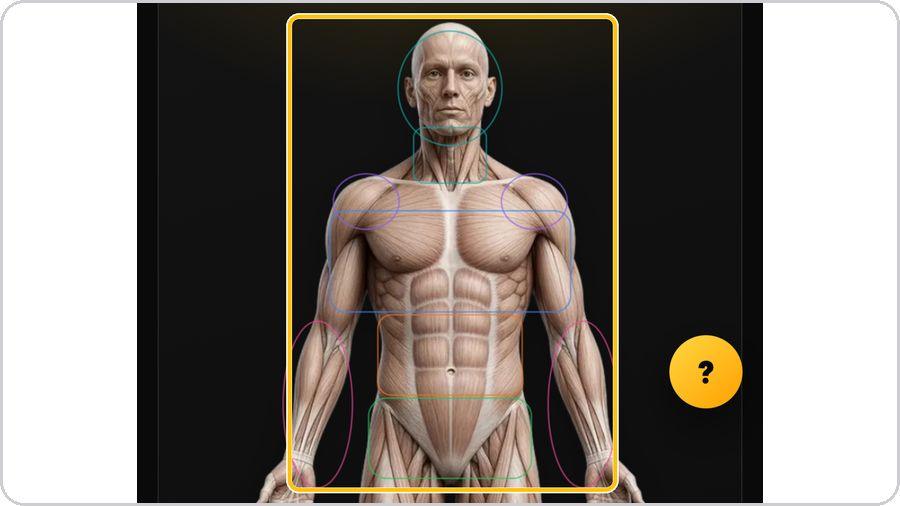 3 Select the area on the bodyTap the area that hurts on the body map. | 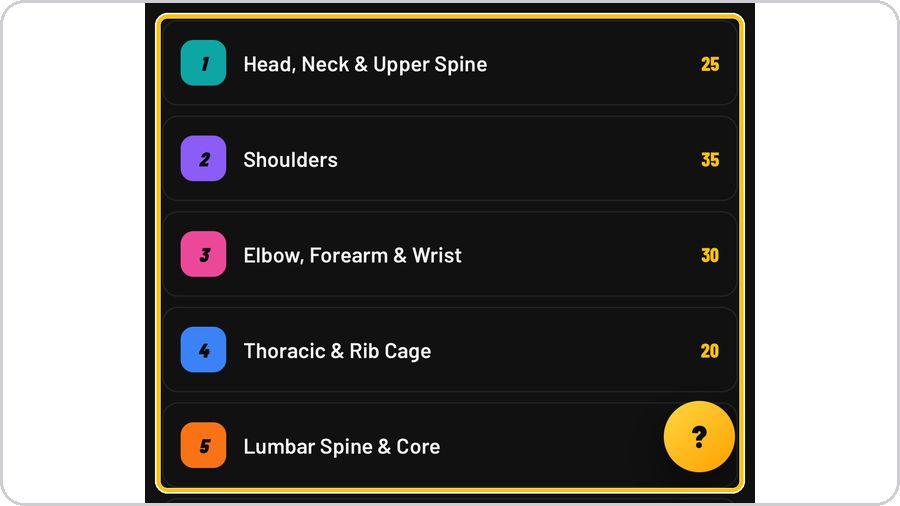 4 Or choose a region from the menuTap the menu to see the nine regions with the number of plans in each — from head, neck and upper spine to ankles and feet, plus sports and exercise-specific. |
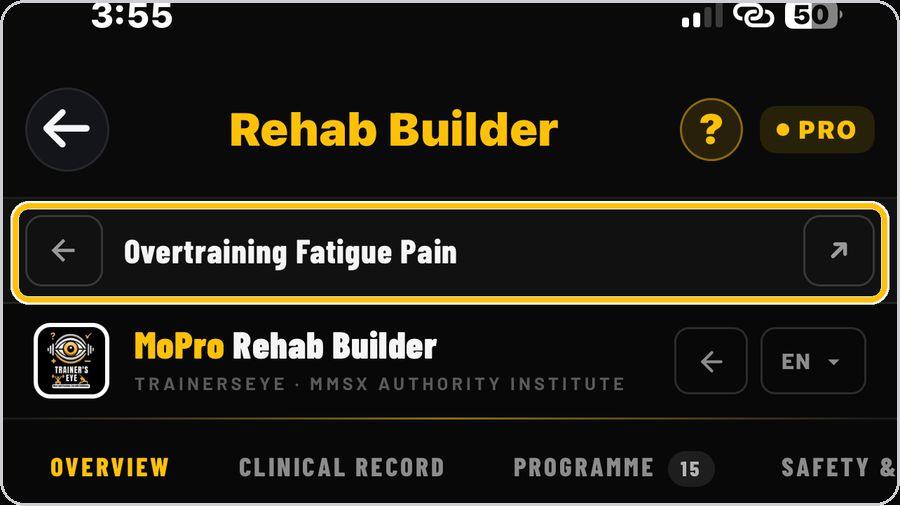 5 Pick the conditionInside a region every pain point is listed with a plain-language line under its clinical name. | 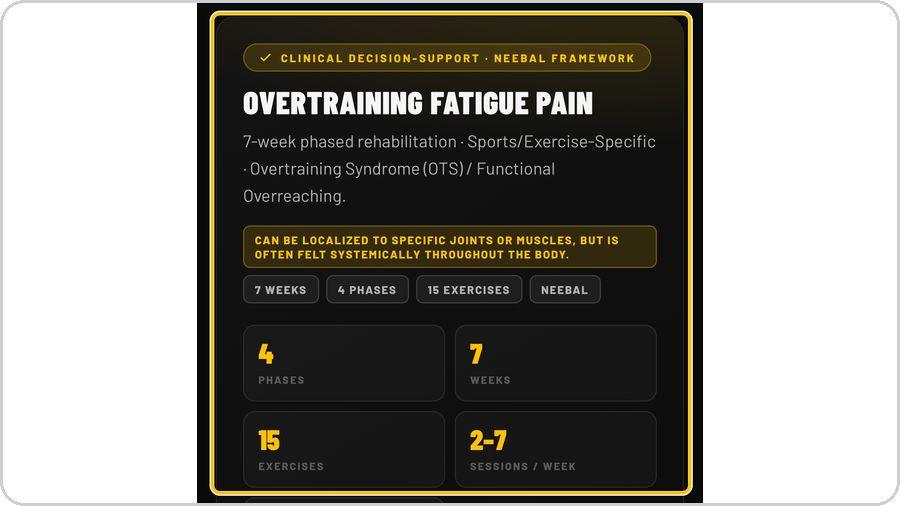 6 Overview — the plan at a glanceThe overview states the framework, the working diagnosis, the region note and the shape of the plan: phases, weeks, exercises and sessions per week. | 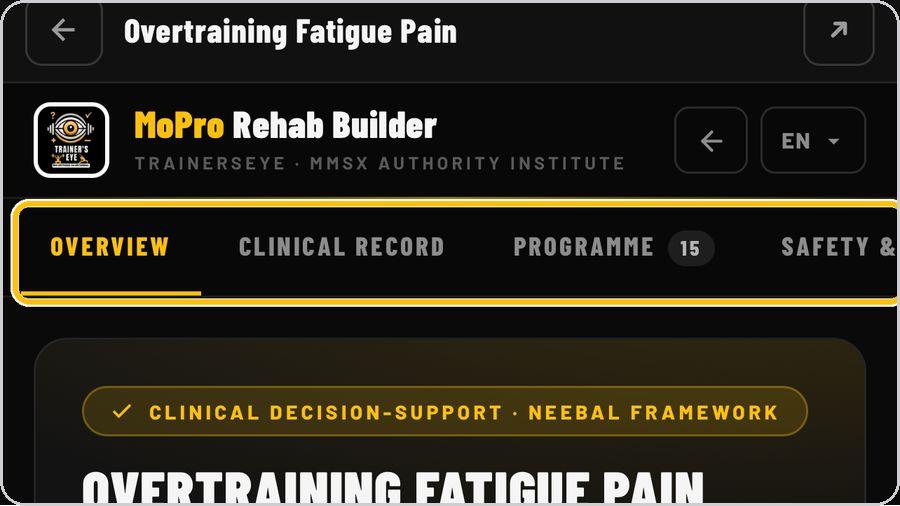 7 The four tabsOverview, Clinical Record, Programme and Safety. | 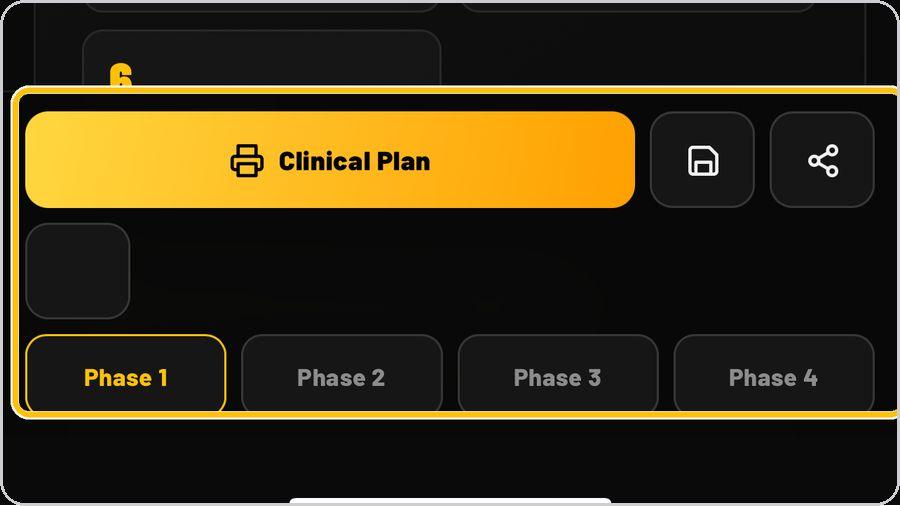 8 Phases and the action barThe bar at the bottom prints the Clinical Plan and saves or shares it; the Phase buttons open each phase and print its Client Prescription Card. |
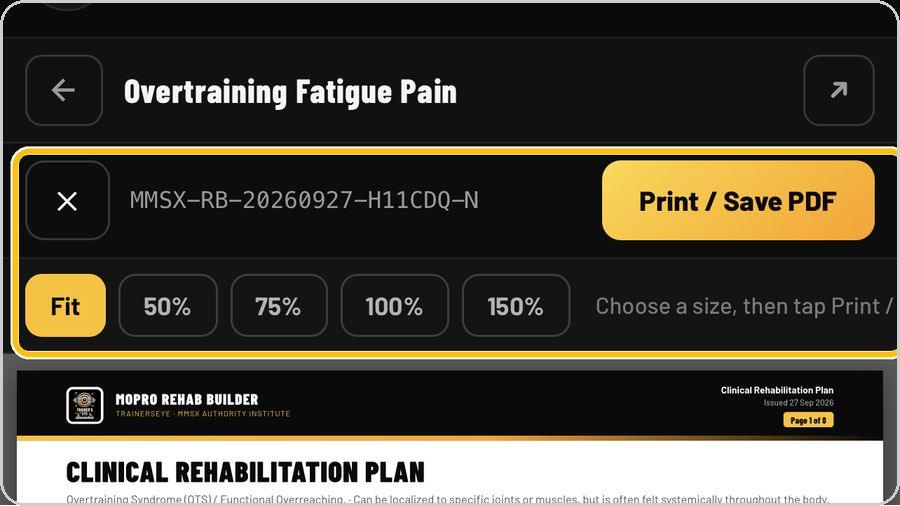 9 Print the Clinical Rehabilitation PlanTap Clinical Plan. | 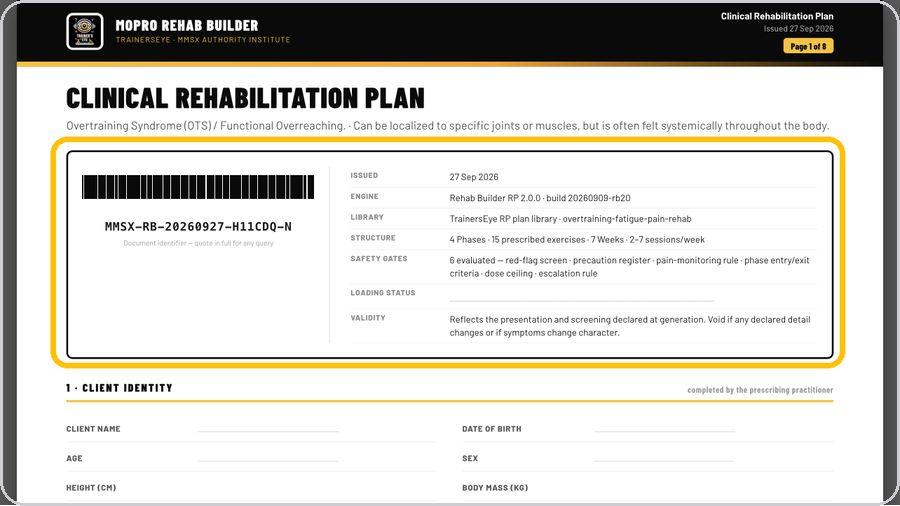 10 Read the control pagePage one carries the identifier and barcode, the control block — issued, engine, library, structure, the six safety gates evaluated, loading status and validity — then client identity, prescribing clinician and presentation. | 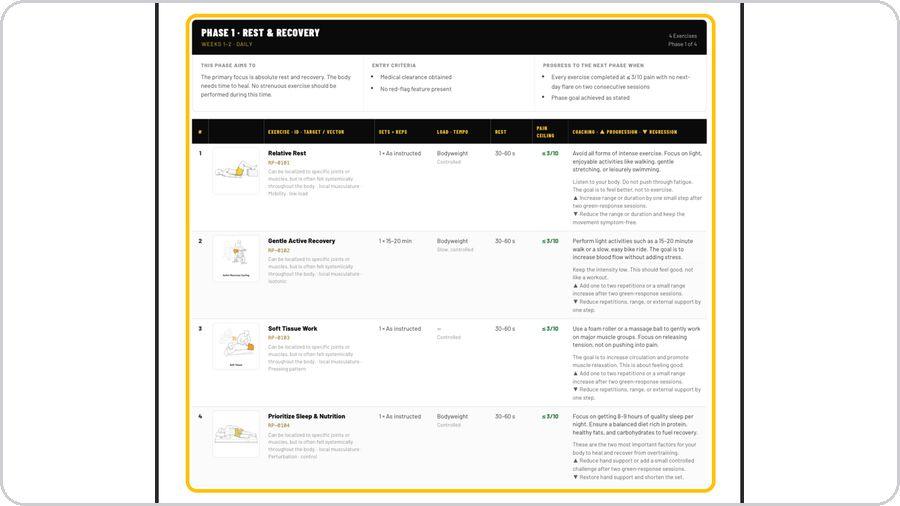 11 Read a phase pageEach phase prints on its own page: what the phase aims to do, entry criteria, progress criteria, then every exercise with ID, target and vector, sets and reps, load and tempo, rest, pain ceiling, coaching, progression and regression. | 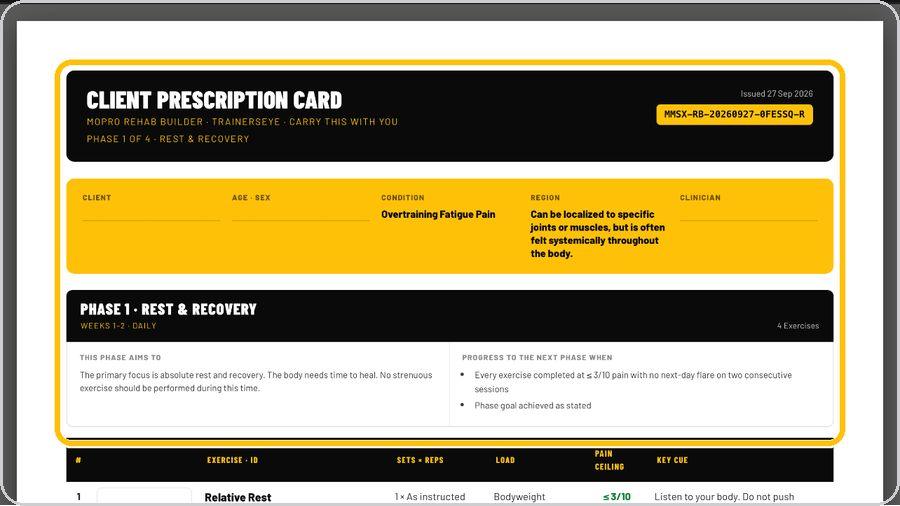 12 Print the Client Prescription CardTap a Phase button to open its card: client, age, condition, region and clinician, the phase aims and progress criteria, the exercises with pain ceiling and key cue, and the pain rule — green 0–3, amber 4–5, red 6–10. |
 13 Get help any timeTap the question mark at the top, or the floating question mark at the right, whenever you need help. | ✓ You're readyThat's it. Open Rehab Builder, tap the area that hurts and open the plan. | On the documentMasthead · Title and condition · Document identifier · Control block · Client identity · Prescribing clinician · Presentation · Footer | |