

FuelPlanner Pro
A costed, periodised nutrition plan for every client — with the reasoning behind every number.
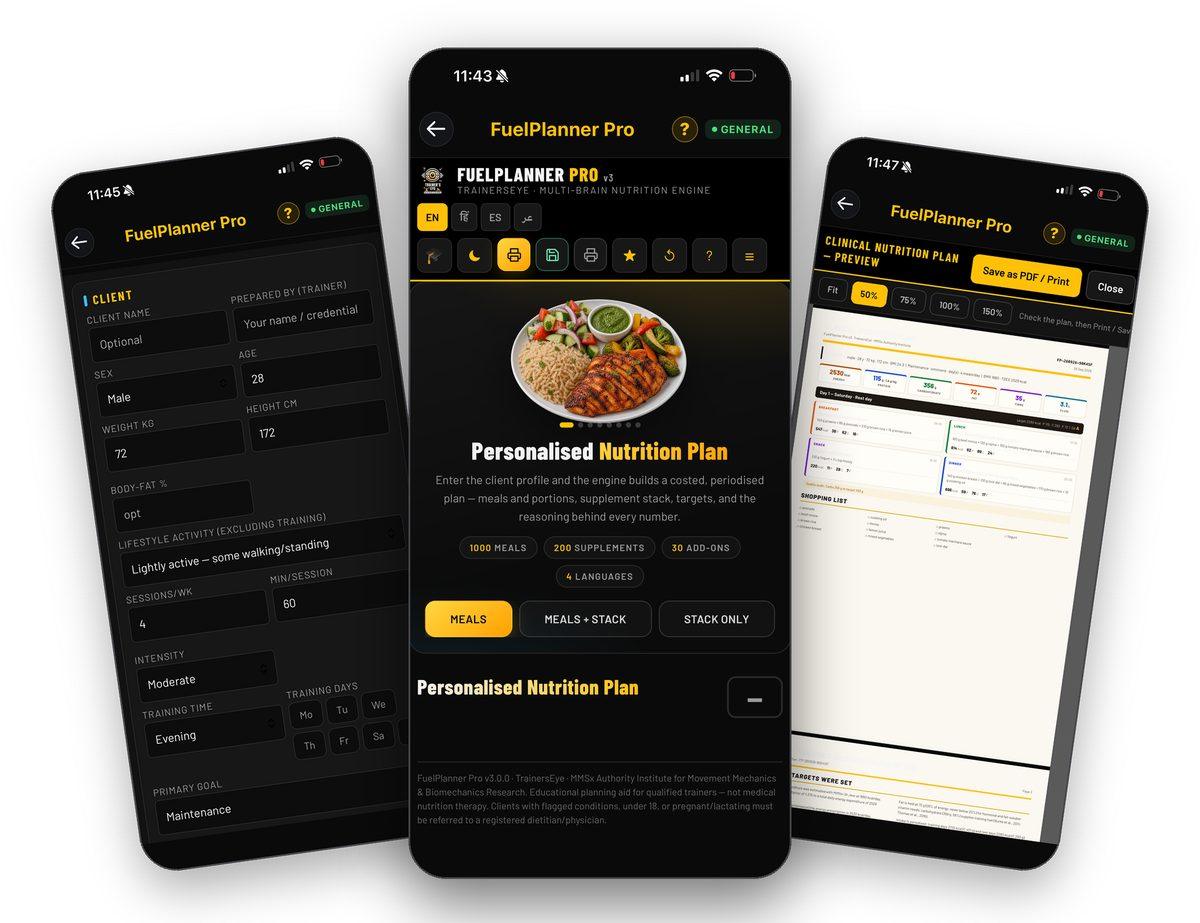
What is FuelPlanner Pro?
FuelPlanner Pro is a multi-brain nutrition engine for trainers. Enter a client's profile, training week and diet rules, and it builds a personalised plan: energy and macro targets from the client's own numbers, periodised training and rest days, meals with portions in grams, an optional graded supplement stack, a quality audit of the whole day, and a clinical A4 document with the method and evidence behind every figure. Every plan carries a serial number and can be saved, printed or shared.
Targets from the client's numbers
Energy from BMR and lifestyle plus the real training week; protein by goal in grams per kilo; fibre and fluid set to the plan; train and rest days periodised.
Meals you can adjust
Every meal in grams with its macros — slide the portion, swap the dish or mark it Never, and the day re-grades live.
A graded supplement stack
Meals only, meals with a stack, or stack only — supplements graded by evidence with timing, doses and interactions.
A clinical document
Save as PDF or print: targets, meals, shopping list and the method and evidence pages, with serial number and barcode.
Where to find it
Open the TrainersEye app, go to the Dashboard and tap FuelPlanner Pro. It is part of the General plan, so every subscriber can use it.
This guide in thirteen steps
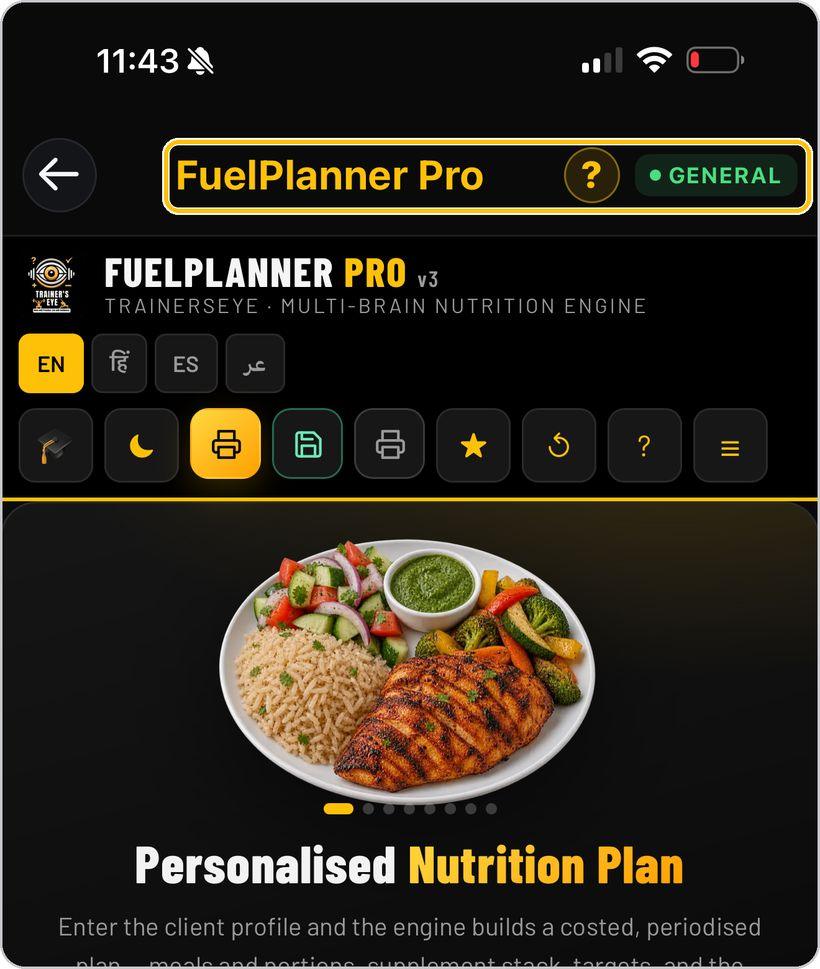
Open the tool
From the Dashboard, tap FuelPlanner Pro. It is part of the General plan, so every subscriber can use it.
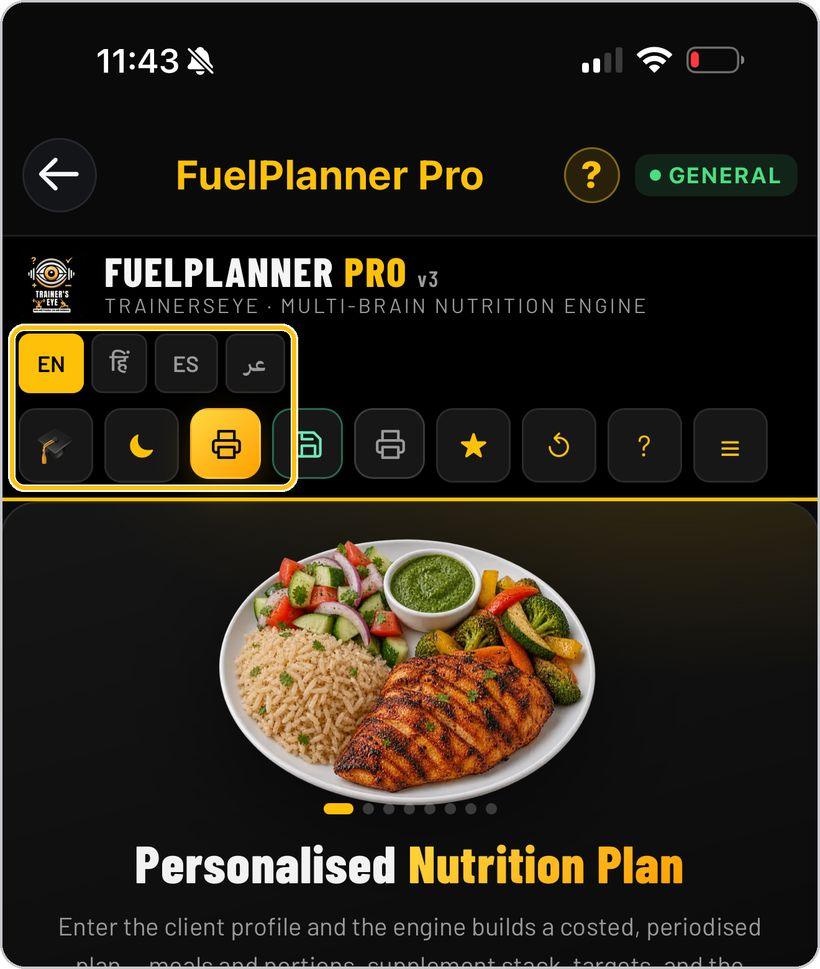
Language, view and look
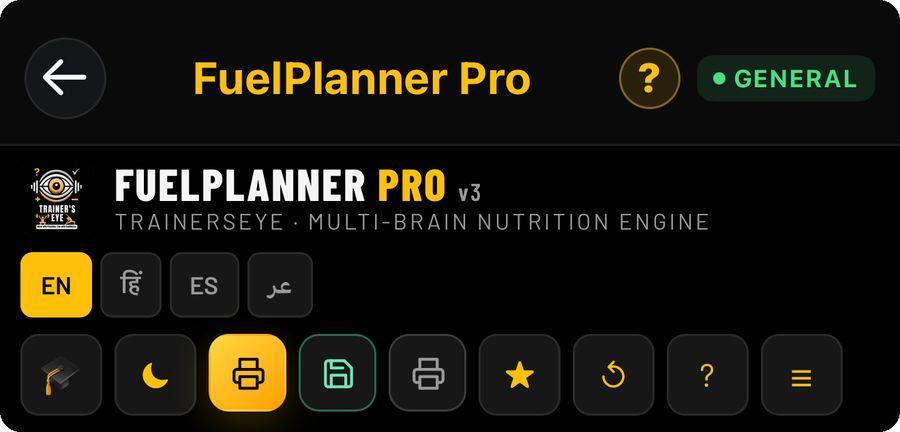
Pick English, Hindi, Spanish or Arabic with the pills. The graduation cap switches between trainer view and a client view that hides the working; the moon and sun switch the dark and light look.
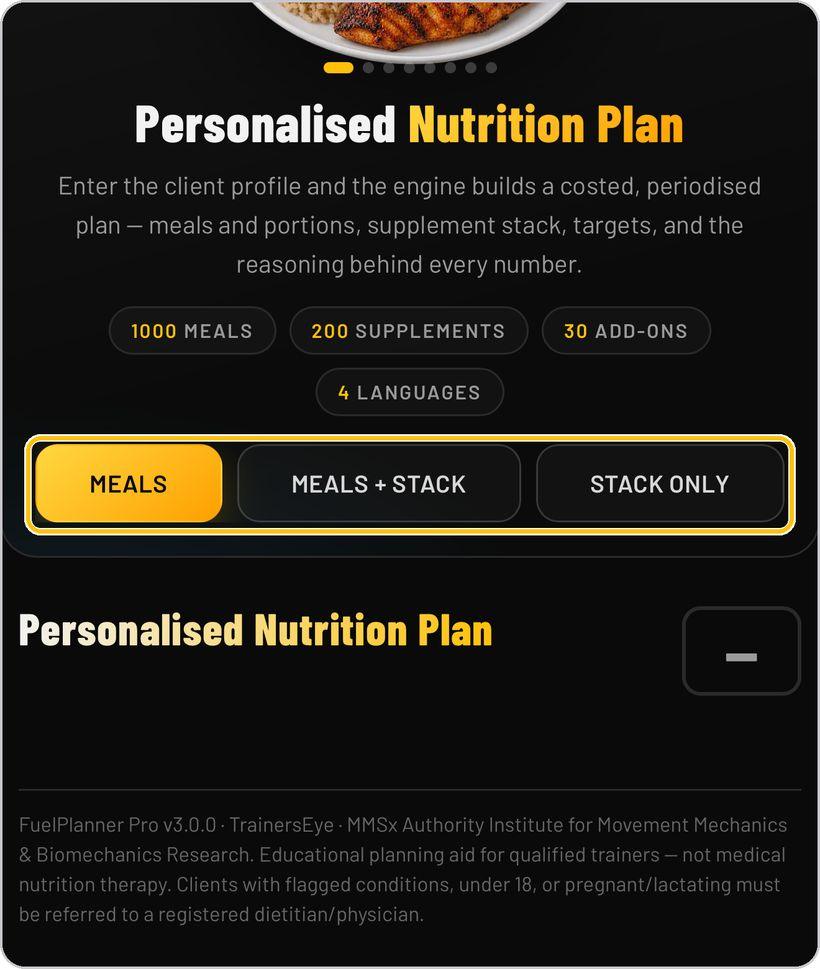
Choose what to build
Meals builds the meal plan; Meals + Stack adds a supplement stack; Stack Only gives the supplements alone.
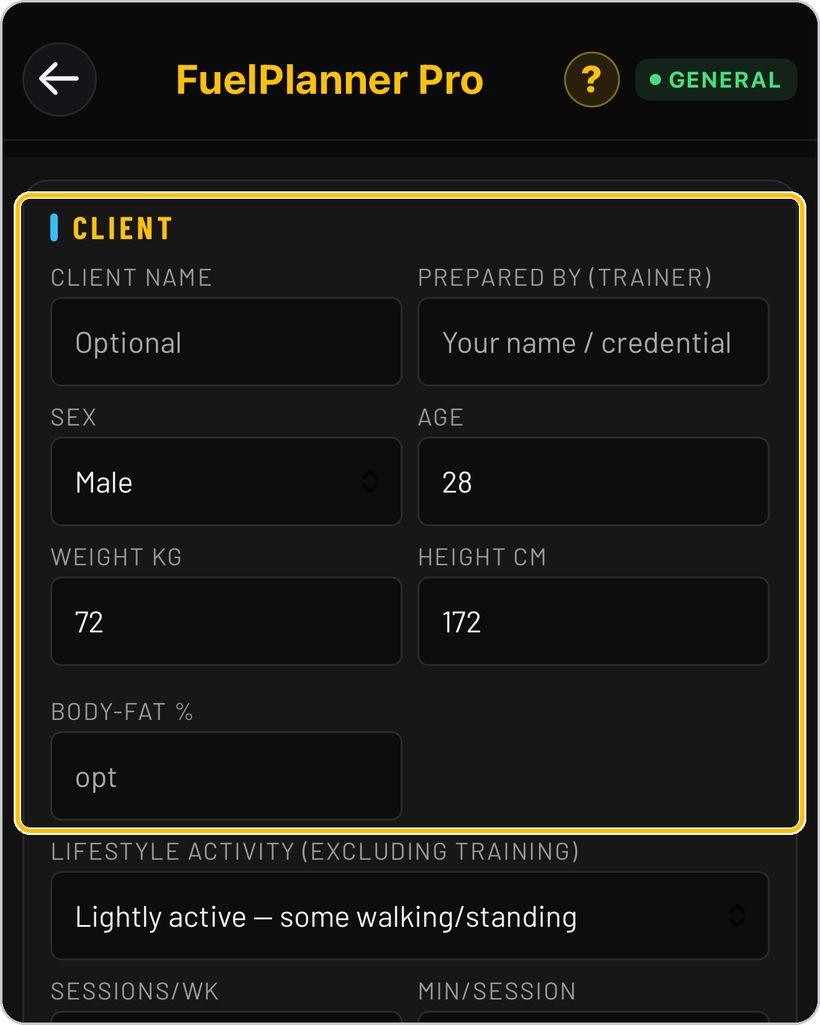
Enter the client
Fill in the client's name if you wish, your own name as the trainer, then sex, age, weight, height and body-fat percentage if known.
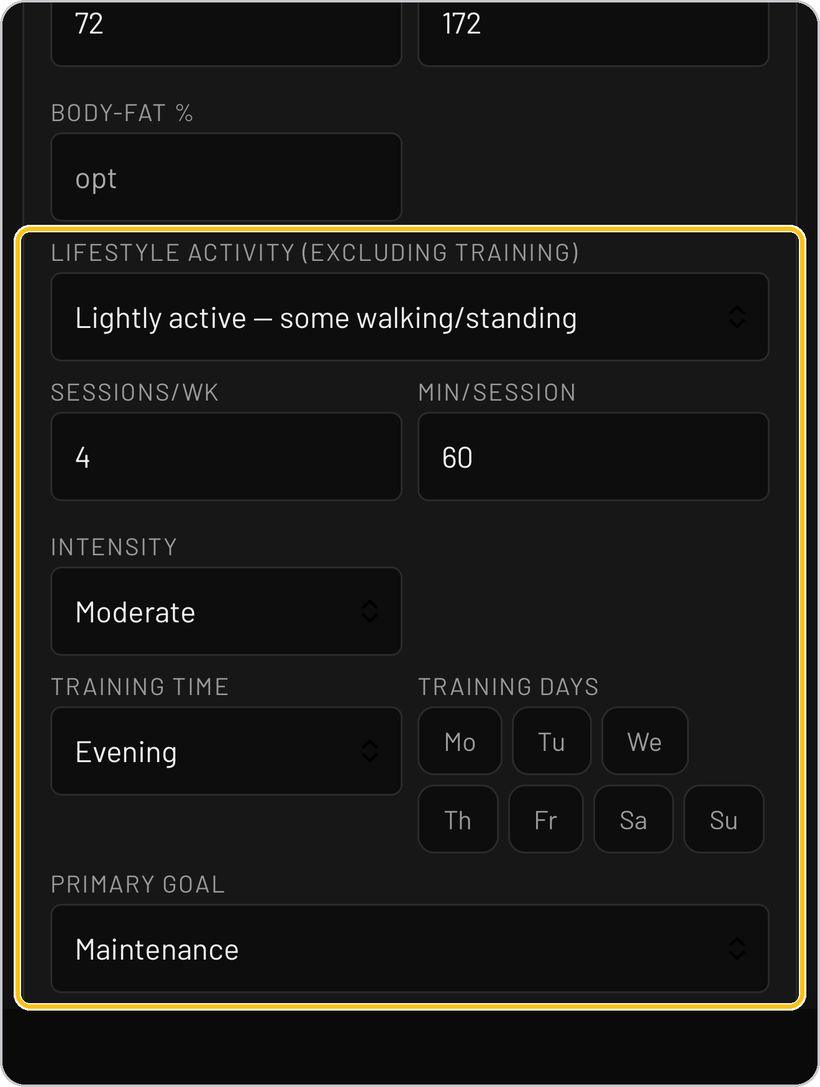
Activity, training and goal
Set lifestyle activity excluding training, then the training week — sessions, minutes, intensity, time of day and days — and the primary goal.
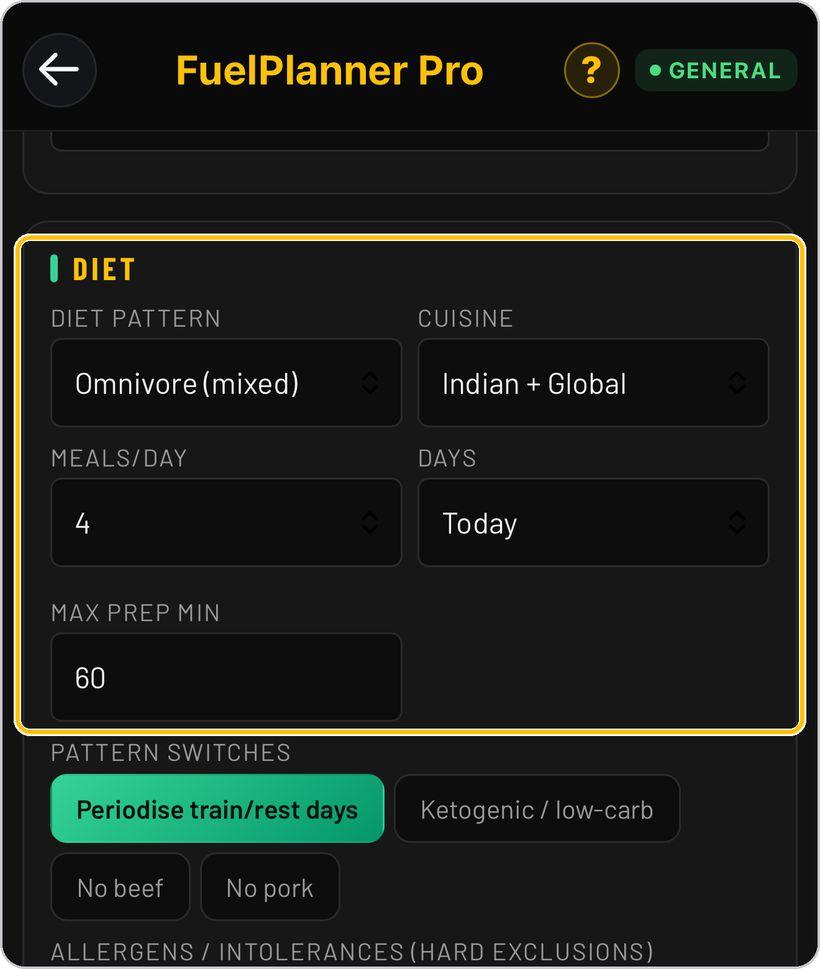
Diet pattern and cuisine
Choose the diet pattern, the cuisine, meals per day, how many days to plan and the maximum preparation time.
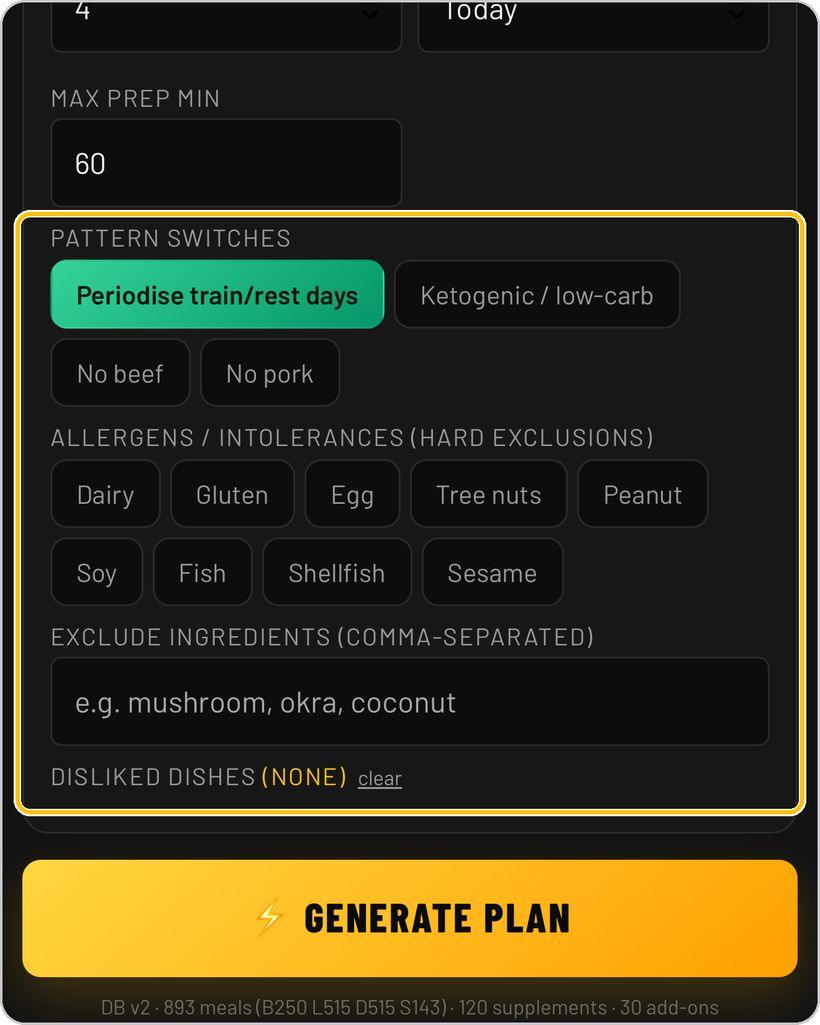
Switches, allergens and exclusions
Turn on Periodise train/rest days, Ketogenic / low-carb, No beef or No pork as needed. Tick allergens and intolerances — these are hard exclusions — and type any ingredients to exclude.
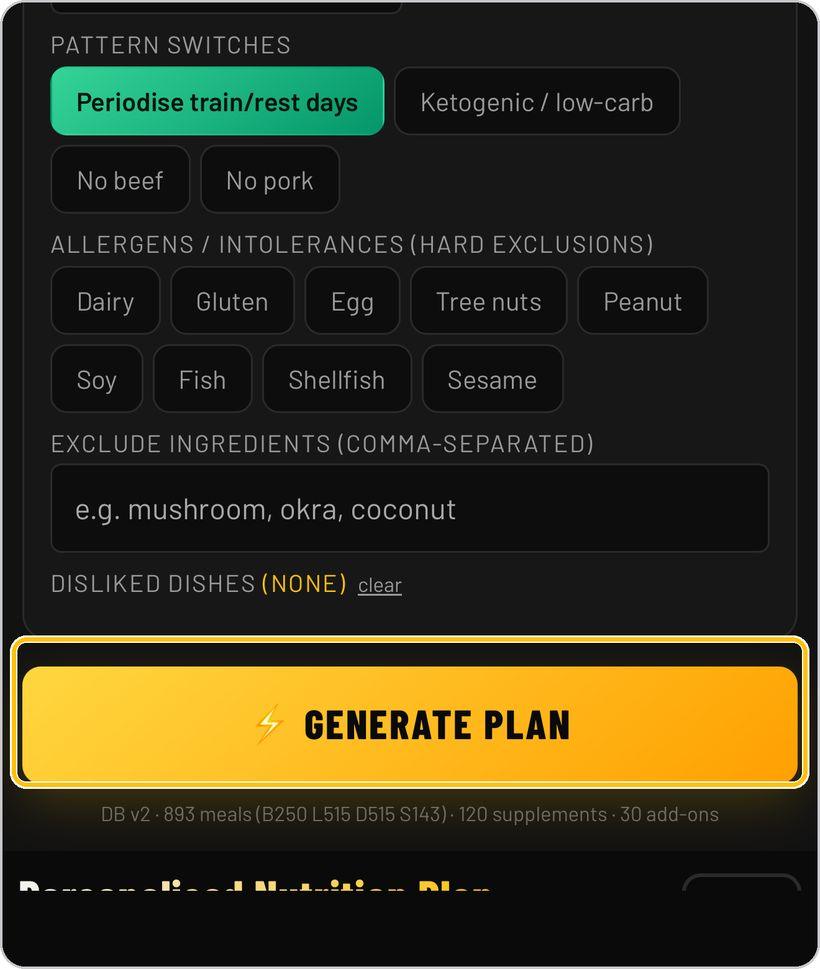
Generate the plan
Tap Generate Plan. The engine sets the targets, chooses and scales the meals, audits the day and shows the plan with its grade and serial number.
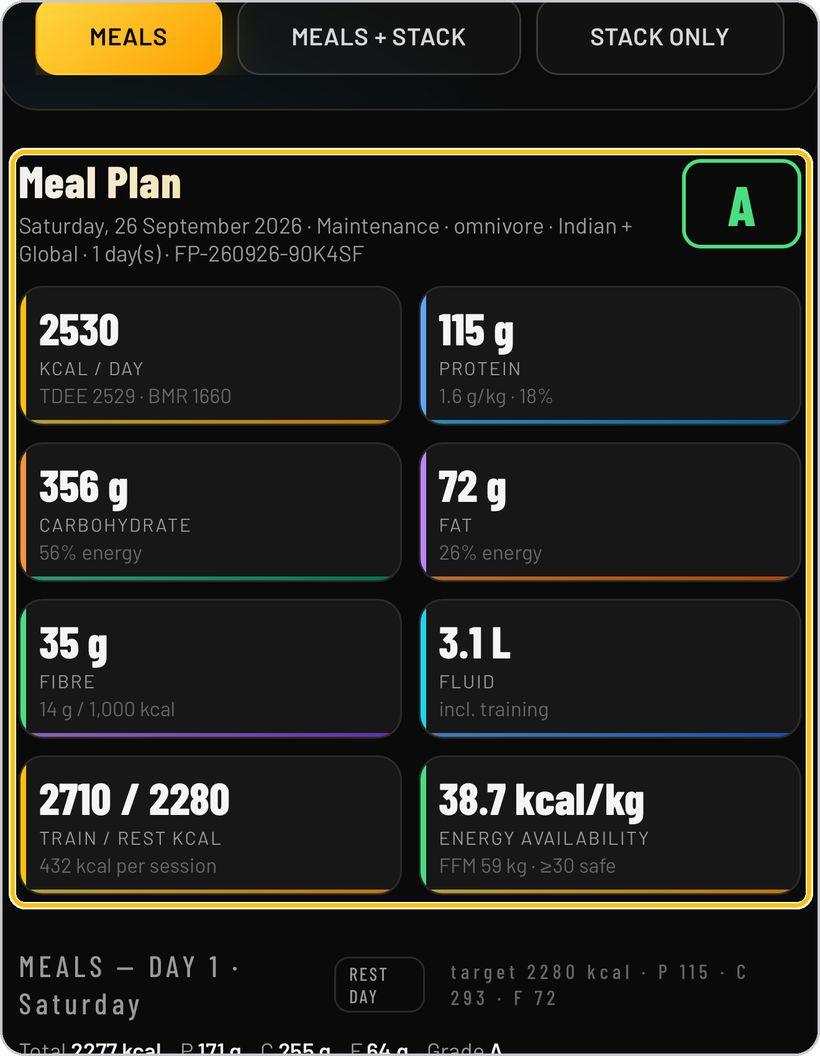
Read the targets
The tiles show the daily prescription: energy with TDEE and BMR, protein in grams and grams per kilo, carbohydrate and fat as a share of energy, fibre, fluid, train and rest day energy, and energy availability.
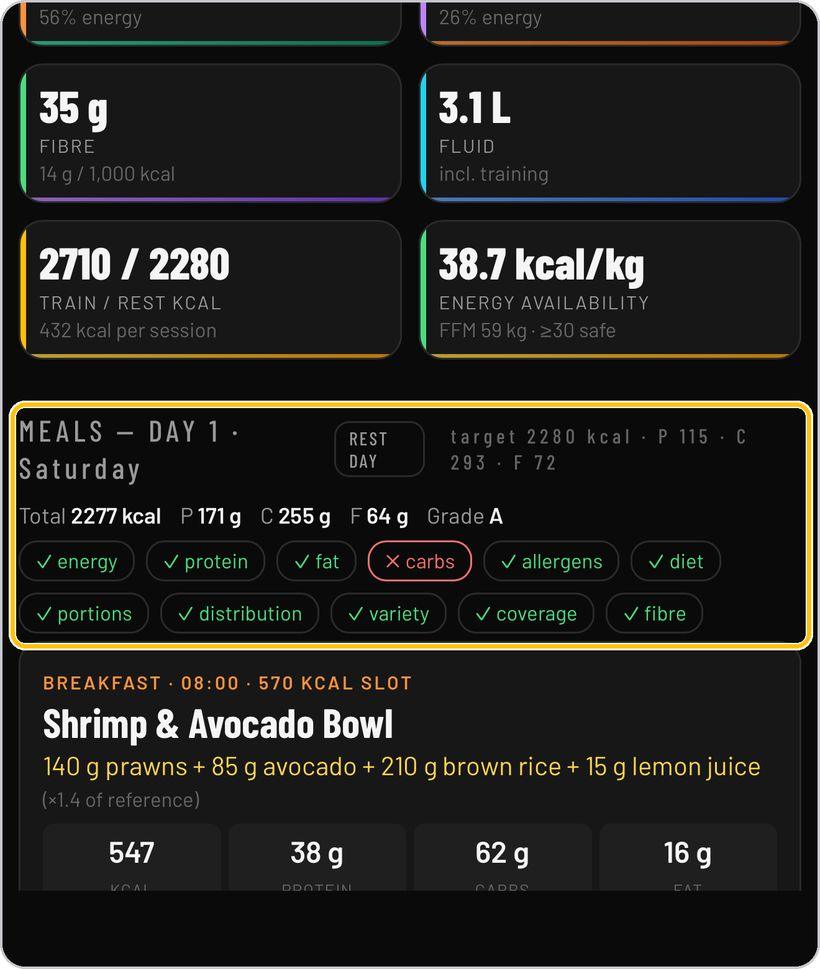
Check the day
Each day shows whether it is a training or rest day, its target, the total delivered and the grade, with a row of audit checks — energy, protein, fat, carbs, allergens, diet, portions, distribution, variety, coverage and fibre.
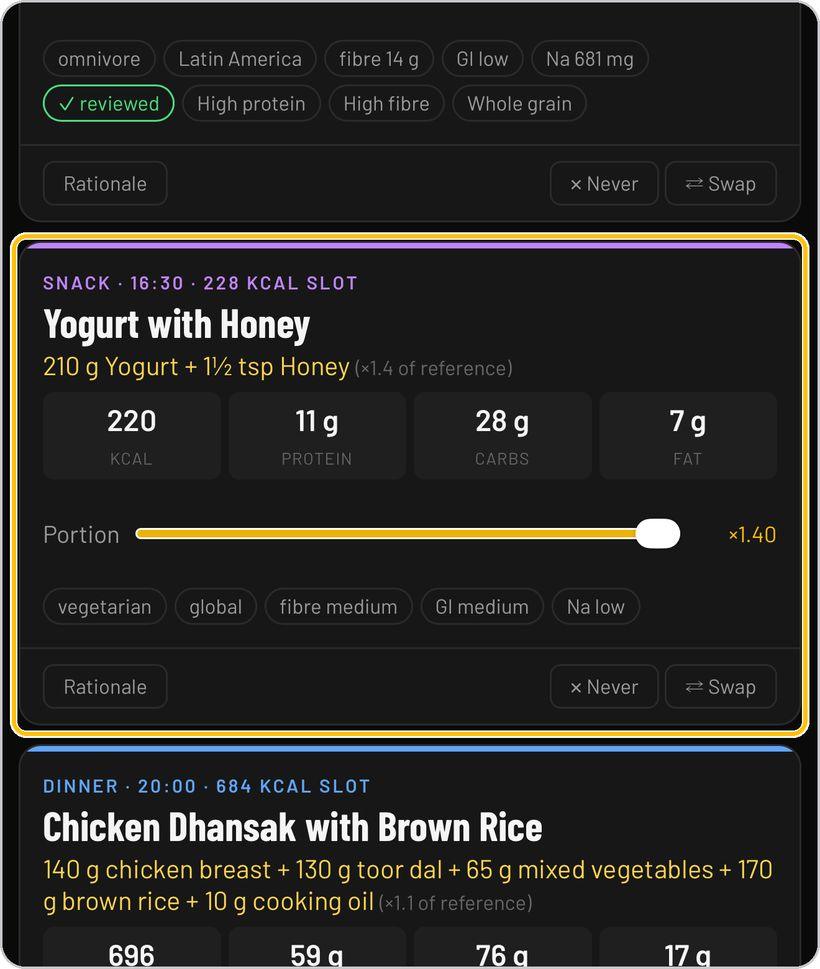
Adjust each meal
Every meal lists the dish, its ingredients in grams and its macros. Slide the portion, tap Rationale to see why it was chosen, Swap for another dish, or Never to keep it out of future plans.
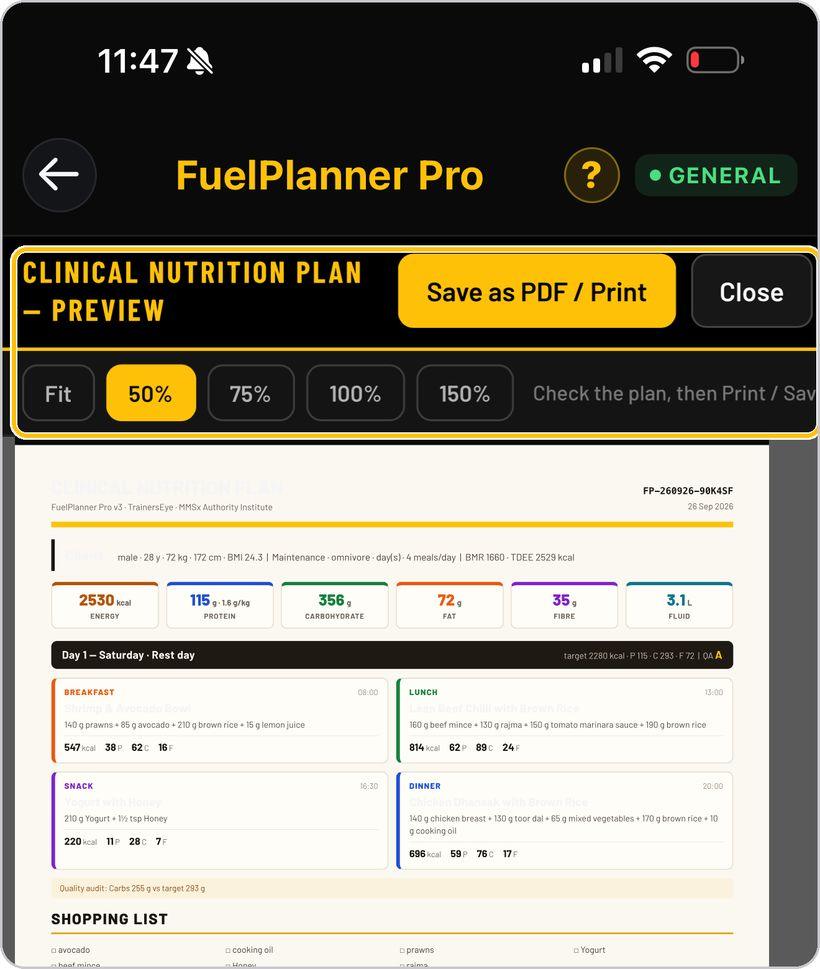
The clinical document
Tap the PDF button to open the Clinical Nutrition Plan preview. Check it at any zoom, then Save as PDF / Print. Page one holds the targets, meals and shopping list; page two the method, evidence and conditions of use.
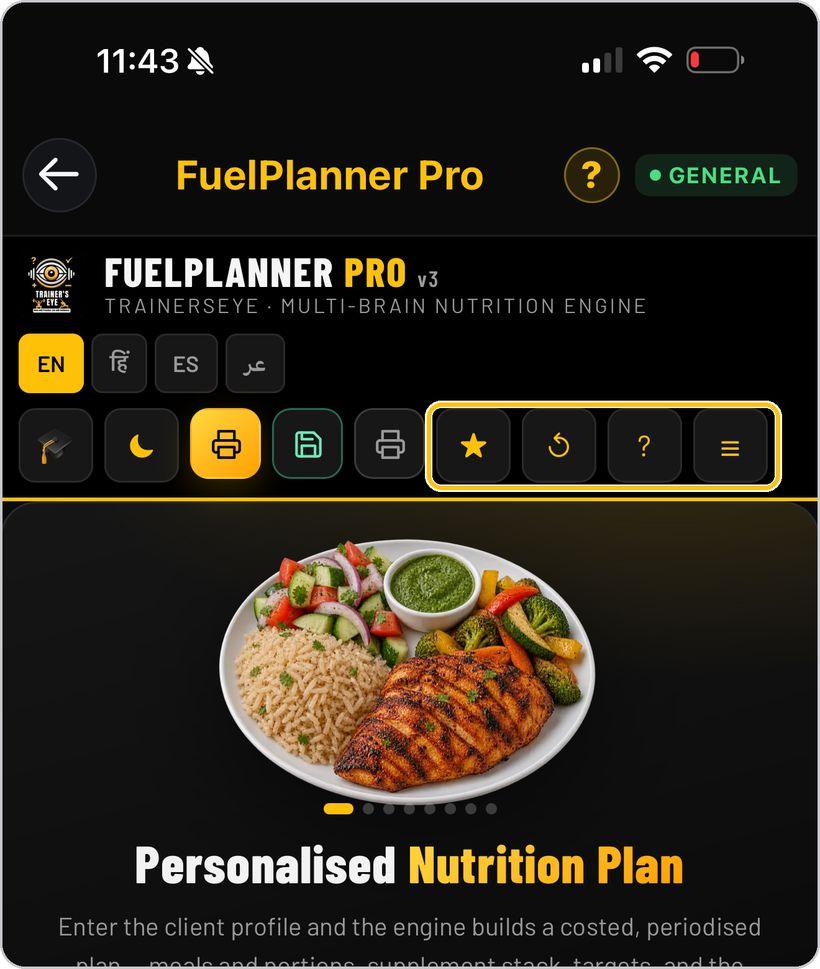
Save, history and help
The star saves the plan, the arrow opens your plan history, and the question mark reopens the first-use guide.
You're ready
That's it. Open FuelPlanner Pro and build the first plan.
Reading the clinical nutrition plan
Every plan prints as one clinical document. Here is what each part means.
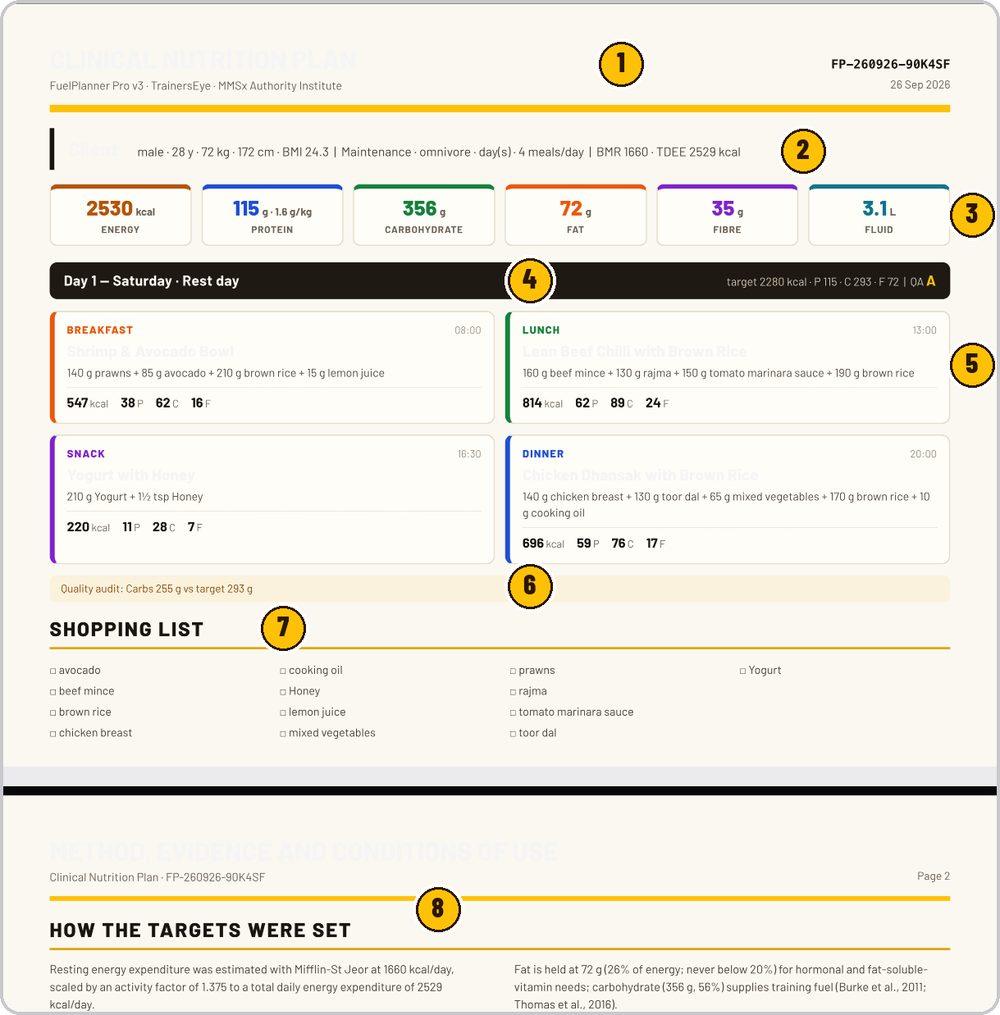
Clinical Nutrition Plan, the FP serial number and the date it was issued.
Sex, age, weight, height and BMI; goal, diet pattern and meals per day; BMR and TDEE.
Energy, protein, carbohydrate, fat, fibre and fluid for the day.
The day, whether it is a training or rest day, its target and its quality grade.
Slot and time, dish, ingredients in grams, calories and macros.
Anything the day missed against its target, stated plainly.
Every ingredient in the plan, ready to tick off.
Page two: how the targets were set, the evidence behind them and the conditions under which the plan may be used.
FuelPlanner Pro is part of TrainersEye
Support: support@trainerseye.com · trainerseye.com
Multi-brain nutrition engine · Backed by MMSx Authority Institute
Educational planning aid for qualified trainers — not medical nutrition therapy. Clients with flagged conditions, under 18, or pregnant or lactating must be referred to a registered dietitian or physician.