
Coach
Your coach, two ways — movement on camera, body mass on trend.
What is Coach?
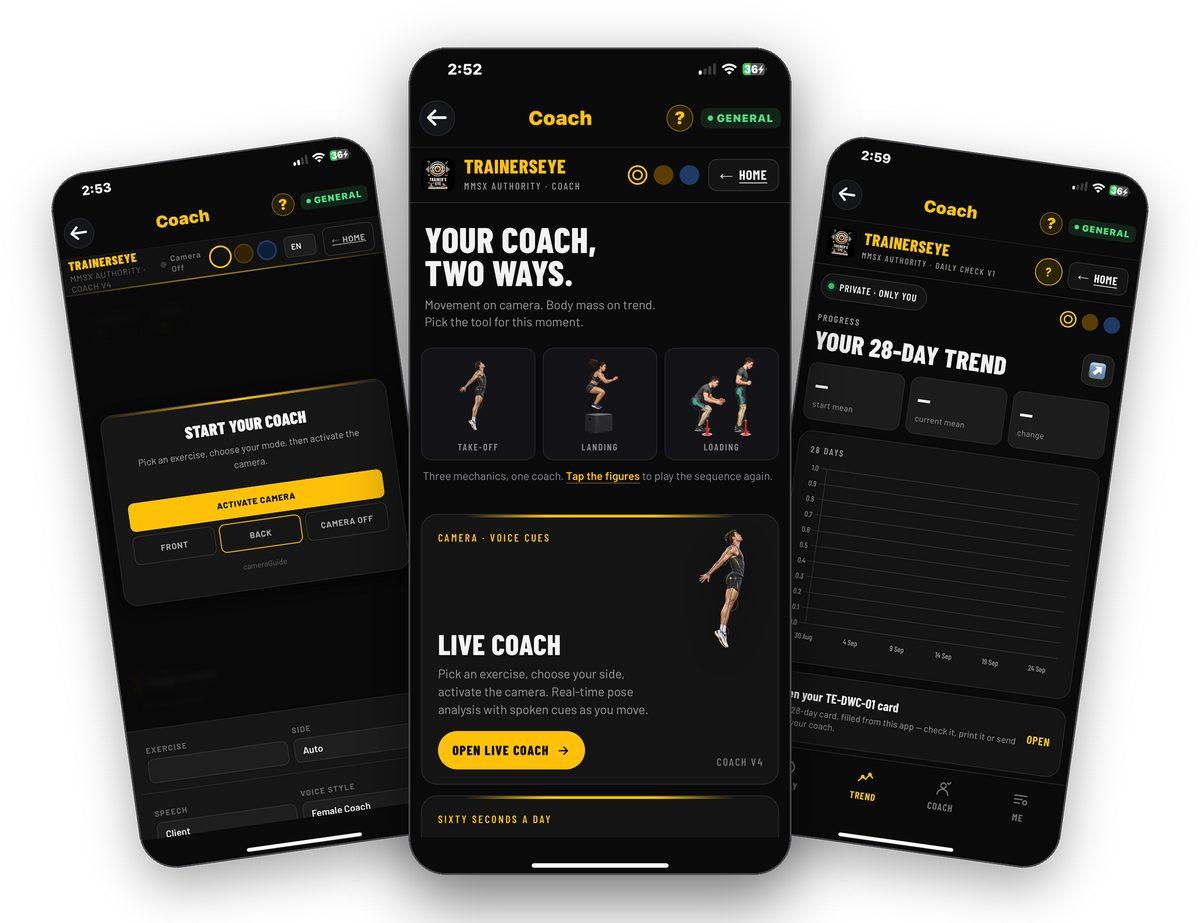
Coach gives you your coach two ways. Live Coach puts the camera on your movement — pick an exercise, choose your side, activate the camera, and get real-time pose analysis with spoken cues as you move. Daily Weight Check is the sixty-seconds-a-day body-mass log that reads the trend, not the number, and makes one decision a week on the 7-day mean. Both stay private until you choose to share with your coach.
Live Coach
Camera on, exercise chosen — real-time pose analysis with spoken cues as you move, front or back camera, female or male voice.
Daily Weight Check
A 28-day body-mass log that reads the trend, not the number — one decision a week on the 7-day mean.
Your coach, your data
Daily Check is private by default; connect a coach by secure invitation or send a one-time weekly report.
Three plates, three questions
Force, position and trend — what the coach is reading, shown as plates you can study.
Where to find it
Open the TrainersEye app, go to the Dashboard and tap Coach. It is part of the General plan, so every subscriber can use it.
This guide in thirteen steps
Open the tool
From the Dashboard, tap Coach. It is part of the General plan, so every subscriber can use it.
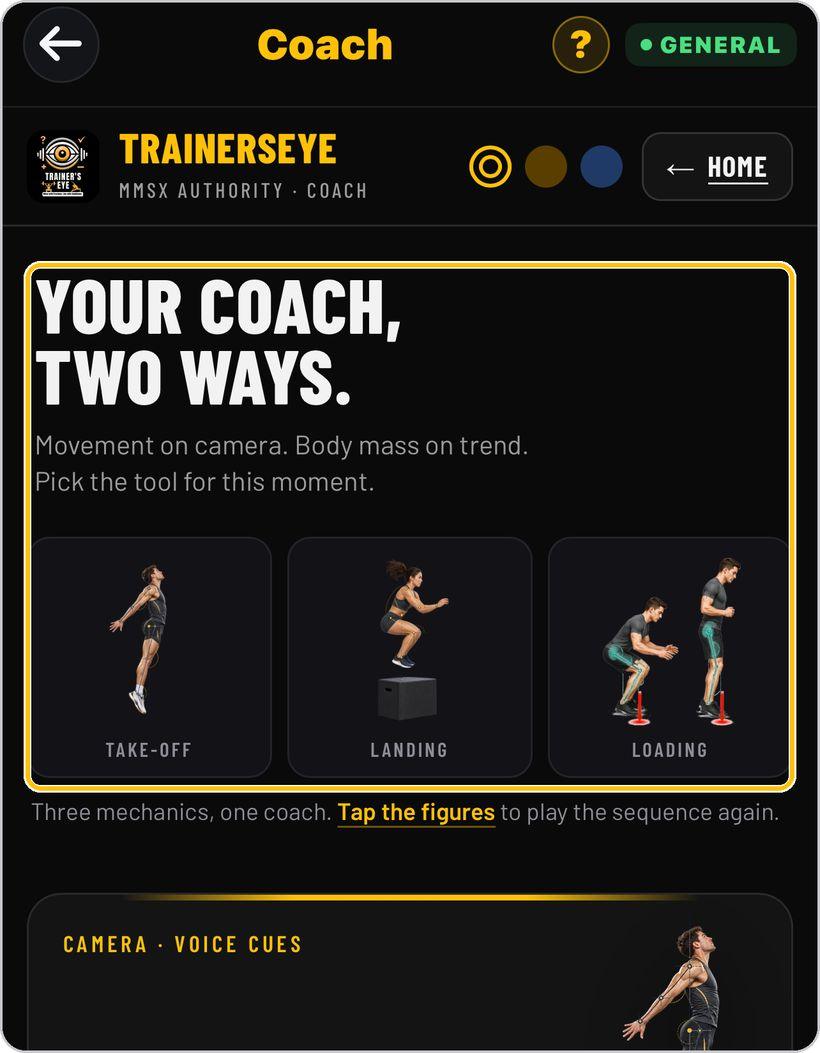
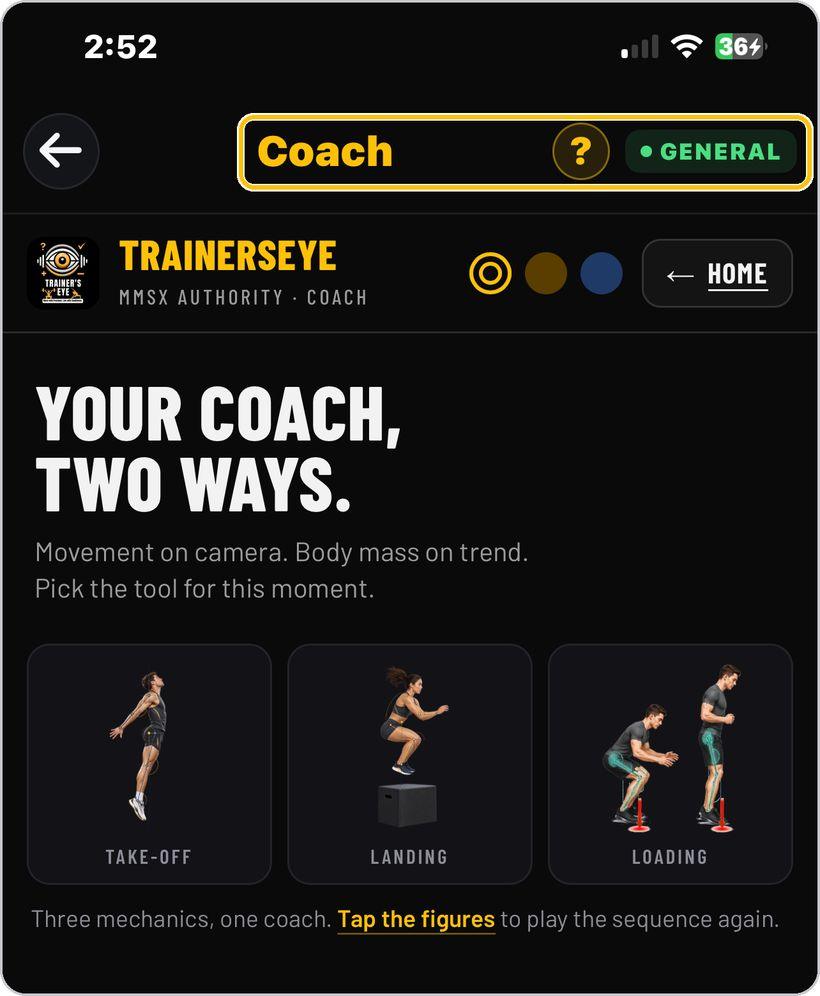
Pick the tool for this moment
Your coach, two ways: Live Coach watches movement on camera; Daily Weight Check reads body mass on trend. Tap the three figures — take-off, landing, loading — to play the mechanics sequence again.
Look, theme and Home
The three dots switch the look — amber, warm dark or navy. Home brings you back to this landing from either tool.
Open Live Coach
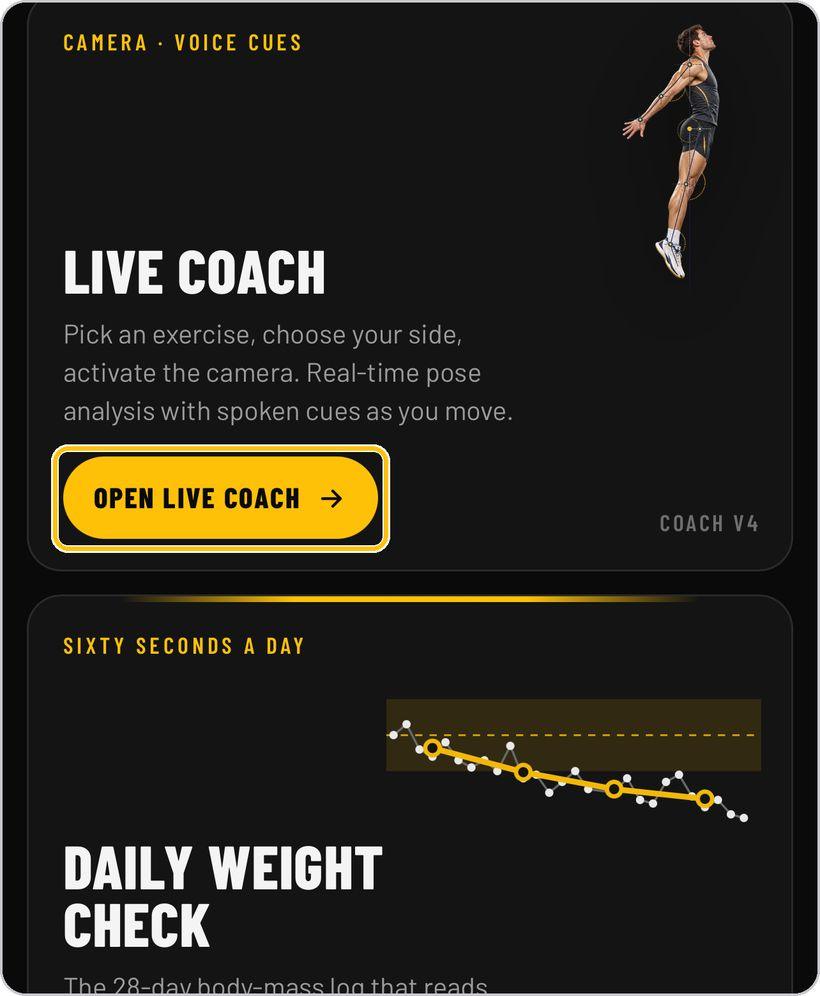
Tap Open Live Coach. Coach V4 opens with the camera off and the start panel ready.
Exercise, side, speech and voice
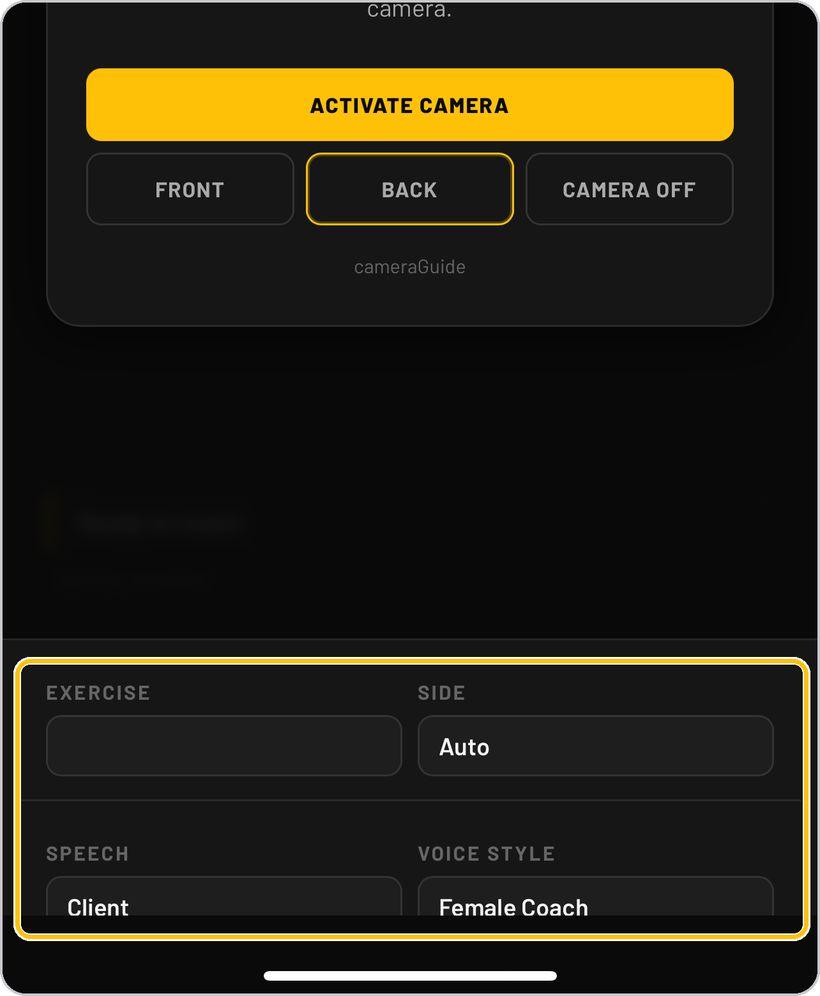
Below the panel choose the exercise, your side (Auto lets the coach decide), who the speech is for and the voice style — female or male coach. Test Voice plays a sample.
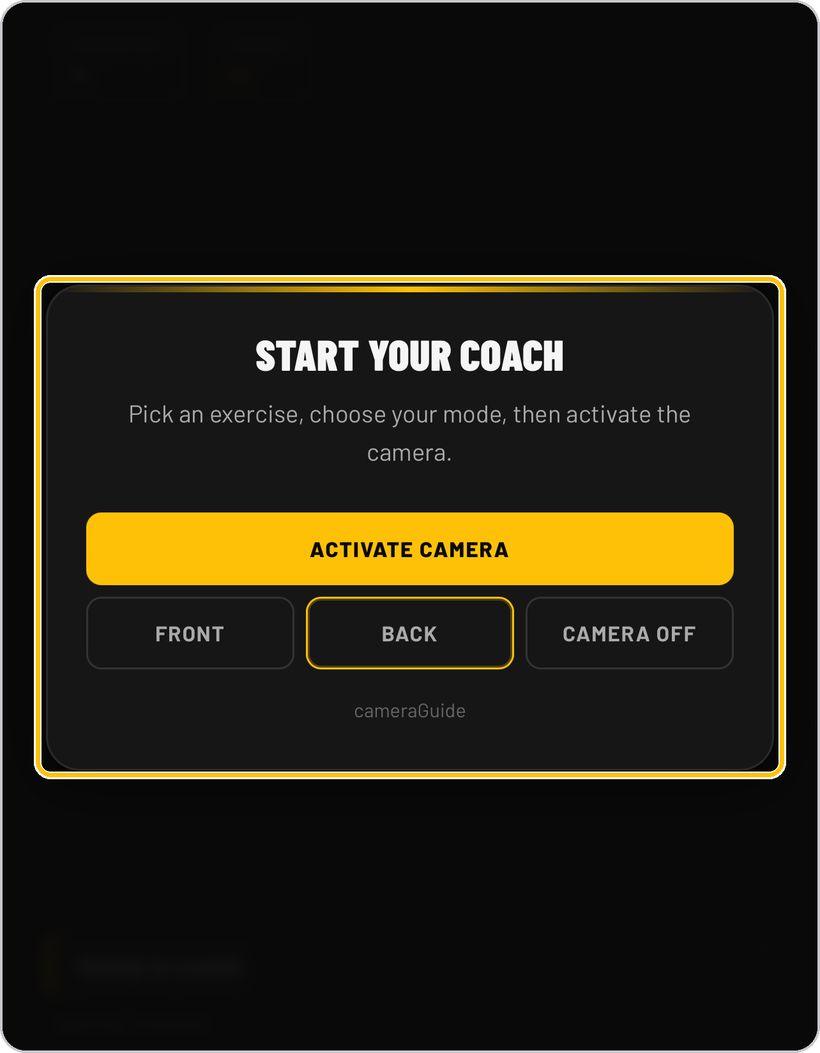
Activate the camera
Tap Activate Camera, then choose Front or Back. Camera Off stops the coach at any time.
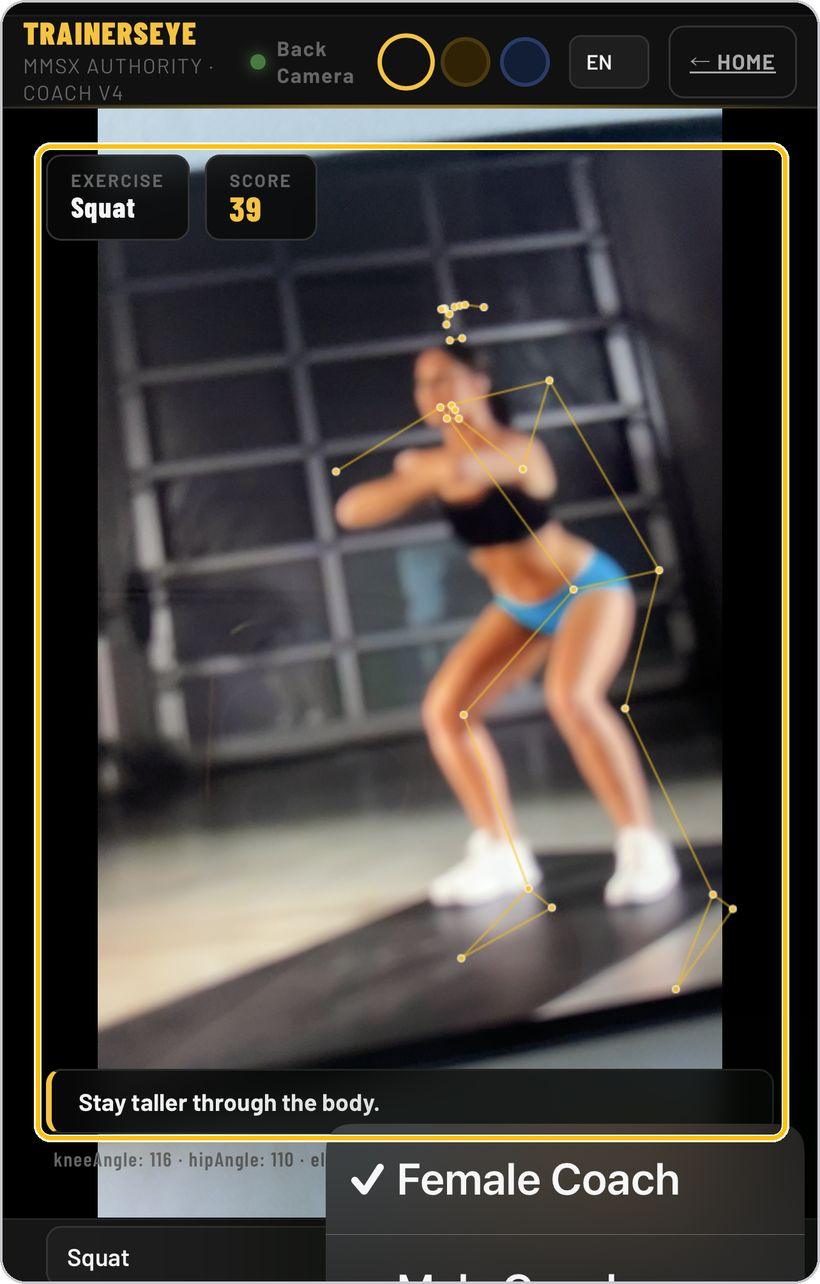
Move — score, skeleton and cues
As you move, the coach draws your joints, scores the rep and speaks a cue — such as Stay taller through the body. Joint angles read below the picture.
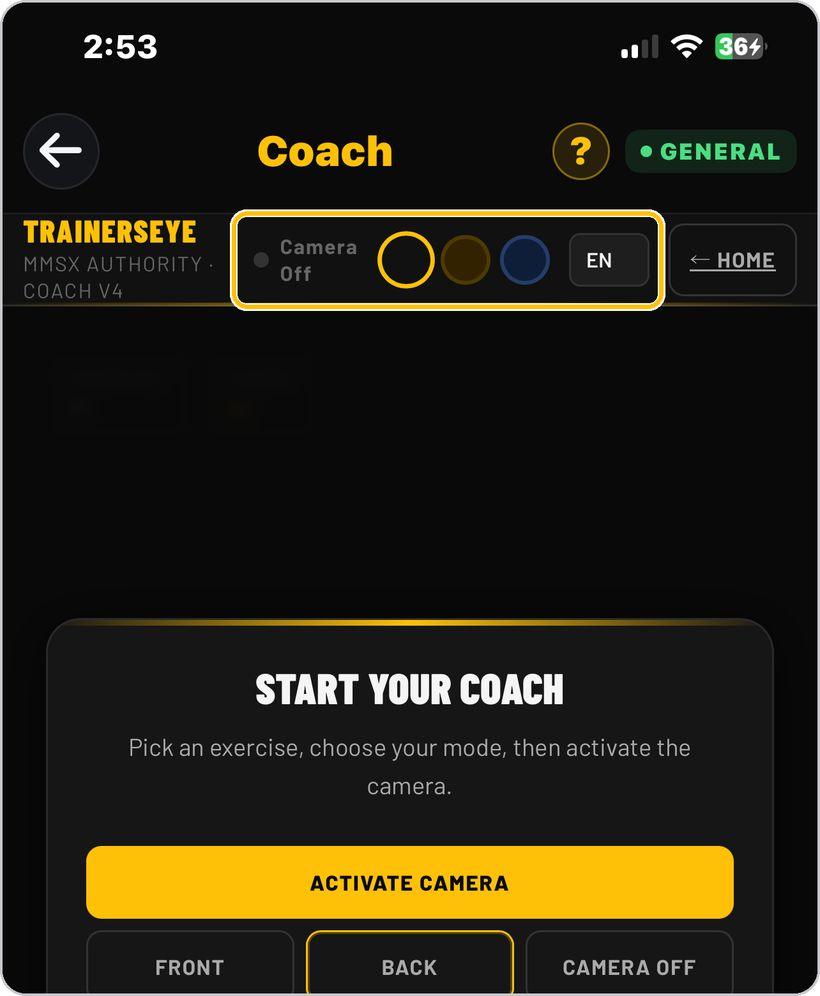
Language and status
The header shows the camera status, the look and the language. Tap EN to switch the coach to Hindi, Spanish or Arabic.
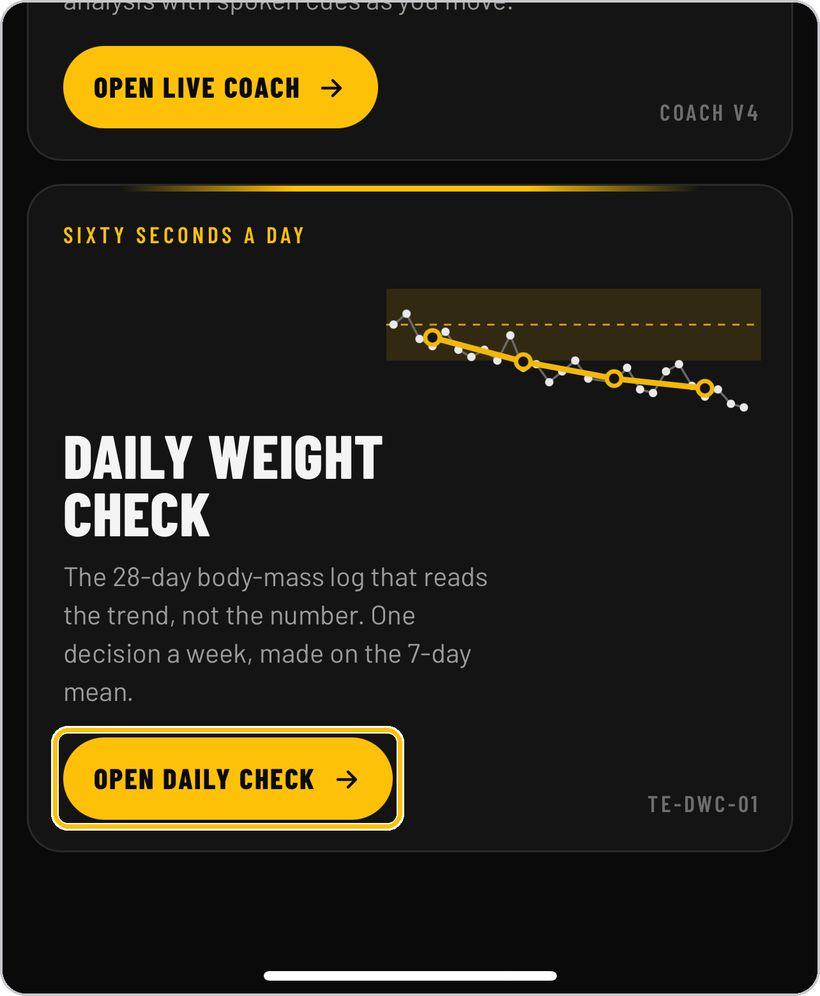
Open Daily Weight Check
Back on the landing, tap Open Daily Check. Daily Check V1 opens on your private 28-day log — only you can see it.
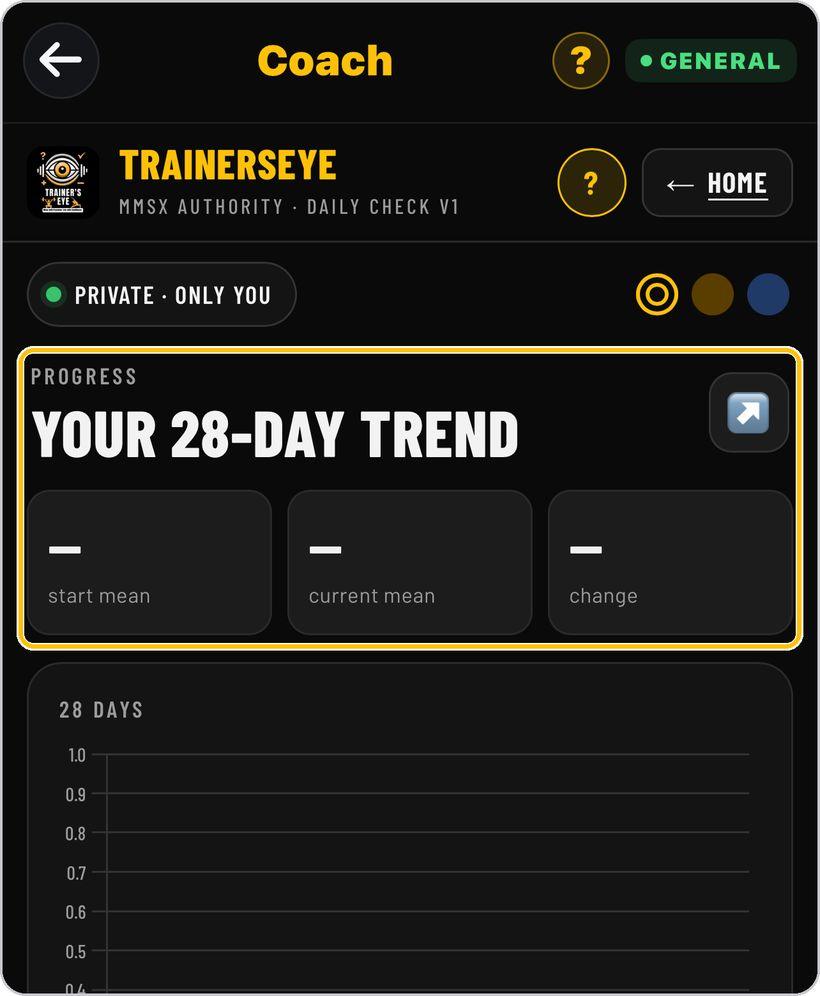
Today and Trend
Today logs this morning's weight; Trend shows the 28-day chart with the start mean, current mean and change, and the ±1 kg noise zone.
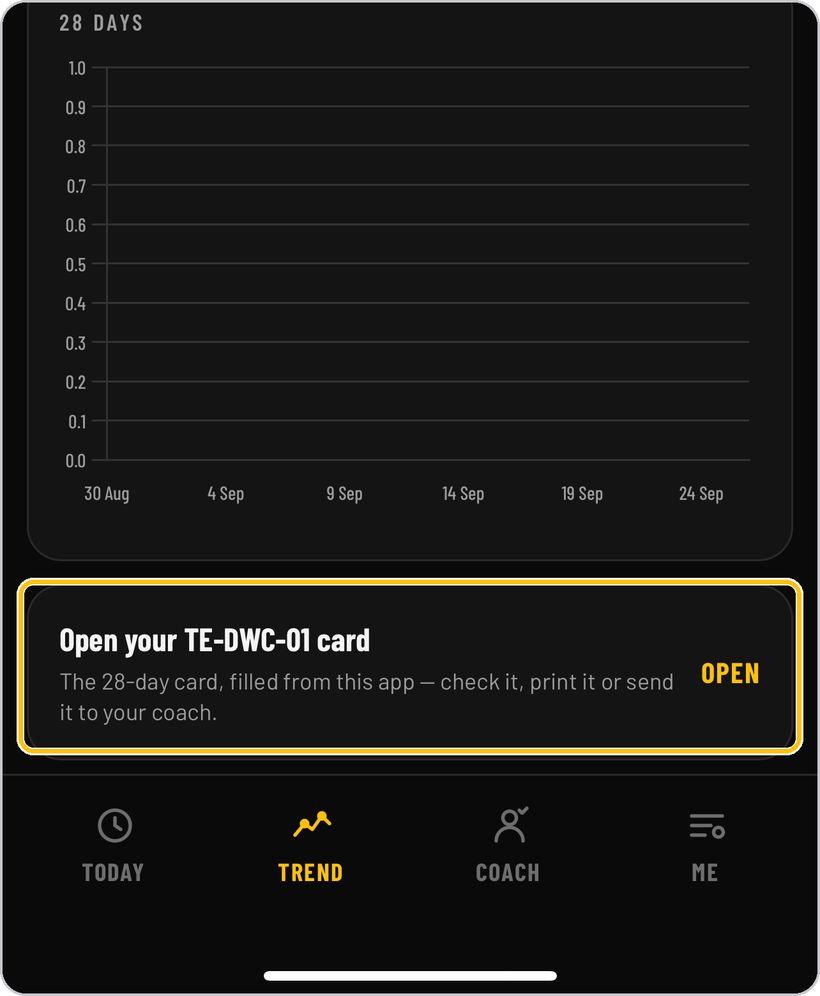
Your TE-DWC-01 card
Open your TE-DWC-01 card — the 28-day card filled from the app — to check it, print it or send it to your coach.
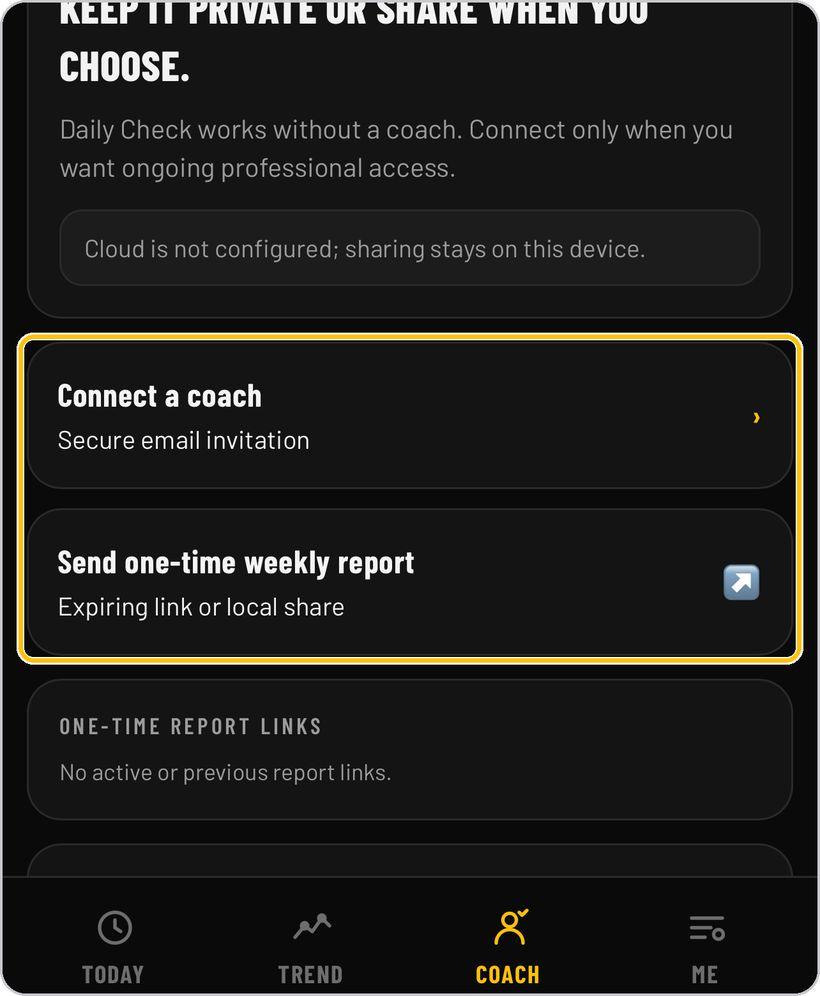
Share with your coach
Coach sharing is yours to control: connect a coach by secure email invitation, or send a one-time weekly report by an expiring link or local share.
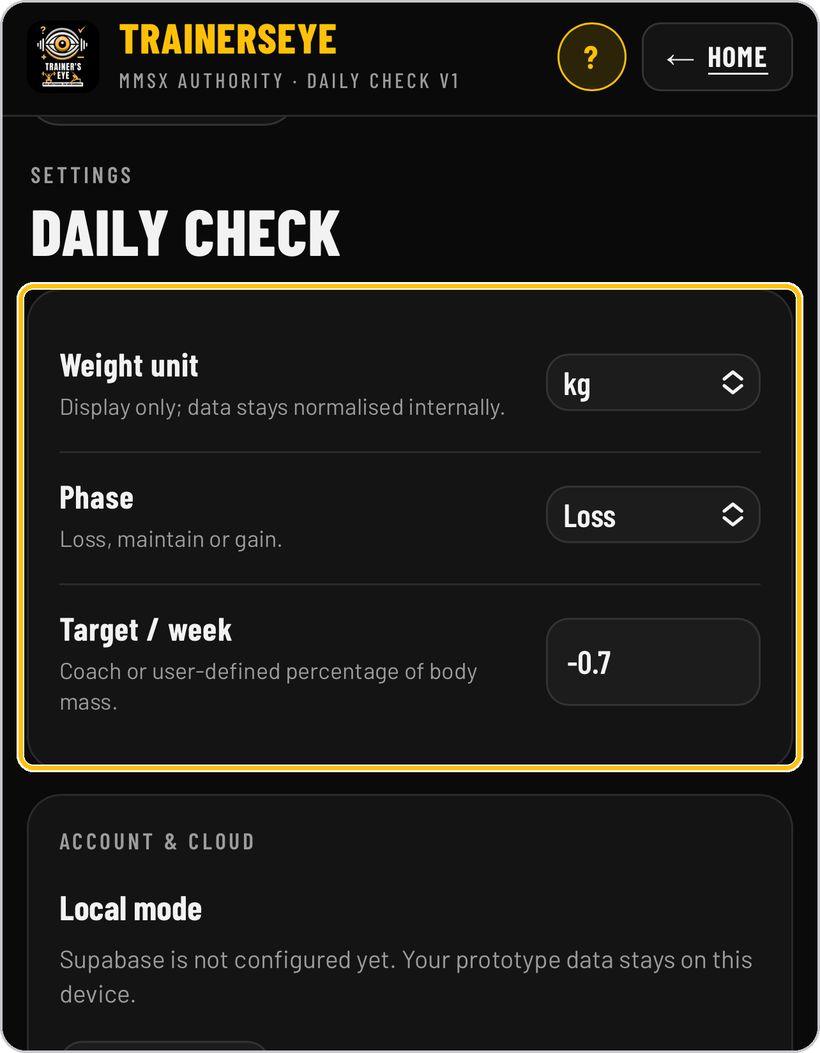
Unit, phase and target
In Me, set the weight unit, the phase — loss, maintain or gain — and the weekly target as a percentage of body mass. Daily motivation reminders live here too.
You're ready
That's it. Open Coach, pick the tool for this moment and start.
What the coach is reading
Three plates, three questions — force, position and trend. Modelled from first principles, not measured participant data.
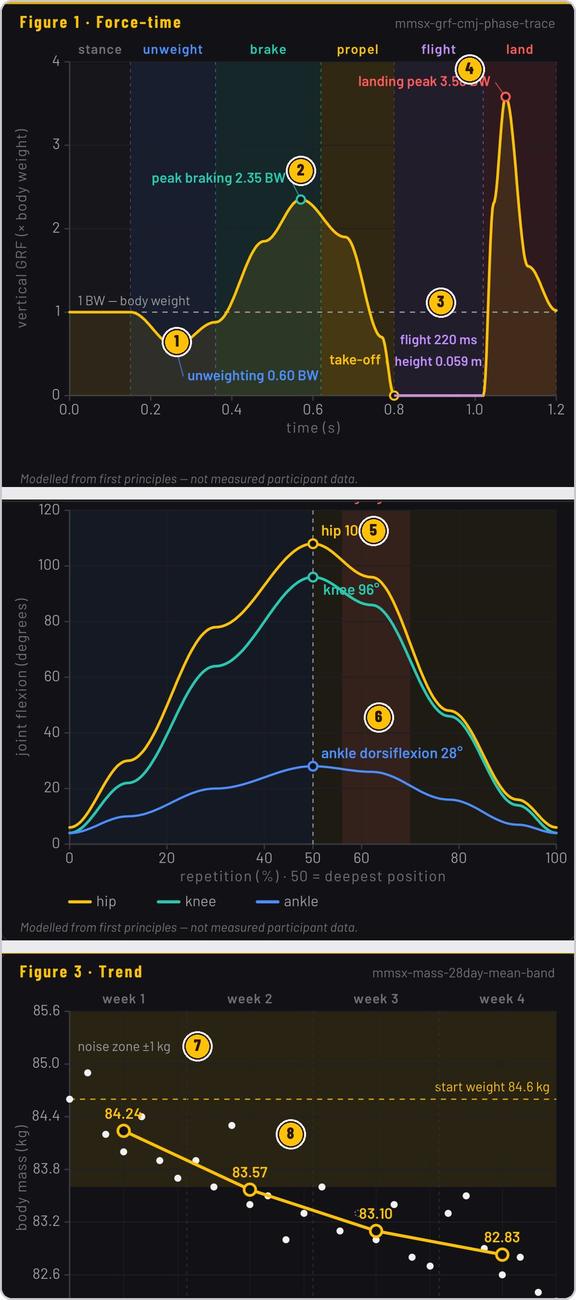
Force drops to 0.60 BW as the body is dropped.
2.35 BW to stop the drop — the propulsive push is what is left above body weight.
Take-off, then 220 ms in the air for 0.059 m.
3.58 BW in under 60 ms — the expensive part, and why the coach watches the landing.
Hip 108°, knee 96°, ankle 28° at the deepest point — the ankle most often limits depth.
The shaded band on the way up, where extensor demand peaks and form breaks first.
±1 kg around the start weight — daily readings live here; ignore them.
The 7-day mean, week by week — the only line that decides anything.
Coach is part of TrainersEye
Support: support@trainerseye.com · trainerseye.com
Coach V4 · Daily Check V1 · Backed by MMSx Authority Institute
Movement cues and weight trends are guidance, not medical advice. Stop at pain; talk to your coach or physician before changing a phase or target.