
MoPro Create
MoPro Create is the TrainersEye document engine.
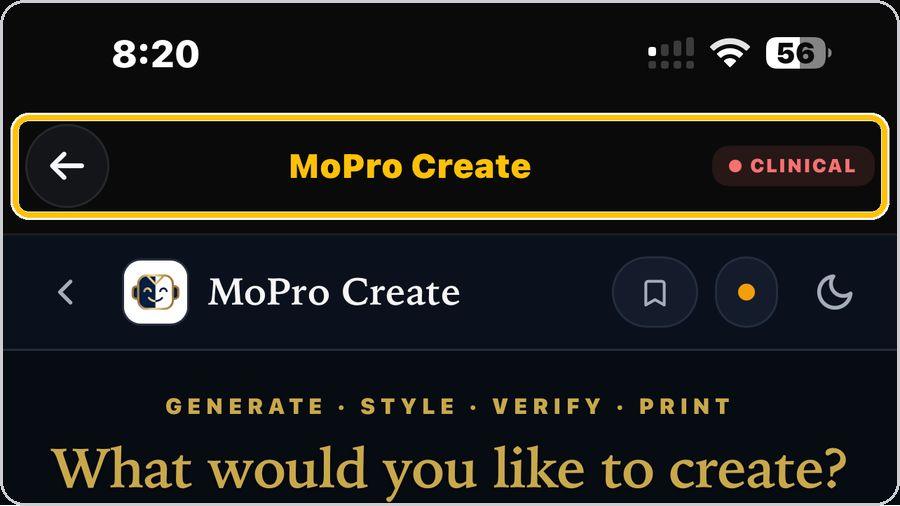 1 Open the toolFrom the Dashboard, tap MoPro Create. It is a Clinical-plan tool — the CLINICAL badge sits beside the title. | 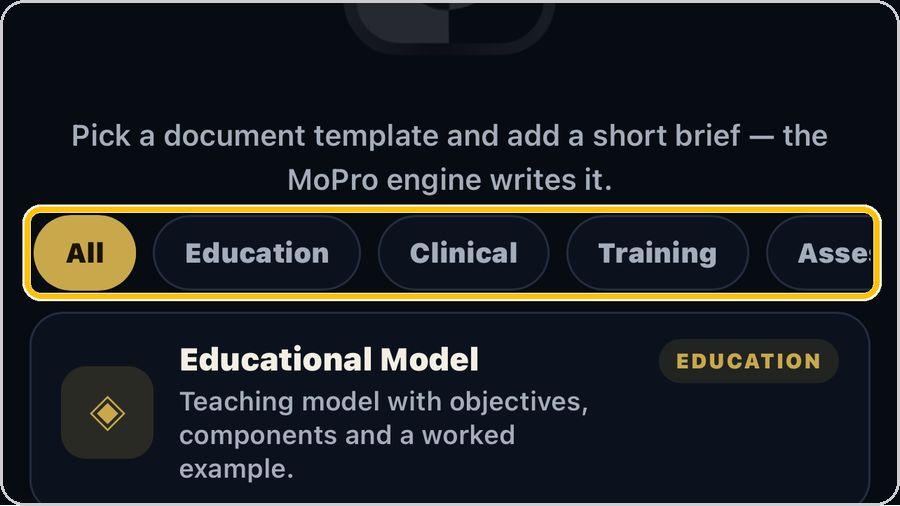 2 Pick a categoryThe flow is Generate · Style · Verify · Print. | 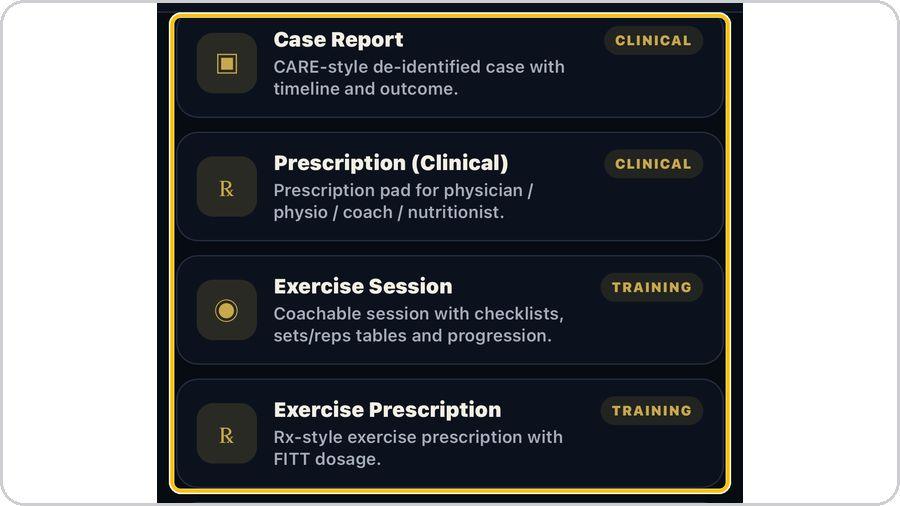 3 Choose a templateTwelve templates: Educational Model, Educational Notes and Lesson / Study Guide; Rehab Protocol. | 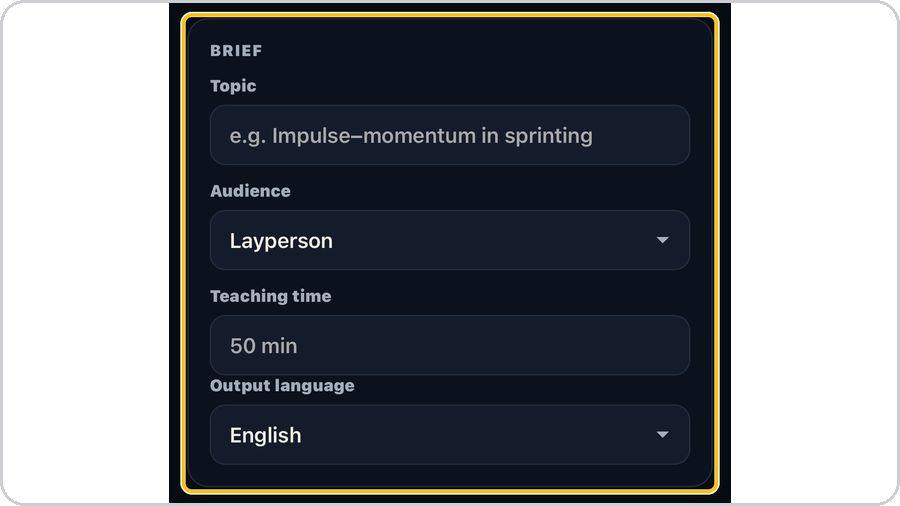 4 Write the briefType the topic — Impulse–momentum in sprinting, for example — then set the audience, the teaching time and the output language. |
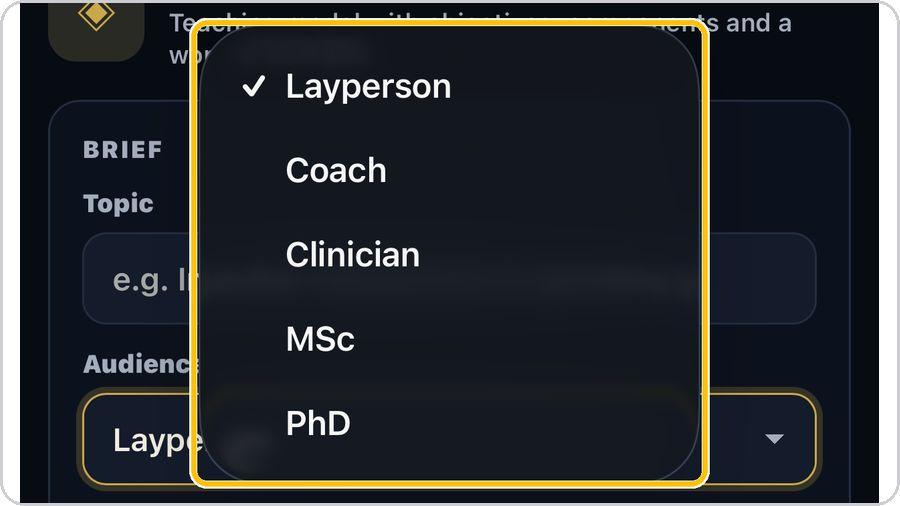 5 Set the audienceAudience sets the depth and the vocabulary of the document: Layperson, Coach, Clinician, MSc or PhD. | 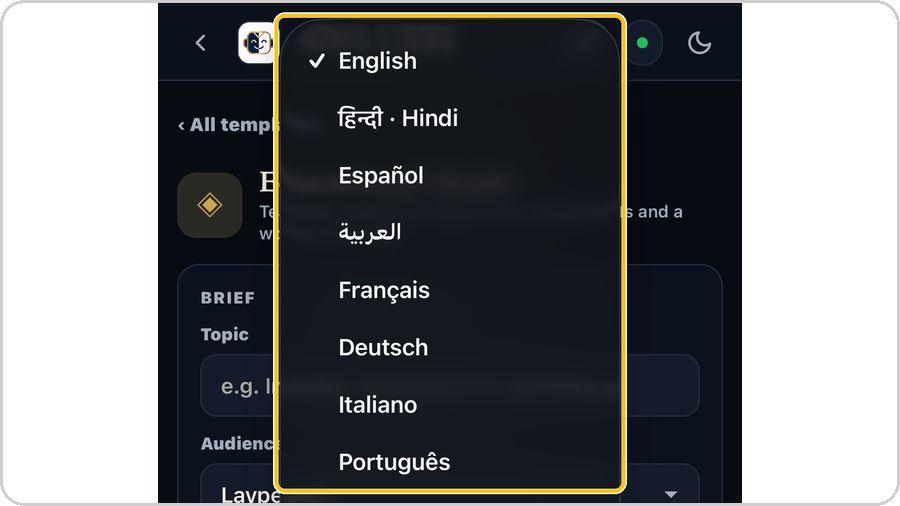 6 Choose the output languageOutput language offers twelve: English, Hindi, Spanish, Arabic, French, German, Italian, Portuguese, Dutch. | 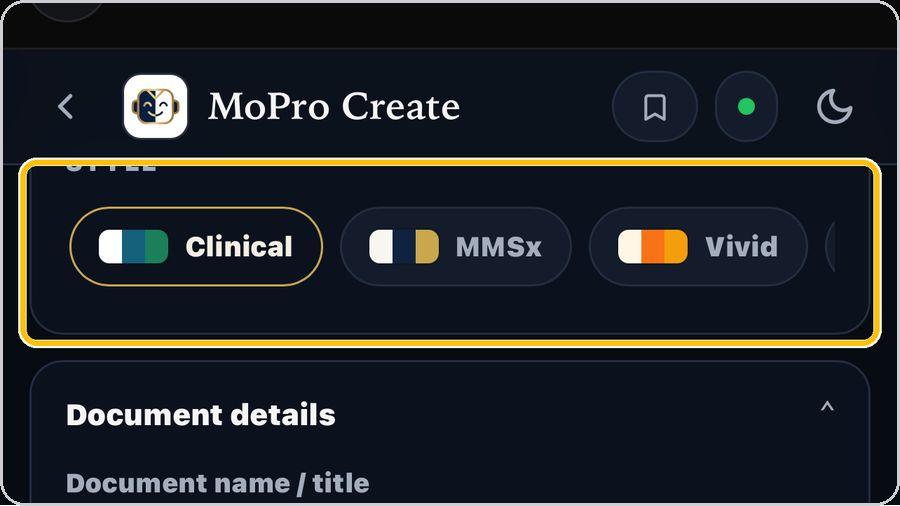 7 Pick a styleStyle sets the look of the finished document — Clinical (white, navy and green), MMSx (cream, navy and gold). | 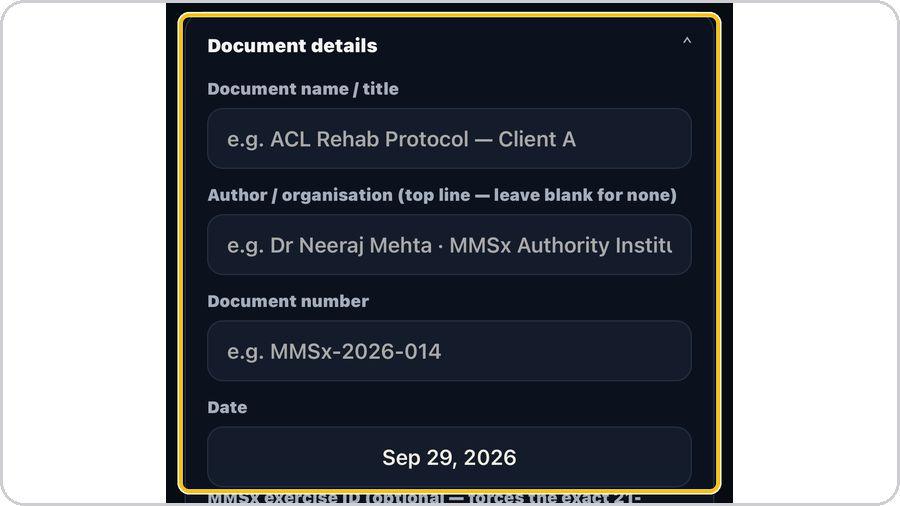 8 Add the document detailsDocument details holds the printed head: document name / title, author / organisation (the top line. |
 9 Generate the documentTap ✦ Generate document. |  10 Read the documentThe document opens in the chosen style with a structured head — template label, title, subtitle, date. | 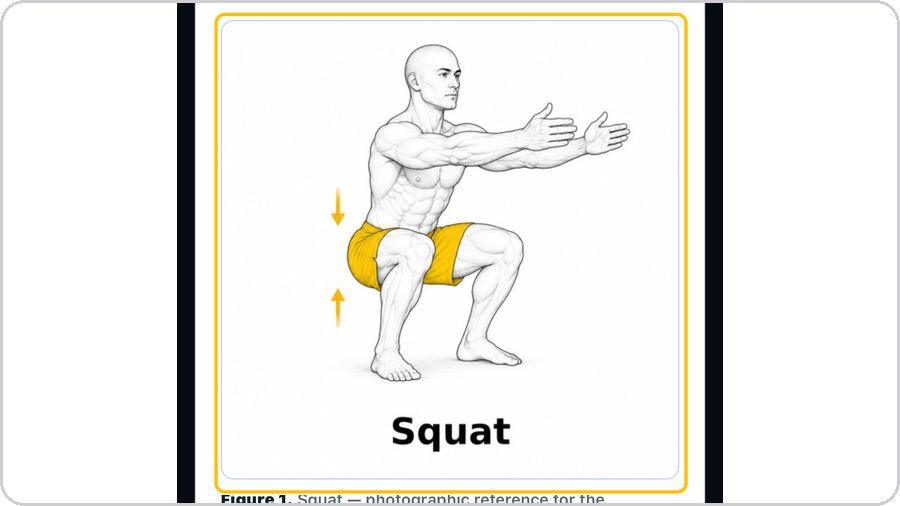 11 Figures and key points+ Figure inserts a figure from the TrainersEye exercise library — the movement discussed. | 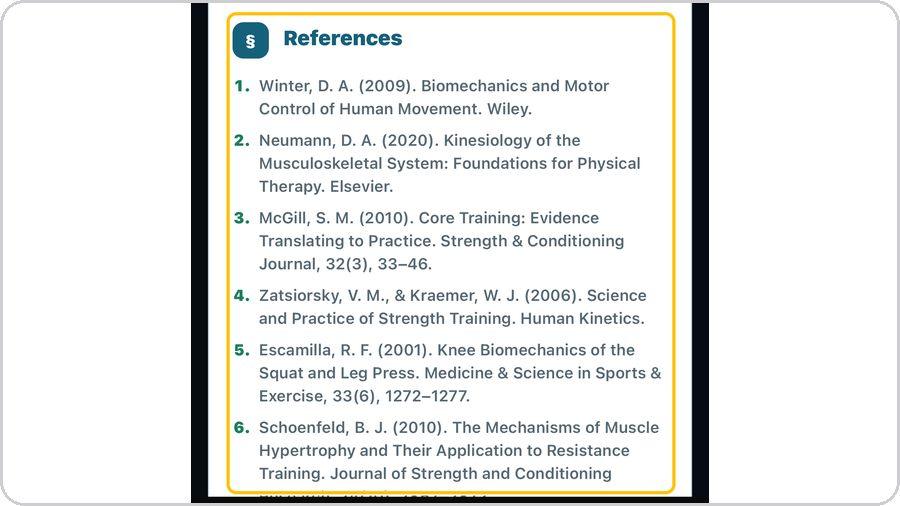 12 Edit and referencesEdit is the working view: amend the text in place. |
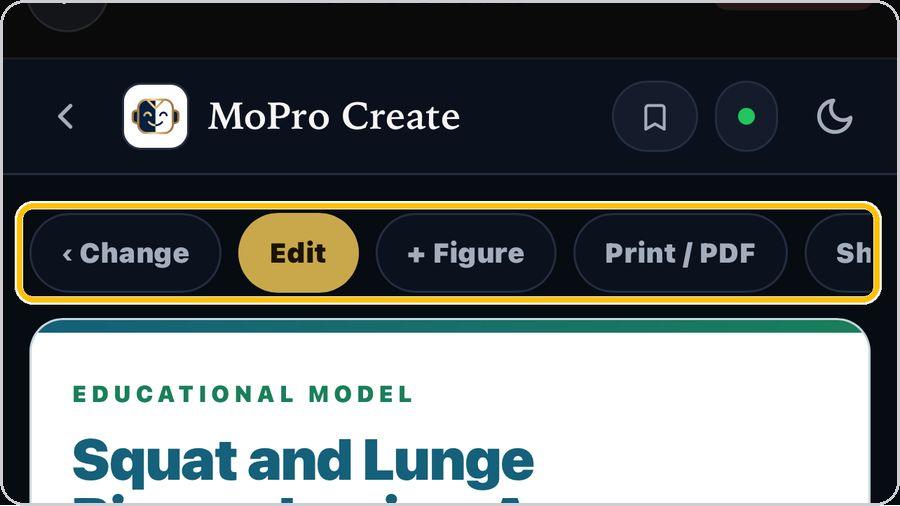 13 Print, PDF or sharePrint / PDF lays the document out for A4 and opens the phone's print sheet — print it or save it as a PDF. | ✓ You're readyThat's it. Open MoPro Create, pick a template and write the brief. | On the documentTemplate label · Title and subtitle · Date, authors and affiliation · Abstract · Keywords · Learning objectives · Figure · Caption and credit · Key point · References | |