

MoPro AI
Ask anything about movement — force, torque, EMG, cues, progressions and loading decisions.

What is MoPro AI?
MoPro AI is the movement-professional intelligence inside TrainersEye. Ask about an exercise, a force, a torque, an EMG pattern, a cue or a progression, in any of sixteen languages, and it answers like a colleague who has read the literature — structured, with the biomechanical rationale, comparison tables and citations. It draws on 100 million Q&A, 60K exercises, 10K educational modules and the MMSx API — Exercise Science Encyclopedia. Your chats stay on your phone. It is decision support for professionals; it does not diagnose.
Ask like a professional
Exercise, force, torque, EMG, cues, progressions, loading decisions — type the question the way you would ask a colleague.
Answers with the reasoning
Structured answers: the biomechanical rationale, comparison tables, key terms and citations — not a one-line reply.
Sixteen languages
Pick the language in the box and the answer arrives in it.
Your chats, your phone
Chats stay on this device; start a new chat any time and come back to old ones from the menu.
Where to find it
Open the TrainersEye app, go to the Dashboard and tap MoPro AI. It is part of the General plan, so every subscriber can use it.
This guide in thirteen steps
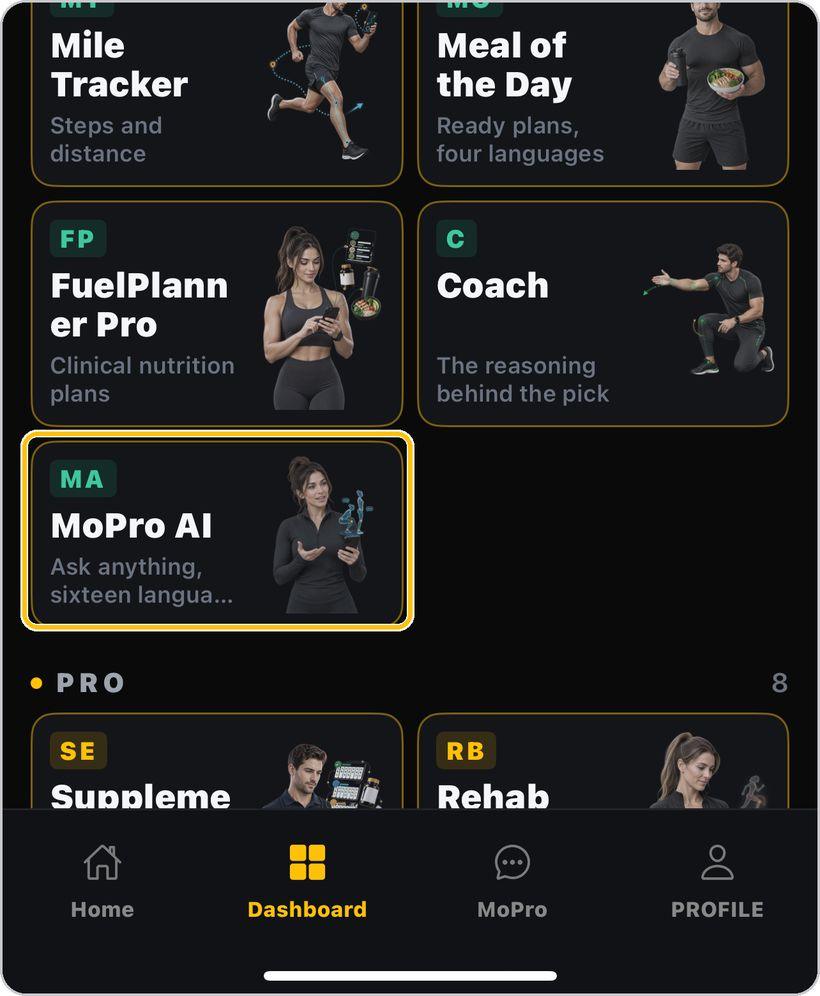
Open the tool
From the Dashboard, tap MoPro AI — the card that says Ask anything, sixteen languages. It is part of the General plan, so every subscriber can use it.
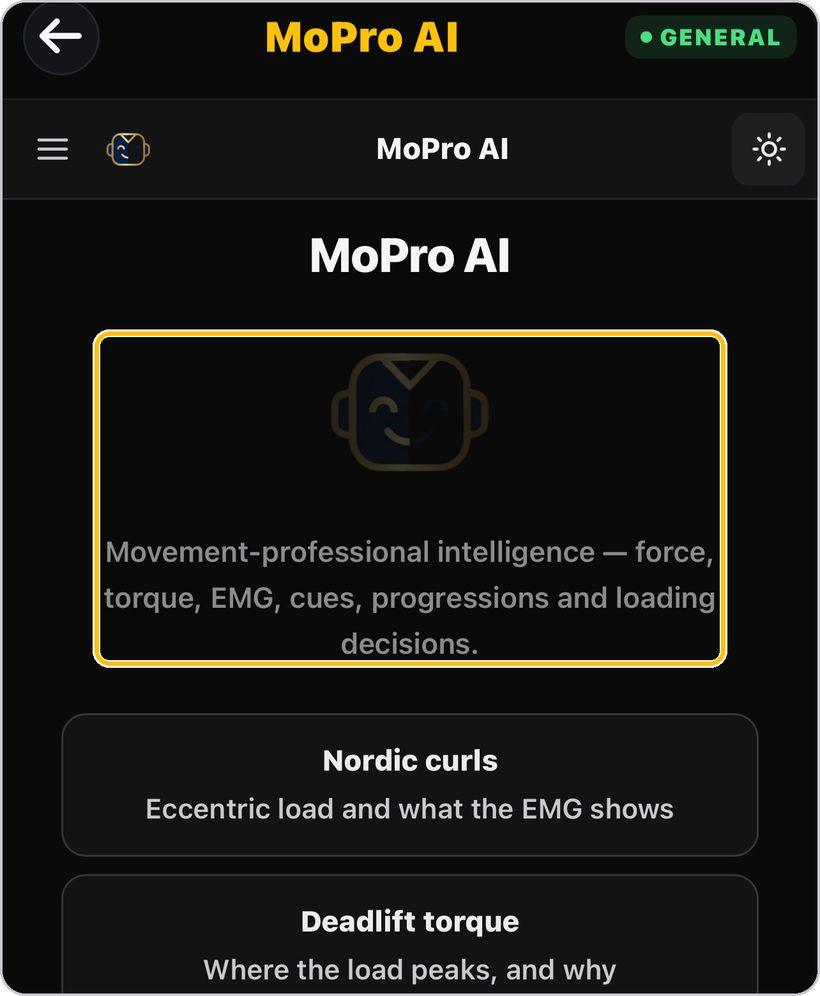
Meet MoPro AI
The landing shows what MoPro is for: movement-professional intelligence — force, torque, EMG, cues, progressions and loading decisions.
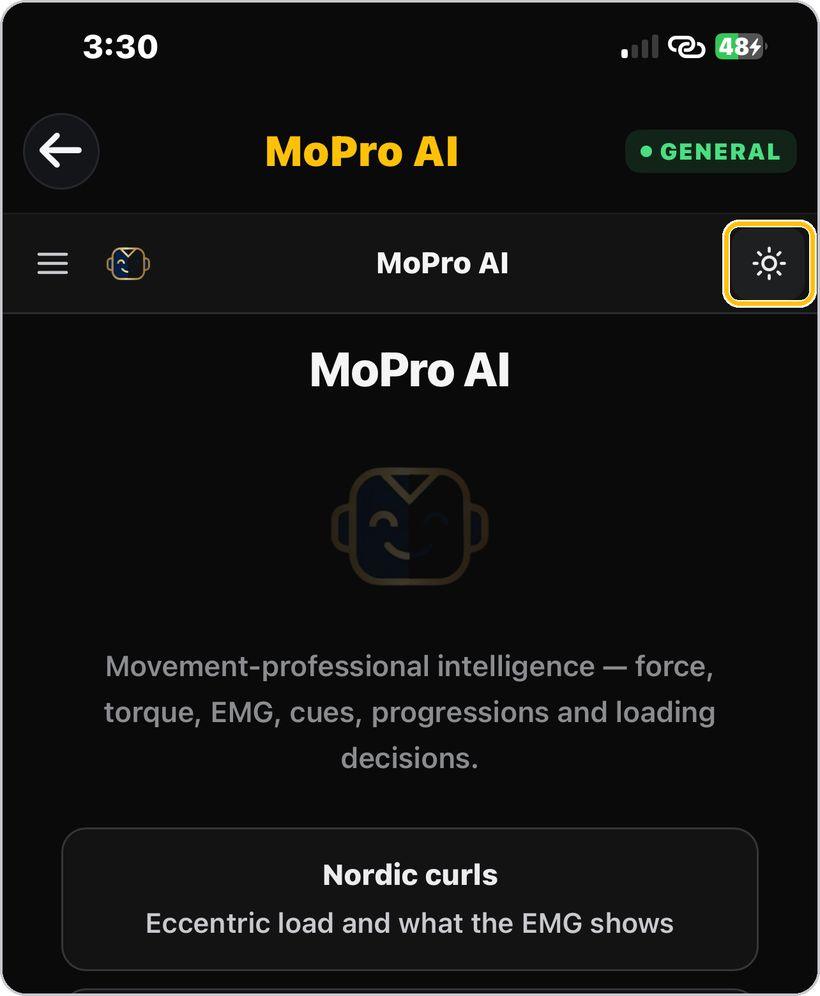
Light or dark
Tap the sun at the top right to switch between the light and dark look.
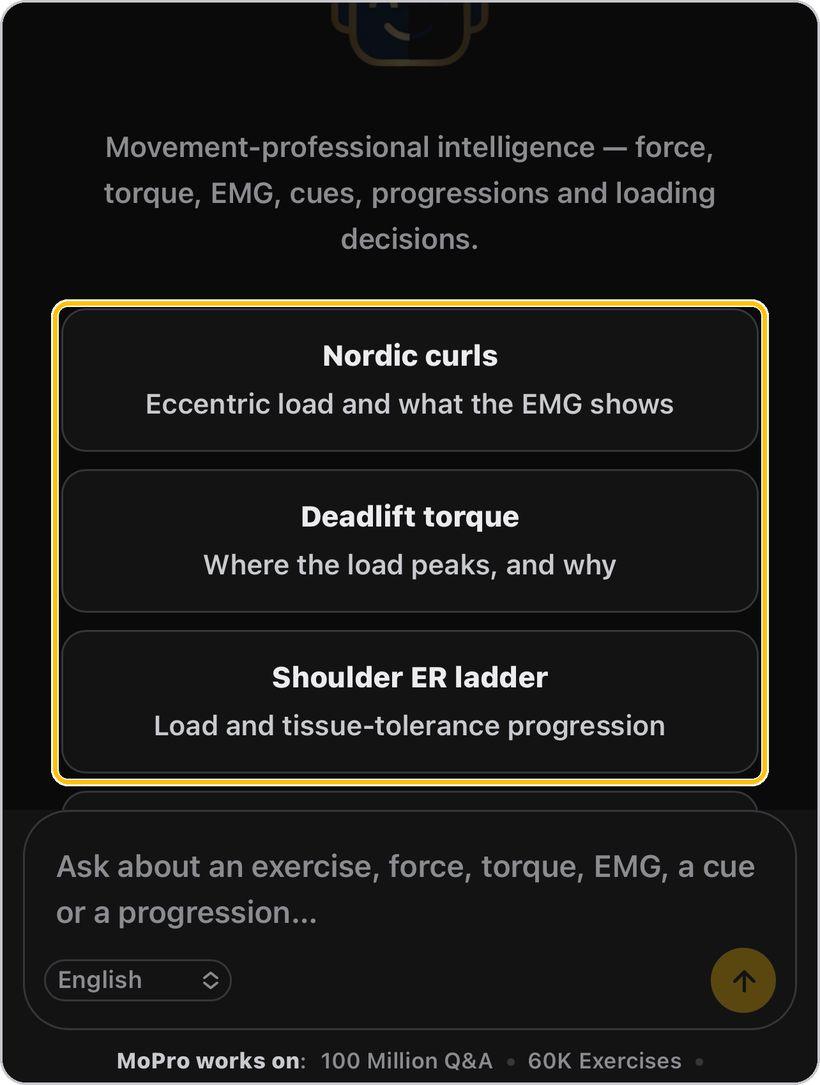
Start from a suggested question
Tap one of the cards — Nordic curls, Deadlift torque, Shoulder ER ladder and more — to see how MoPro answers before you ask your own.
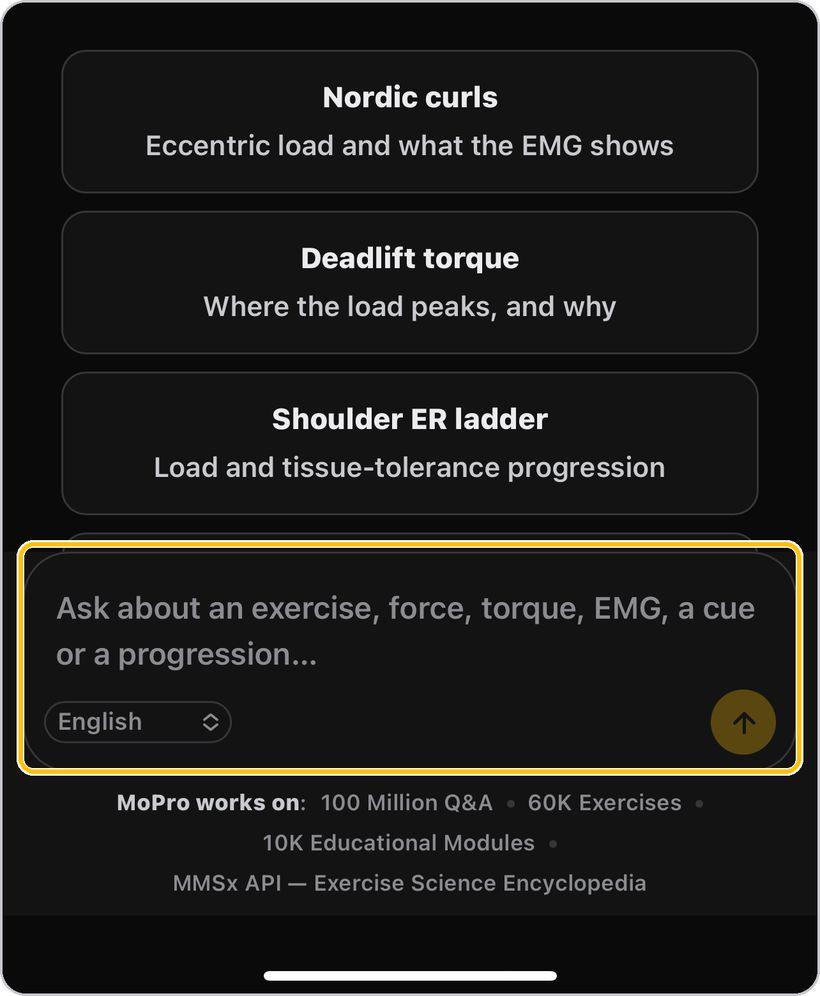
Ask in your own words
Type in the box: an exercise, a force, a torque, an EMG question, a cue or a progression — the way you would ask a colleague.
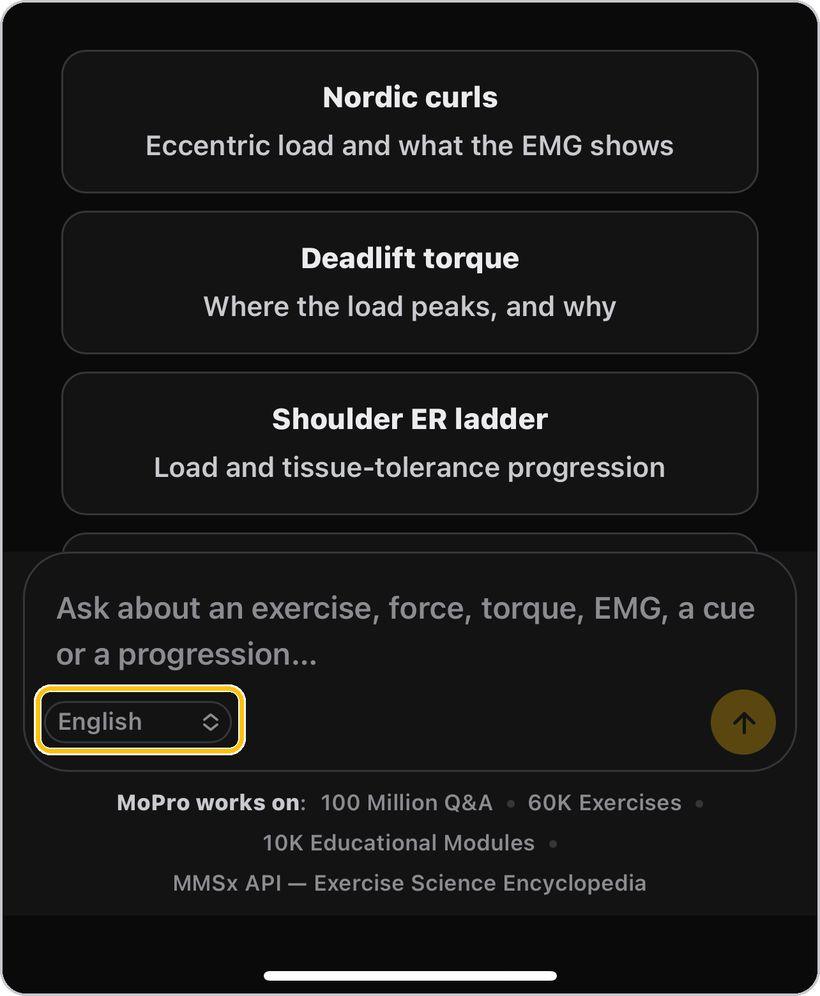
Choose your language
The selector in the box sets the answer language — sixteen to choose from.
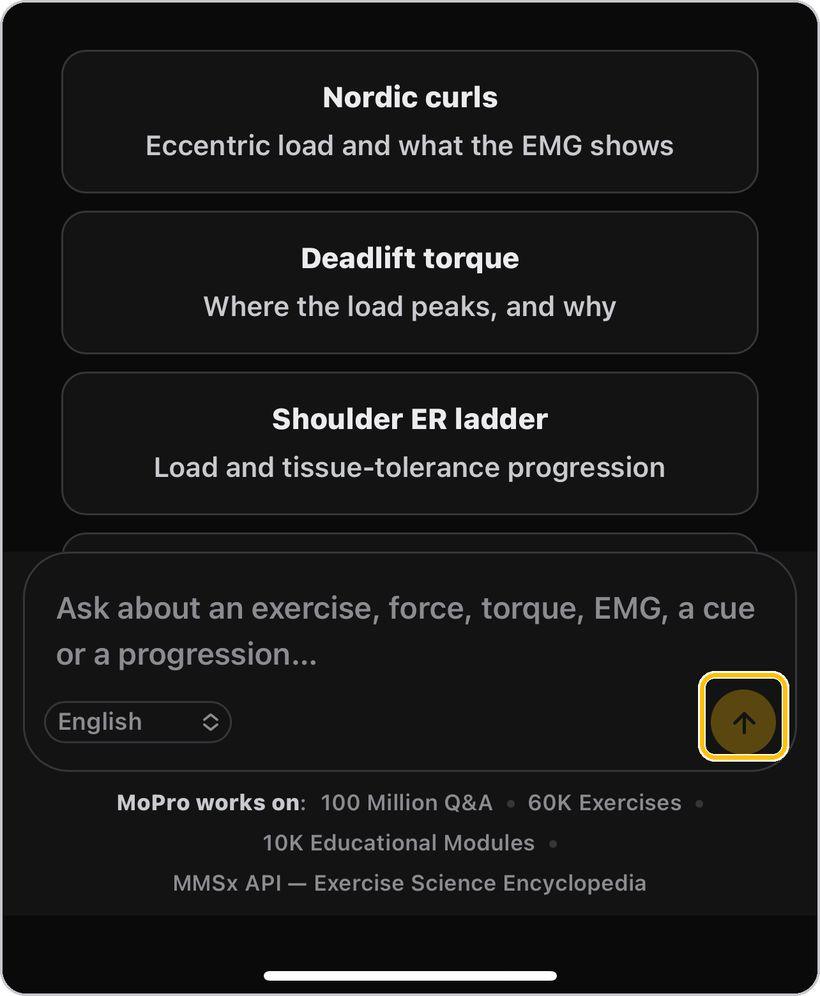
Send and wait for the answer
Tap the arrow. MoPro thinks, then the answer types out — a title, then the body.
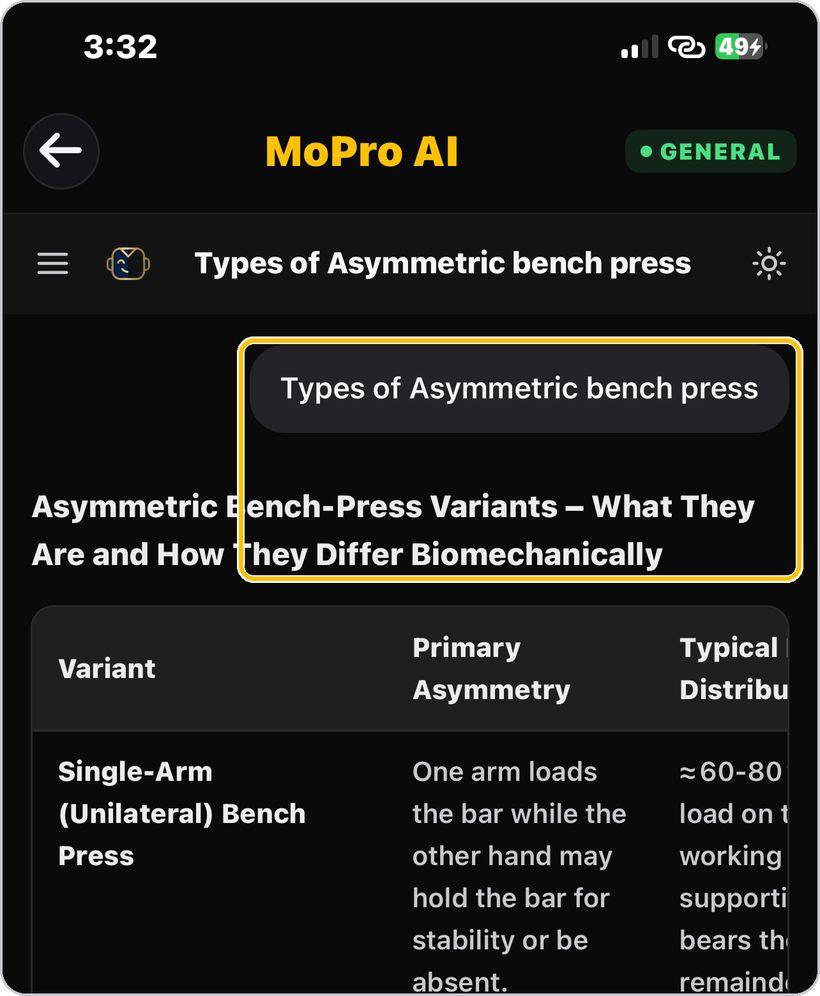
Your question, then a structured answer
Your question sits at the top in a bubble; the answer opens with a title that states what it covers.
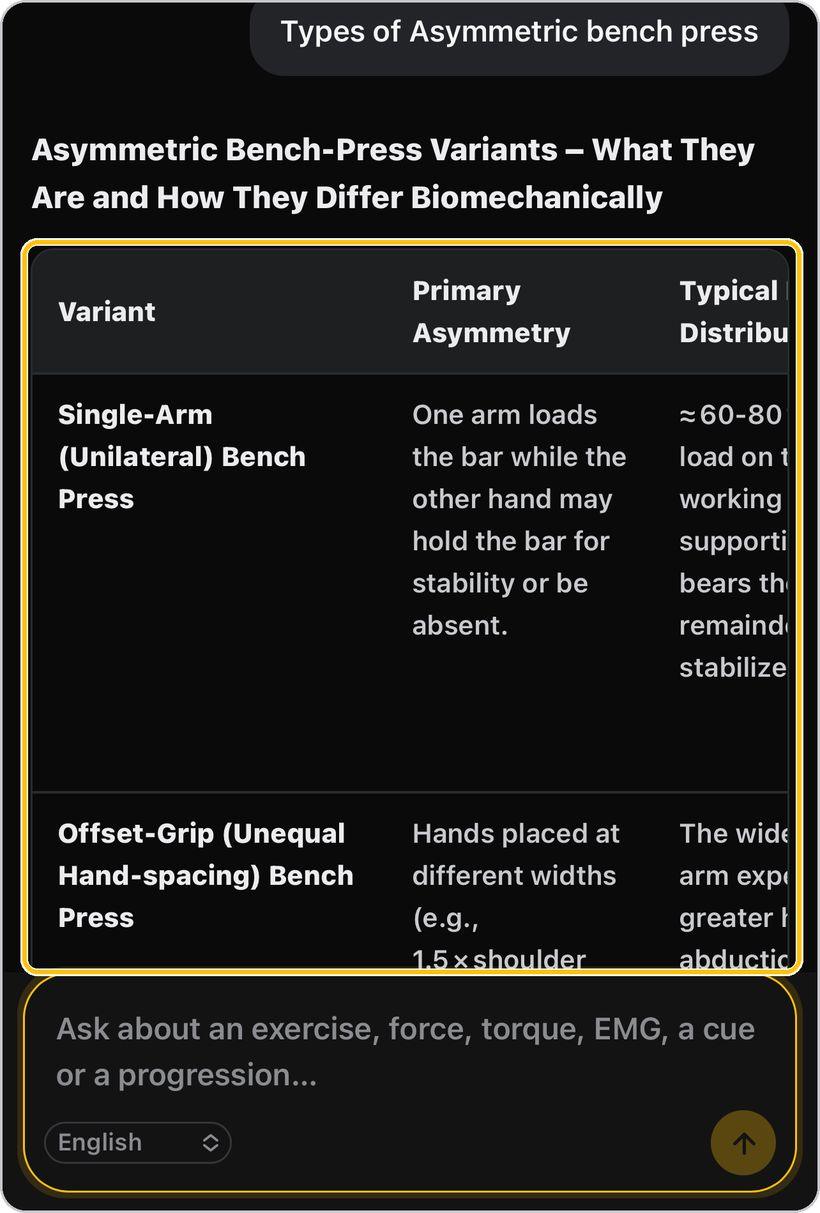
Tables and comparisons
When variants or options are compared, MoPro sets them side by side — variant, what differs, and the typical load distribution.
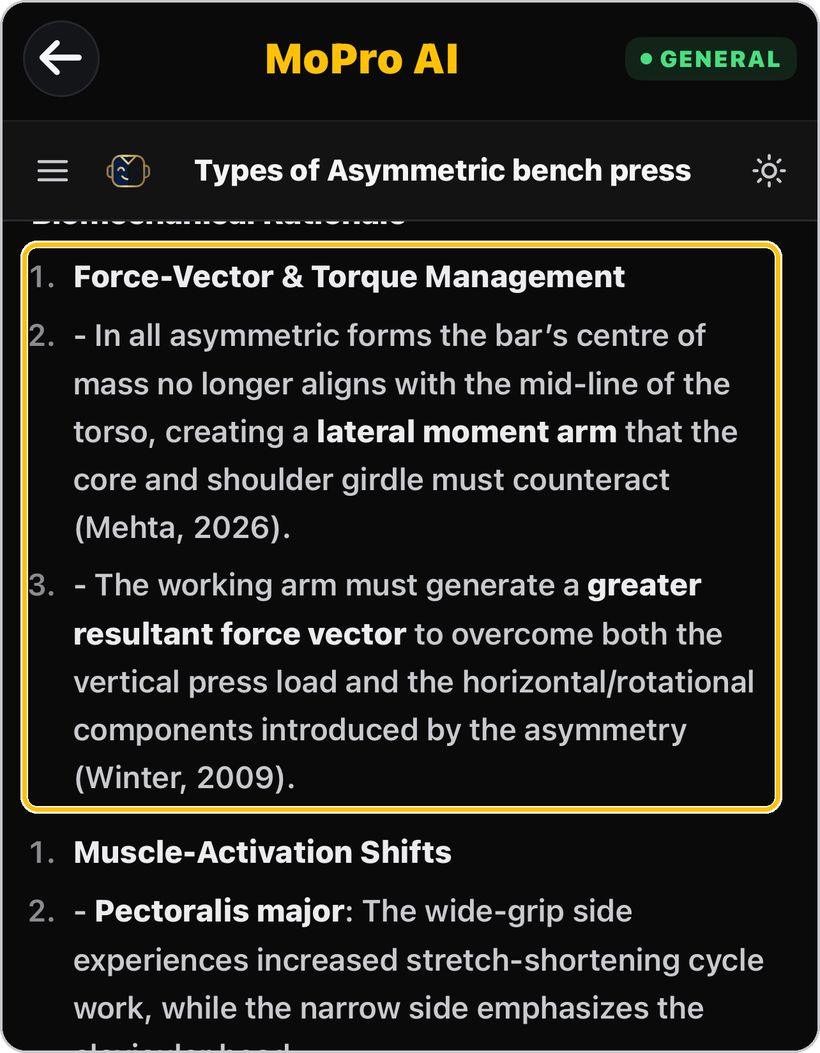
Rationale with citations
The biomechanical rationale follows, numbered, with key terms in bold and citations in brackets — Mehta, 2026; Winter, 2009.
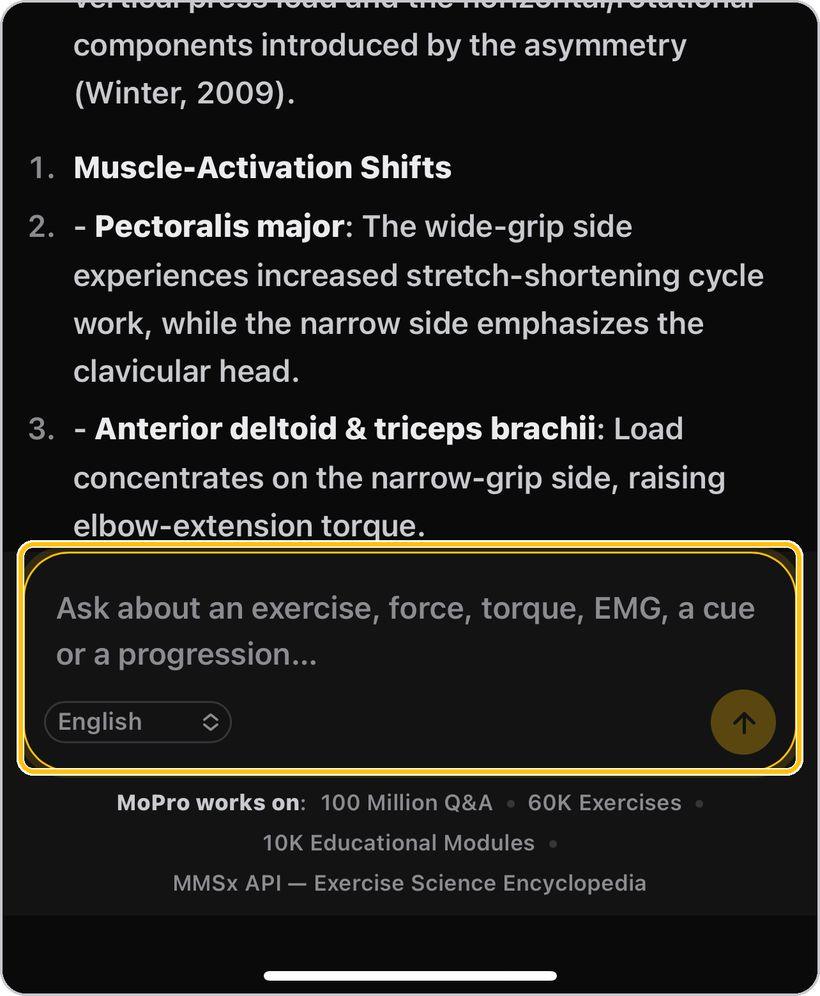
Ask a follow-up
The box stays at the bottom. Ask the next question in the same chat and MoPro keeps the context.
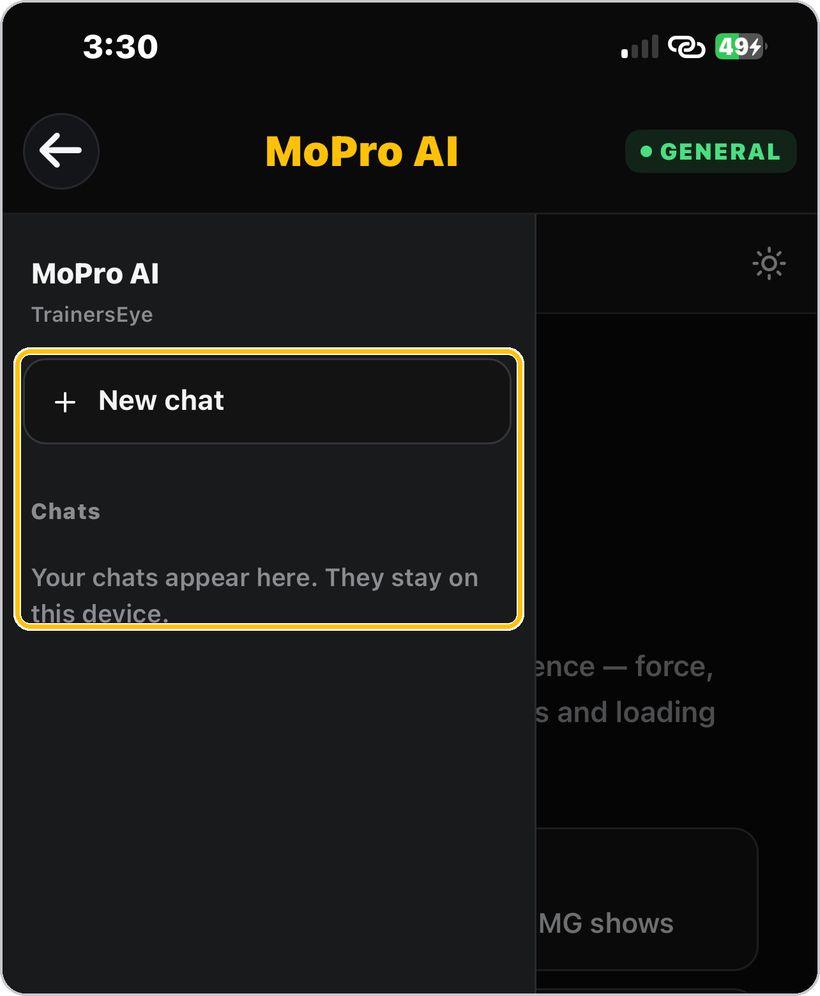
New chat, your chats, back
Tap the menu for New chat, the list of your chats — they stay on this device — and Back to dashboard.
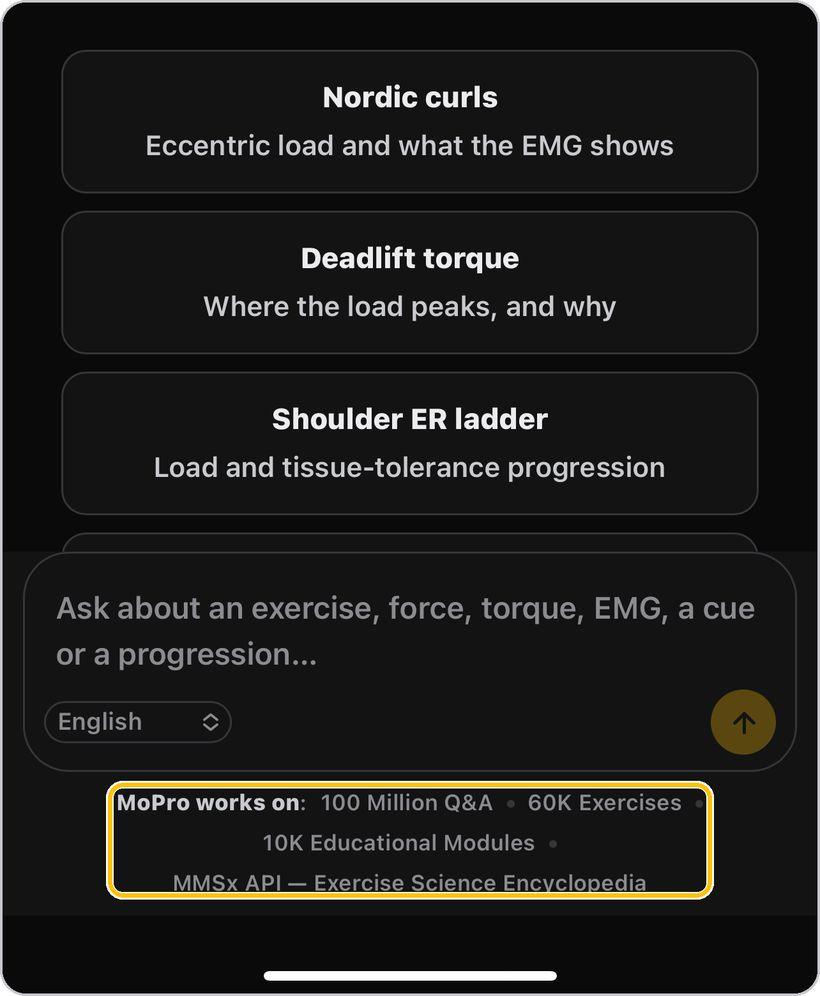
What MoPro works on — and what it is not
The strip under the box shows what MoPro draws on: 100 million Q&A, 60K exercises, 10K educational modules and the MMSx API — Exercise Science Encyclopedia. It is decision support for professionals: it does not diagnose.
You're ready
That's it. Open MoPro AI and ask your first question.
Reading an answer
Every answer has the same shape. Here is what each part is.
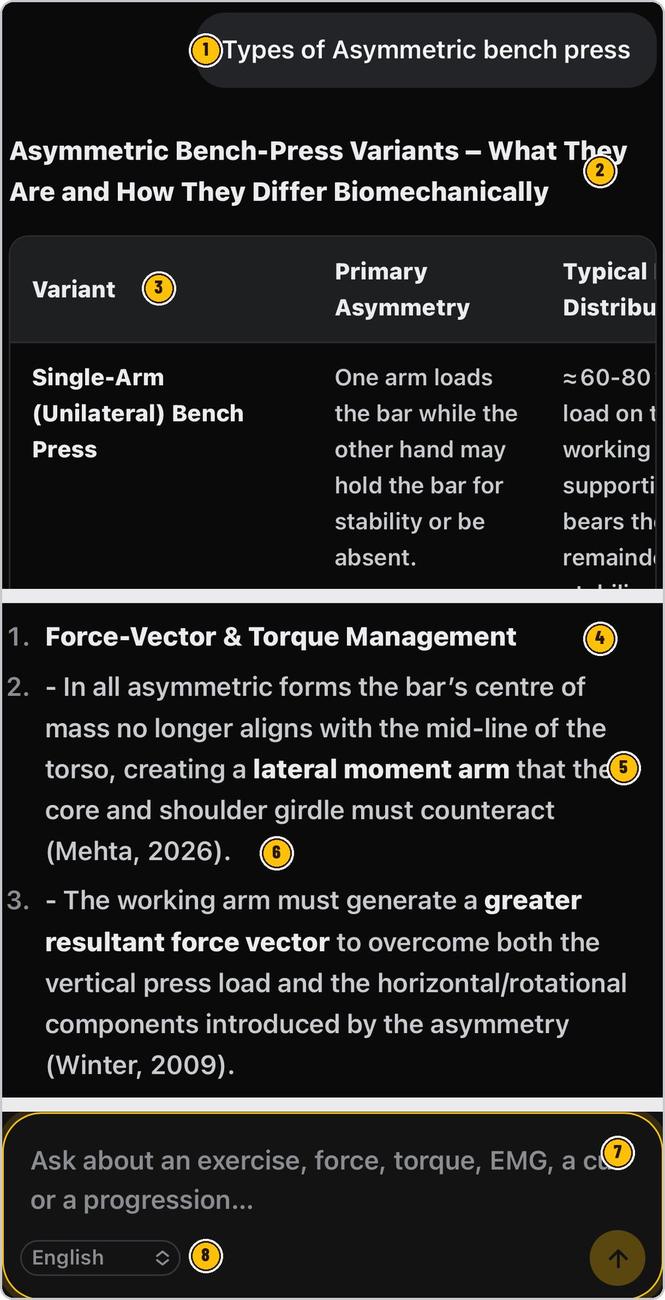
Sits at the top in a bubble; the chat title takes its words.
What the answer covers — check it matches what you meant.
Variants side by side: what differs and the typical load distribution.
The biomechanics, in order — force vectors, torque, muscle activation.
In bold — the words that carry the mechanics.
In brackets — MMSx modules and the classic texts.
Ask the next question in the same chat; MoPro keeps the context.
Choose the answer language, then tap the arrow.
MoPro AI is part of TrainersEye
Support: support@trainerseye.com · trainerseye.com
MoPro AI · Backed by MMSx Authority Institute
Decision-support only. MoPro AI does not diagnose. Bring every answer to your own professional judgement, and refer clients with symptoms to a clinician.