

Figure Intelligence
Research figures from your data — the Chart Advisor picks the chart, the figure draws in the MMSx Institute style at journal size, the APA 7 legend is written for you, and CONSORT diagrams draw themselves from their numbers.
What is Figure Intelligence?
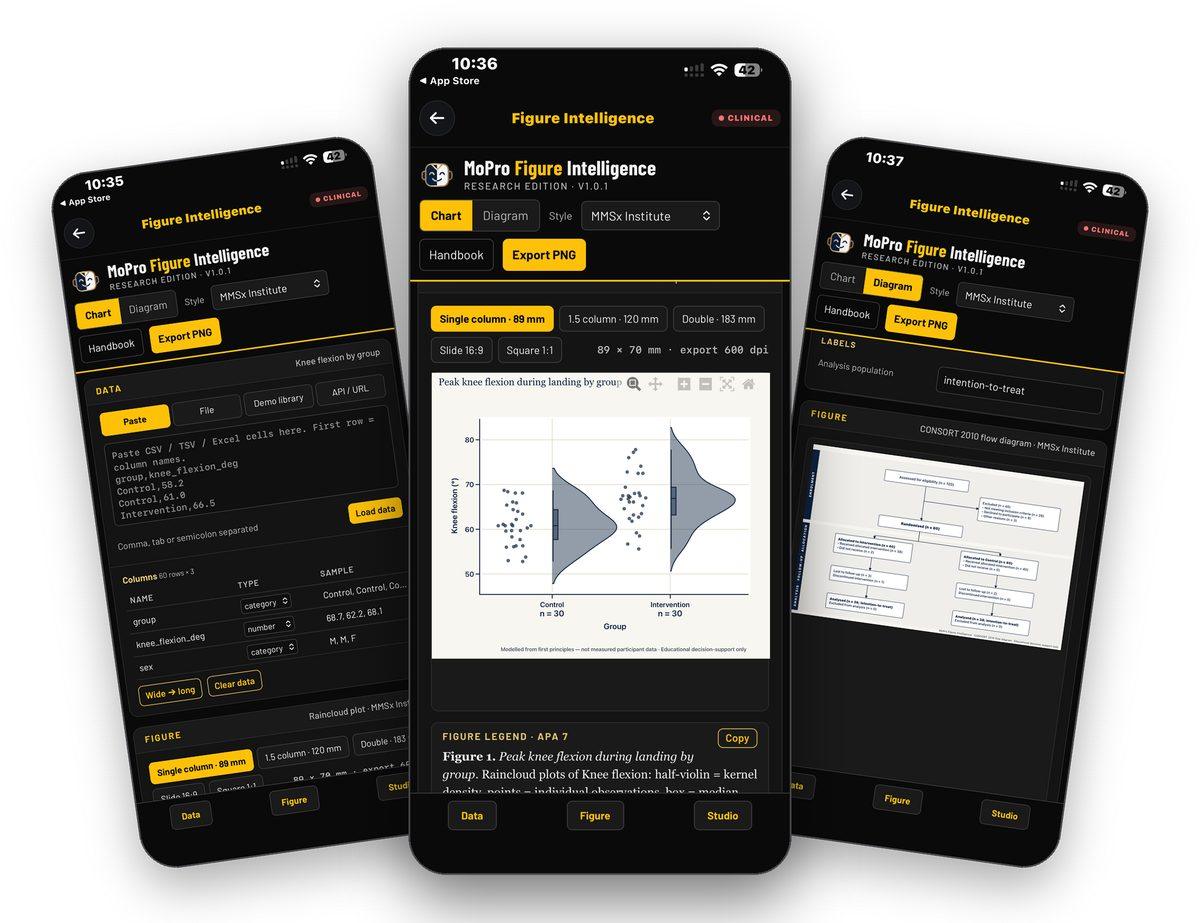
Figure Intelligence is the MoPro research-figure engine, Research Edition. Paste, upload or fetch your data, or pick a demo set; check the column types; let the Chart Advisor rank the chart types for your columns — raincloud, dot / strip, heatmap, box, violin, histogram, paired slope, scatter with regression; choose a journal size, and the figure draws in the MMSx Institute style with its APA 7 legend written for you. Diagram mode draws structured diagrams from their numbers, starting with the CONSORT 2010 flow. Export PNG renders the figure at 600 dpi, ready for the manuscript.
Data in, figure out
Paste CSV, TSV or Excel cells, upload a file, load a demo set or pull from an API / URL; columns are typed category or number.
Chart Advisor
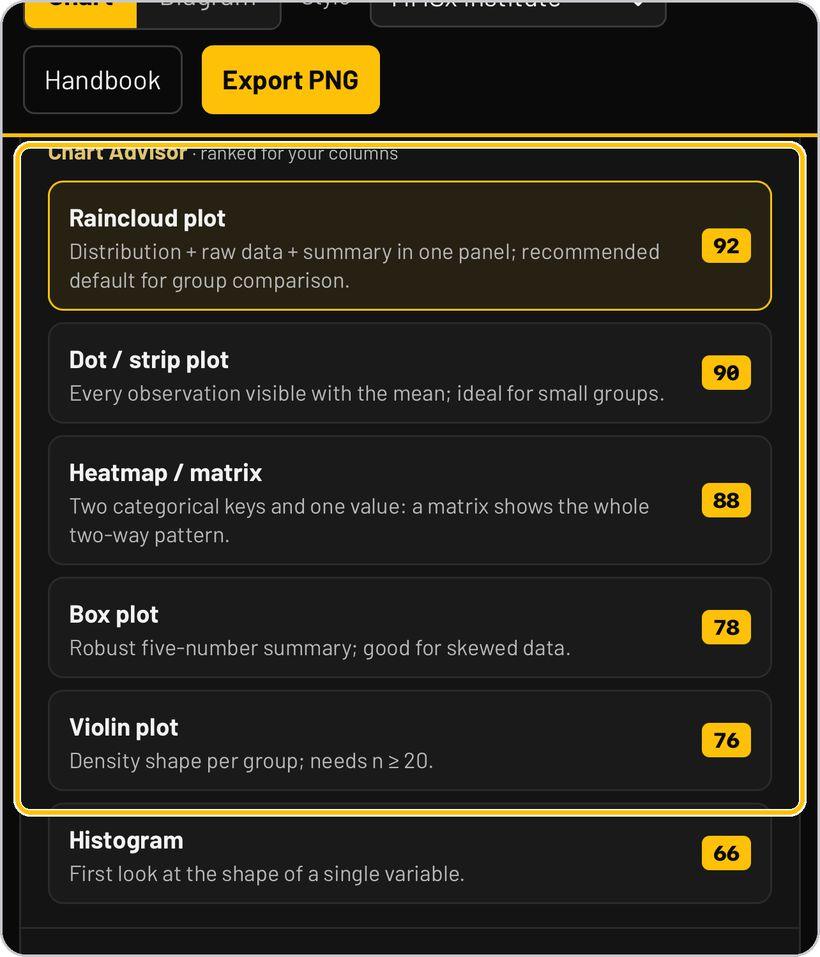
Ranks the chart types for your columns with a score and a reason: raincloud, dot / strip, heatmap, box, violin, histogram.
Journal sizes
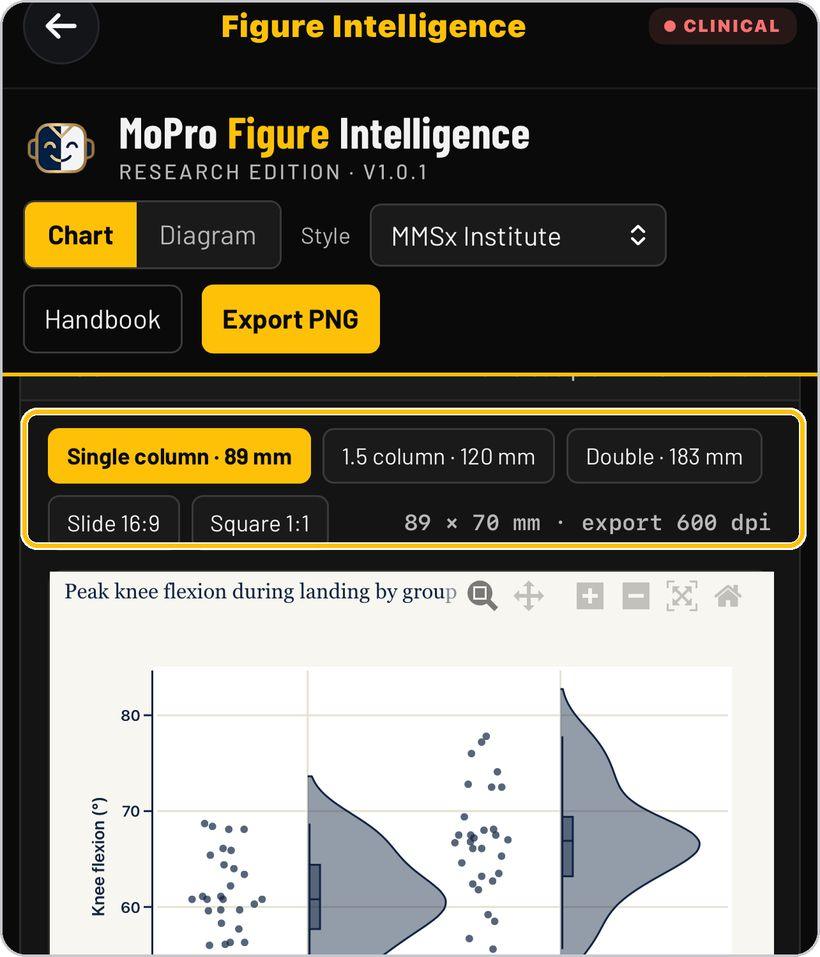
Single column 89 mm, 1.5 column 120 mm, double 183 mm, slide 16:9, square 1:1 — exported at 600 dpi.
Legend and diagrams
Every figure comes with an APA 7 legend to copy; Diagram mode draws the CONSORT 2010 flow from its numbers.
Where to find it
Open the TrainersEye app, go to the Dashboard and tap Figure Intelligence. It is a Clinical-plan tool — the CLINICAL badge sits beside the title.

This guide in thirteen steps
Open the tool
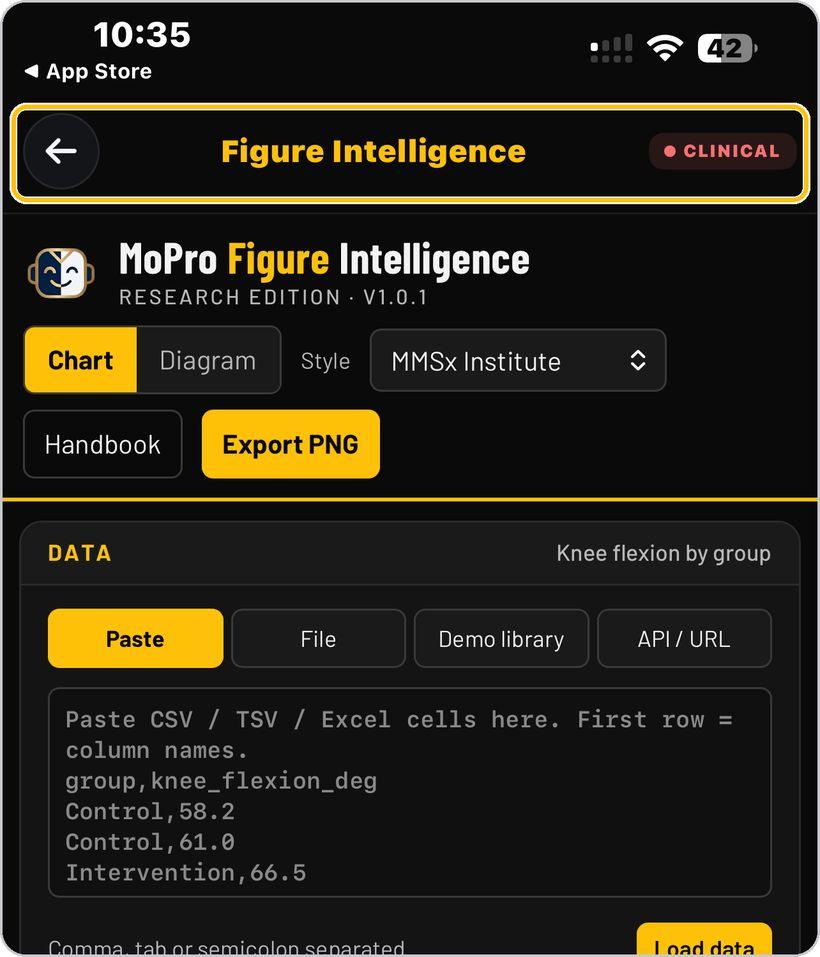
From the Dashboard, tap Figure Intelligence. It is a Clinical-plan tool — the CLINICAL badge sits beside the title. The header reads MoPro Figure Intelligence — Research Edition · V1.0.1.
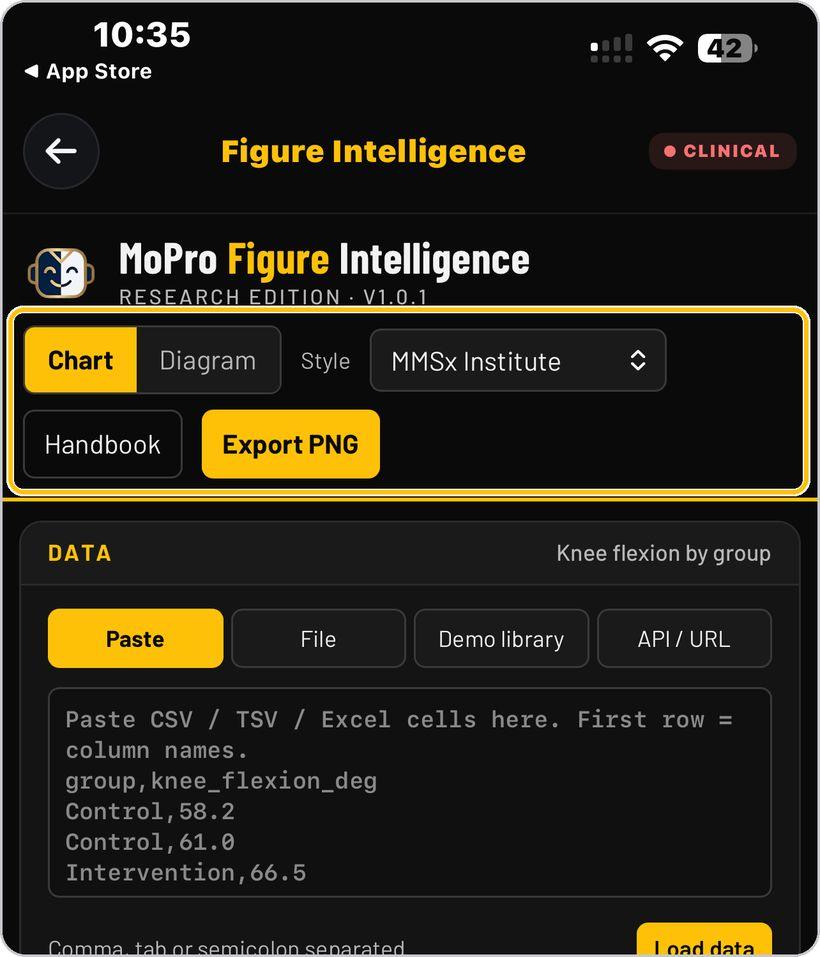
Chart or Diagram
Chart draws a figure from your data; Diagram draws a structured diagram from its numbers — the CONSORT 2010 flow to start. Style sets the house look, MMSx Institute; Handbook opens the guidance; Export PNG renders the finished figure.
Bring in data
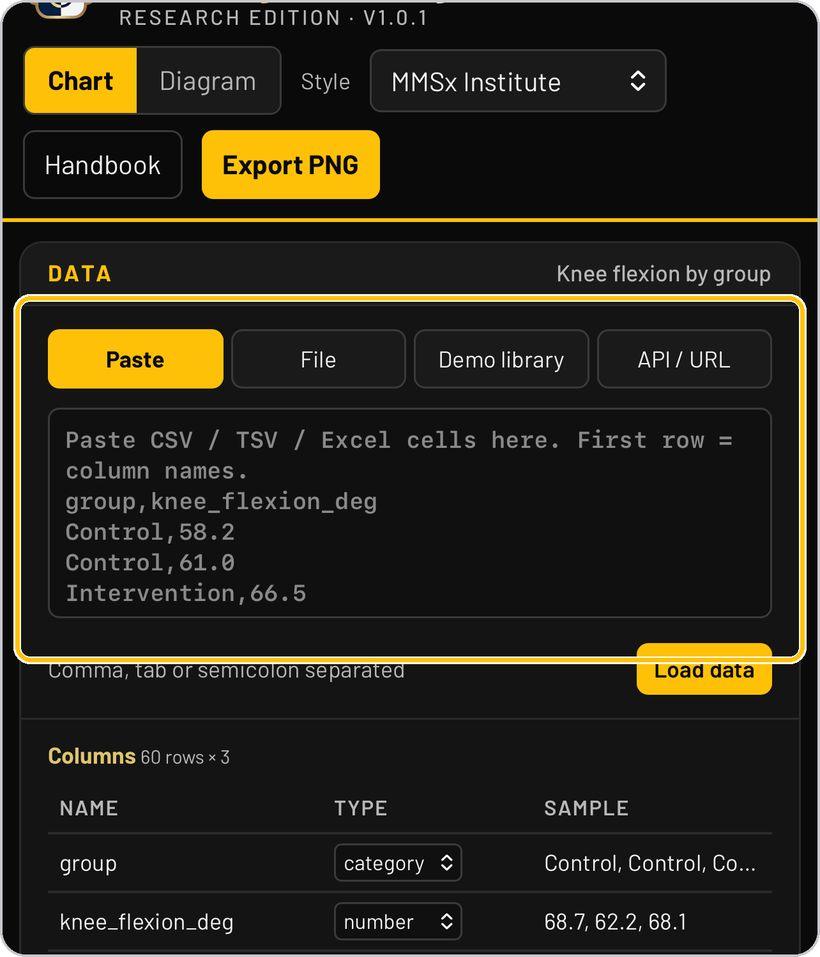
The Data panel takes your data four ways: Paste CSV, TSV or Excel cells (first row = column names; comma, tab or semicolon separated), File, Demo library or API / URL. Tap Load data.
Check the columns
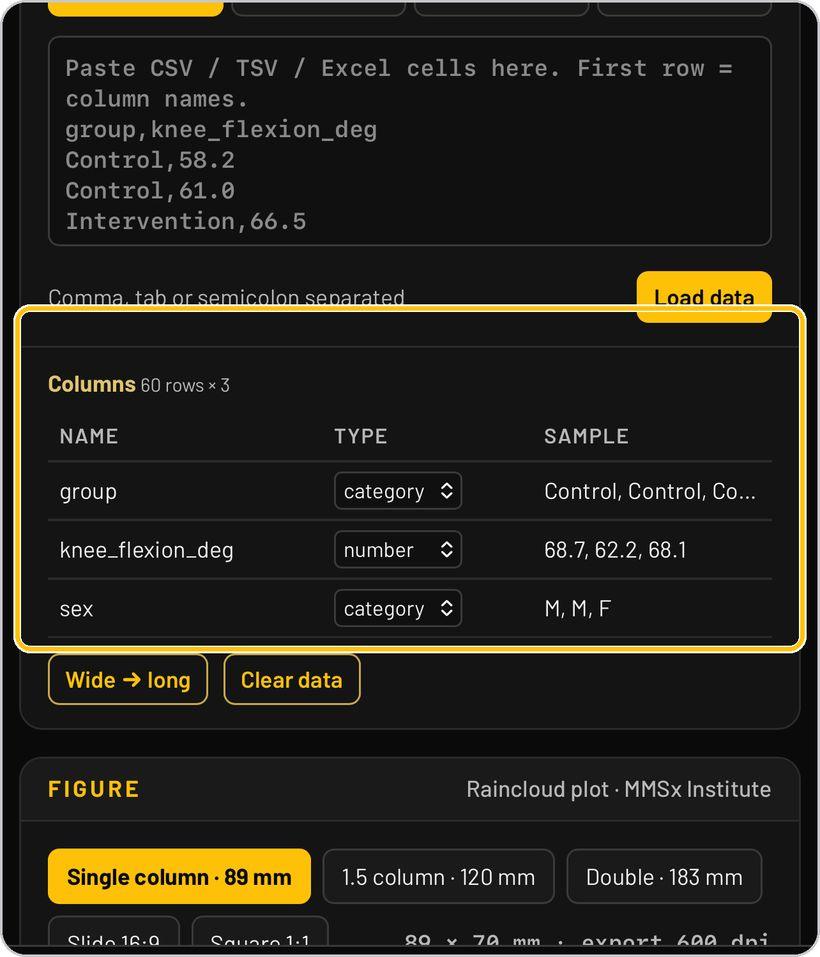
Loaded data shows as Columns — 60 rows × 3 — with each column's name, type and sample: group (category), knee_flexion_deg (number), sex (category). Change a type if it was read wrongly; Wide → long reshapes a wide table; Clear data starts again.
The Chart Advisor
Chart Advisor ranks the chart types for your columns, each with a score and a reason: Raincloud plot 92 — distribution, raw data and summary in one panel, the recommended default for group comparison; Dot / strip plot 90; Heatmap / matrix 88; Box plot 78; Violin plot 76 (needs n ≥ 20); Histogram 66.
Set the chart type and axes
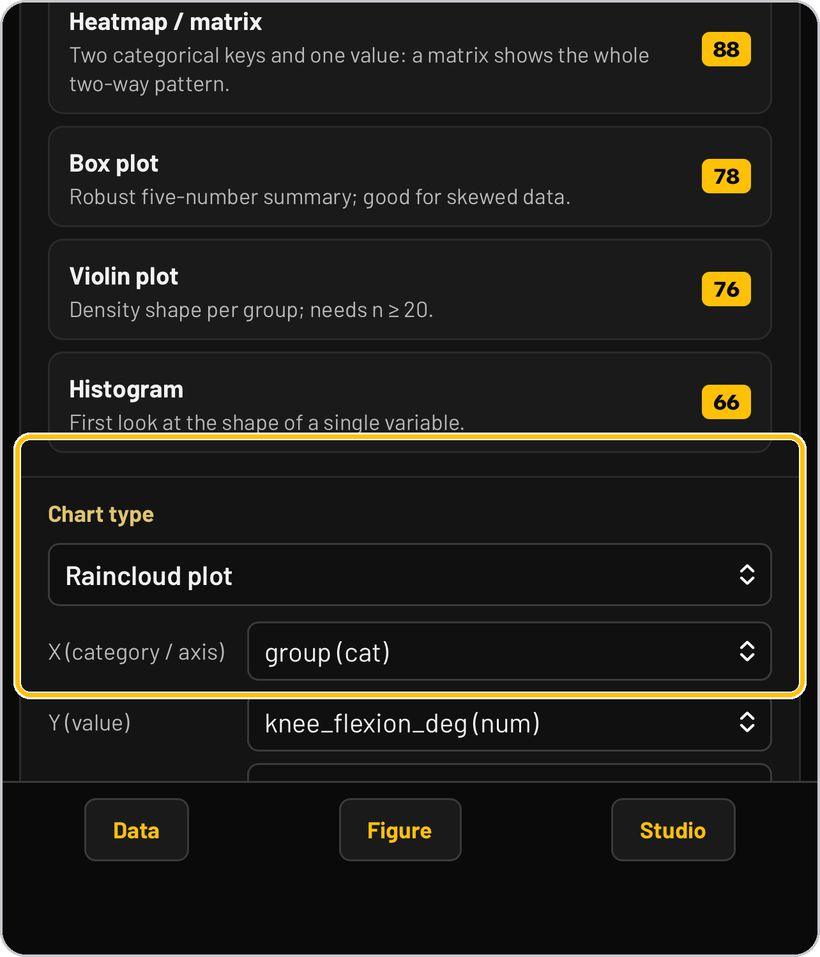
Chart type picks the chart; X (category / axis) takes the grouping column — group (cat); Y (value) takes the number — knee_flexion_deg (num). Further options follow below.
Choose the figure size
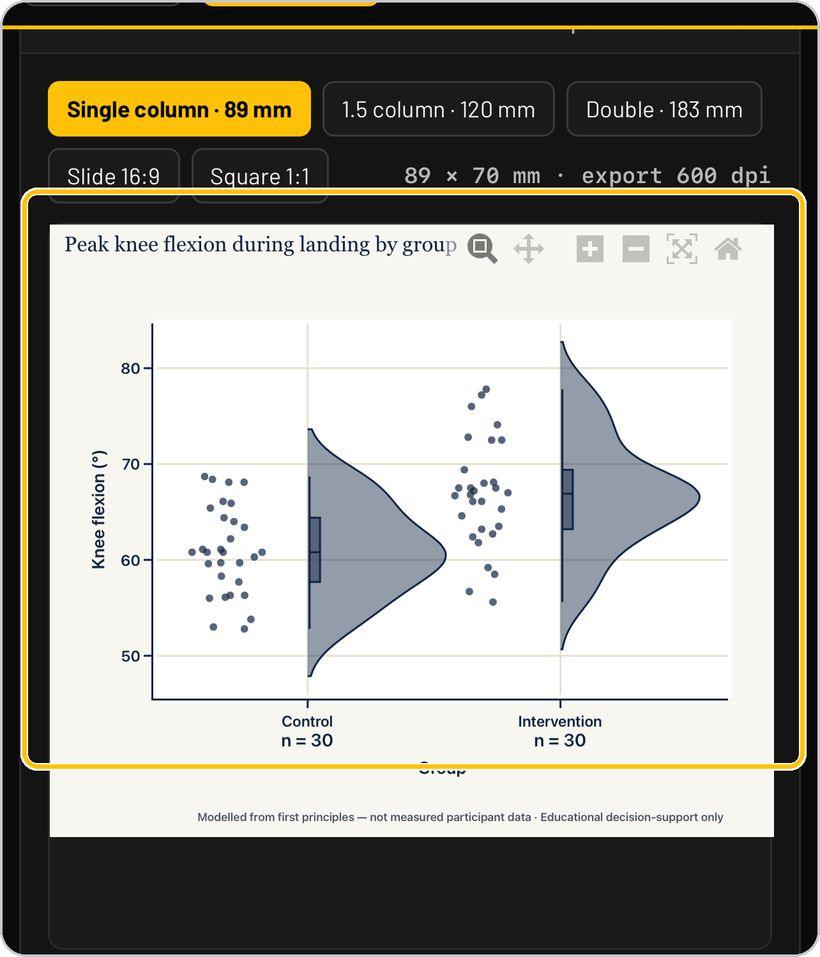
The size chips set the journal size: Single column · 89 mm, 1.5 column · 120 mm, Double · 183 mm, Slide 16:9, Square 1:1. The readout confirms the dimensions and the export resolution — 89 × 70 mm · export 600 dpi.
Read the figure
The figure draws in the MMSx Institute style: title, axis with unit, group labels with n. In a raincloud the half-violin is the kernel density, the points are the individual observations and the box the median and quartiles. The toolbar zooms, pans and resets; the footer line states the data's provenance — for the demo set, modelled from first principles, not measured participant data.
The APA 7 legend
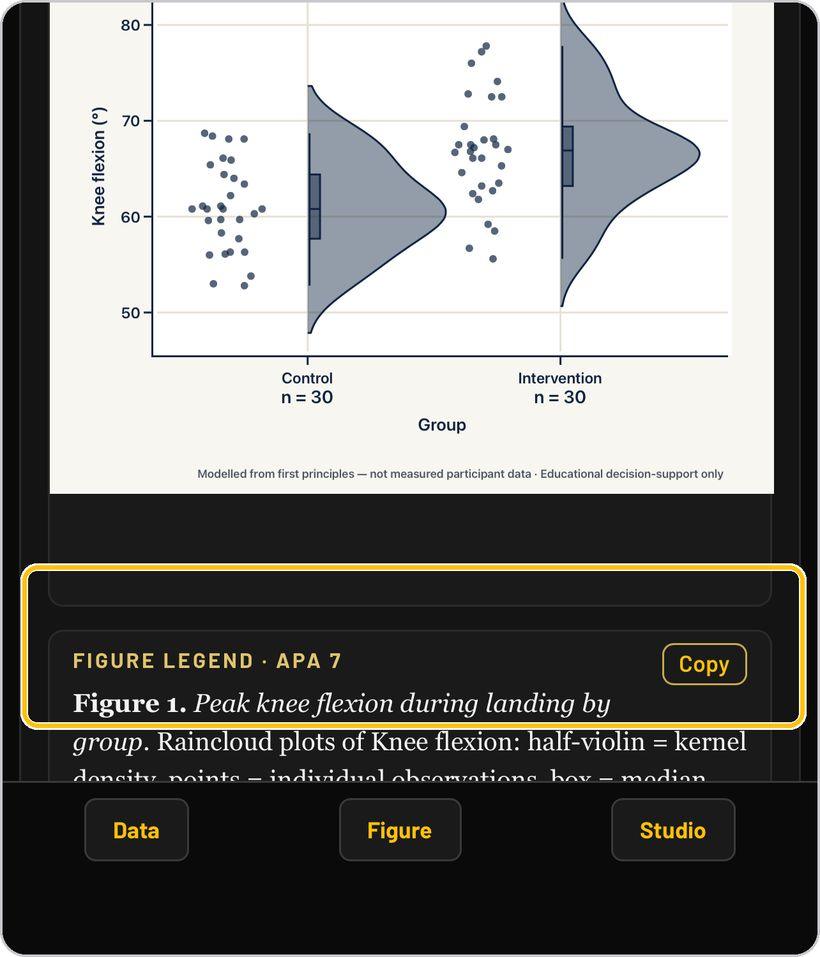
Every figure comes with its legend written in APA 7 — Figure 1. Peak knee flexion during landing by group. Raincloud plots of knee flexion: half-violin = kernel density, points = individual observations, box = median… — with a Copy button for the manuscript.
Other chart types
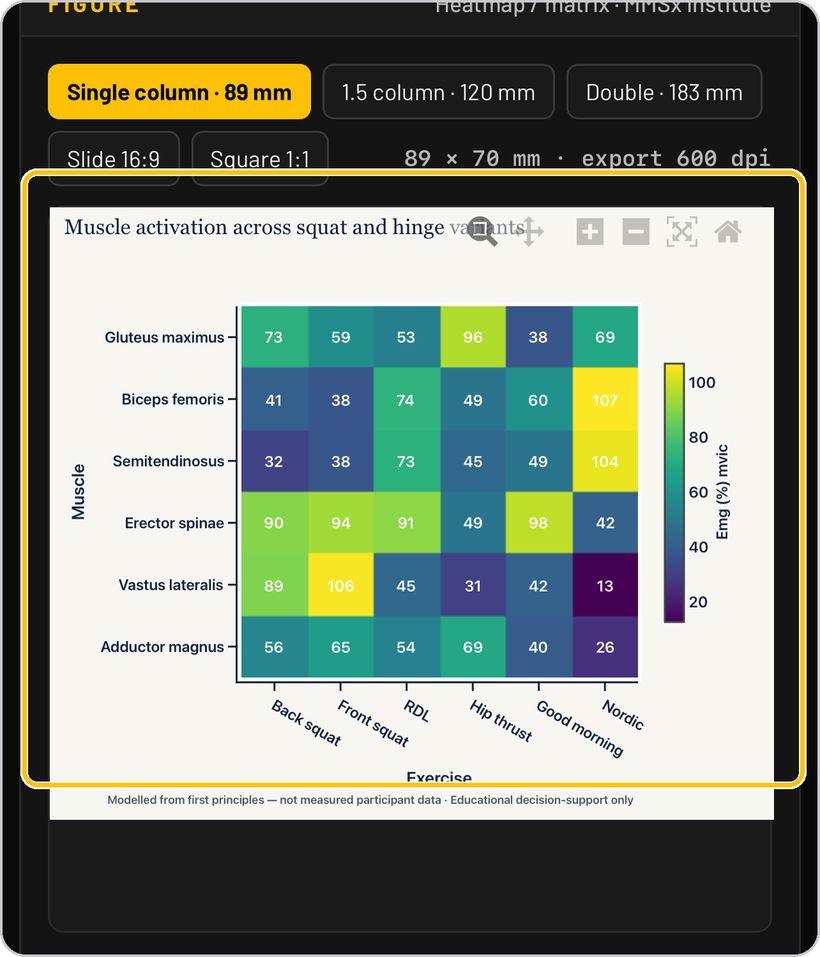
The same data panel drives every chart: heatmap / matrix for two categorical keys and one value (muscle × exercise), paired slope for pre–post with the mean change and n, scatter with regression with r, R² and n per group, and dot / strip, box, violin and histogram.
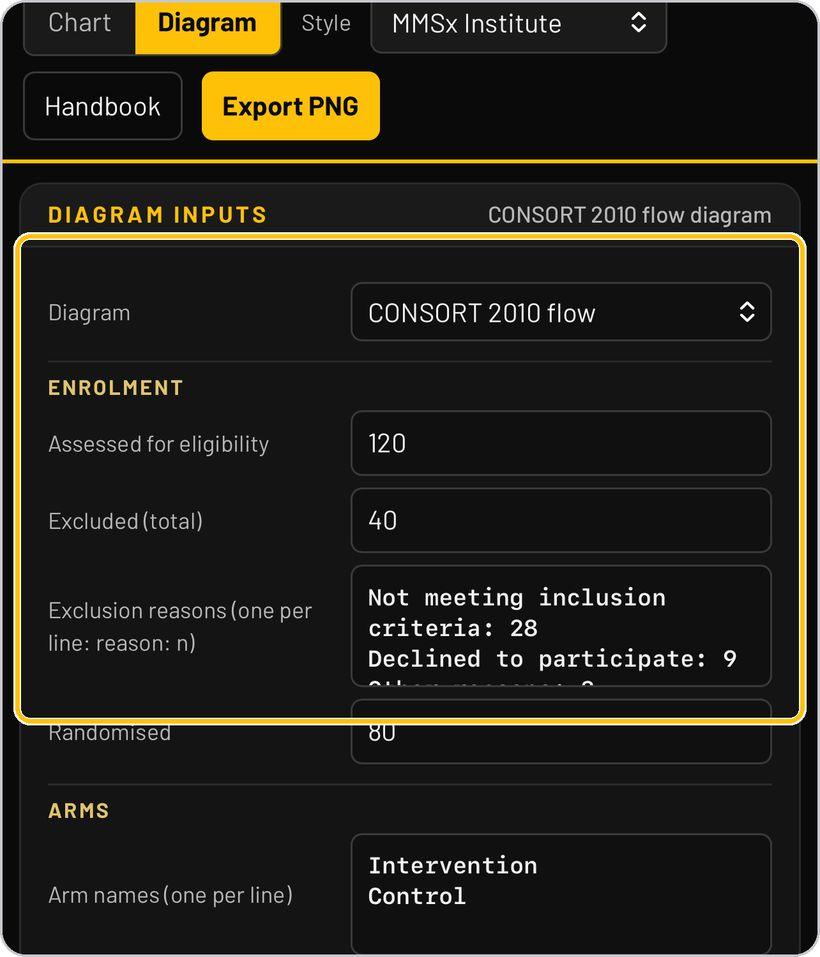
Diagram mode: CONSORT inputs
Diagram opens the Diagram inputs — CONSORT 2010 flow: Enrolment (assessed for eligibility, excluded in total, exclusion reasons one per line as reason: n, randomised), Arms (one name per line), the per-arm numbers in the same order (allocated, received allocated intervention, lost to follow-up, discontinued intervention) and the Labels, such as the analysis population.
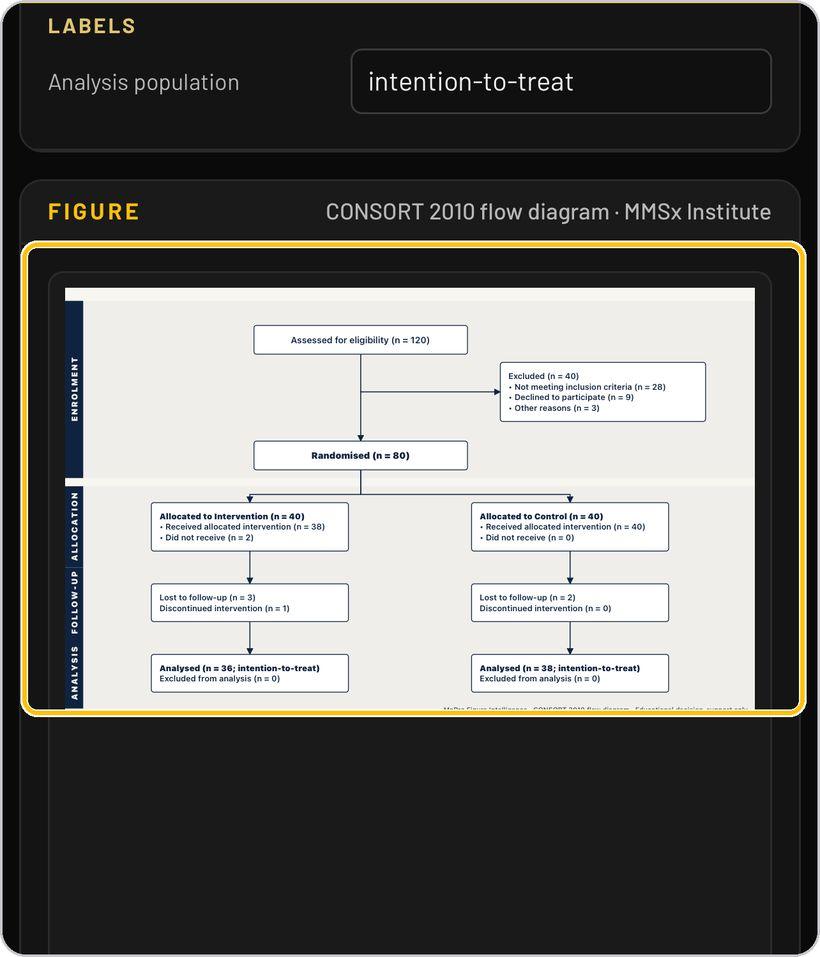
The CONSORT diagram
The diagram draws itself from the numbers: assessed for eligibility, excluded with reasons, randomised, allocated and received per arm, lost to follow-up and discontinued, analysed per arm with the analysis population — banded Enrolment, Allocation, Follow-up and Analysis, in the MMSx Institute style with its footer line.
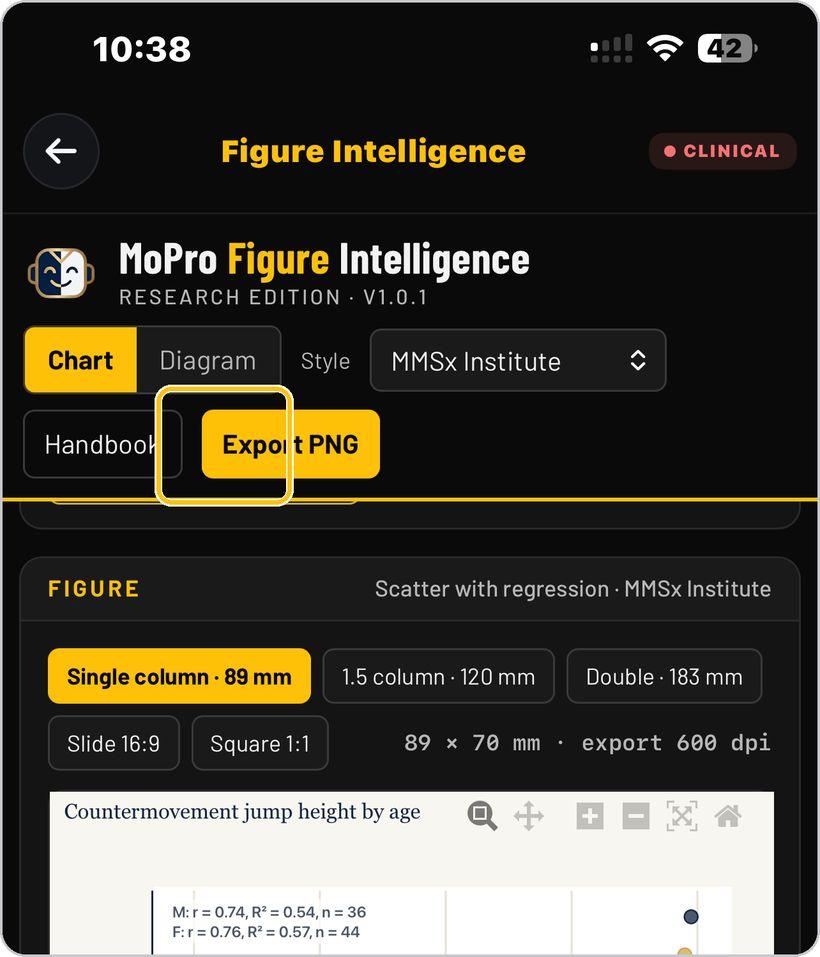
Export PNG
Export PNG renders the figure at the chosen size and 600 dpi — a single column at 89 × 70 mm exports at 2100 × 1650 pixels — with its footer line, ready for the manuscript. Save it to Files or share it from the phone.
You're ready
That's it. Open Figure Intelligence, load a demo set and let the Advisor pick the chart.
Reading a working figure
A raincloud plot as it stands in the Figure panel — size, figure and legend together. Here is what each part means.
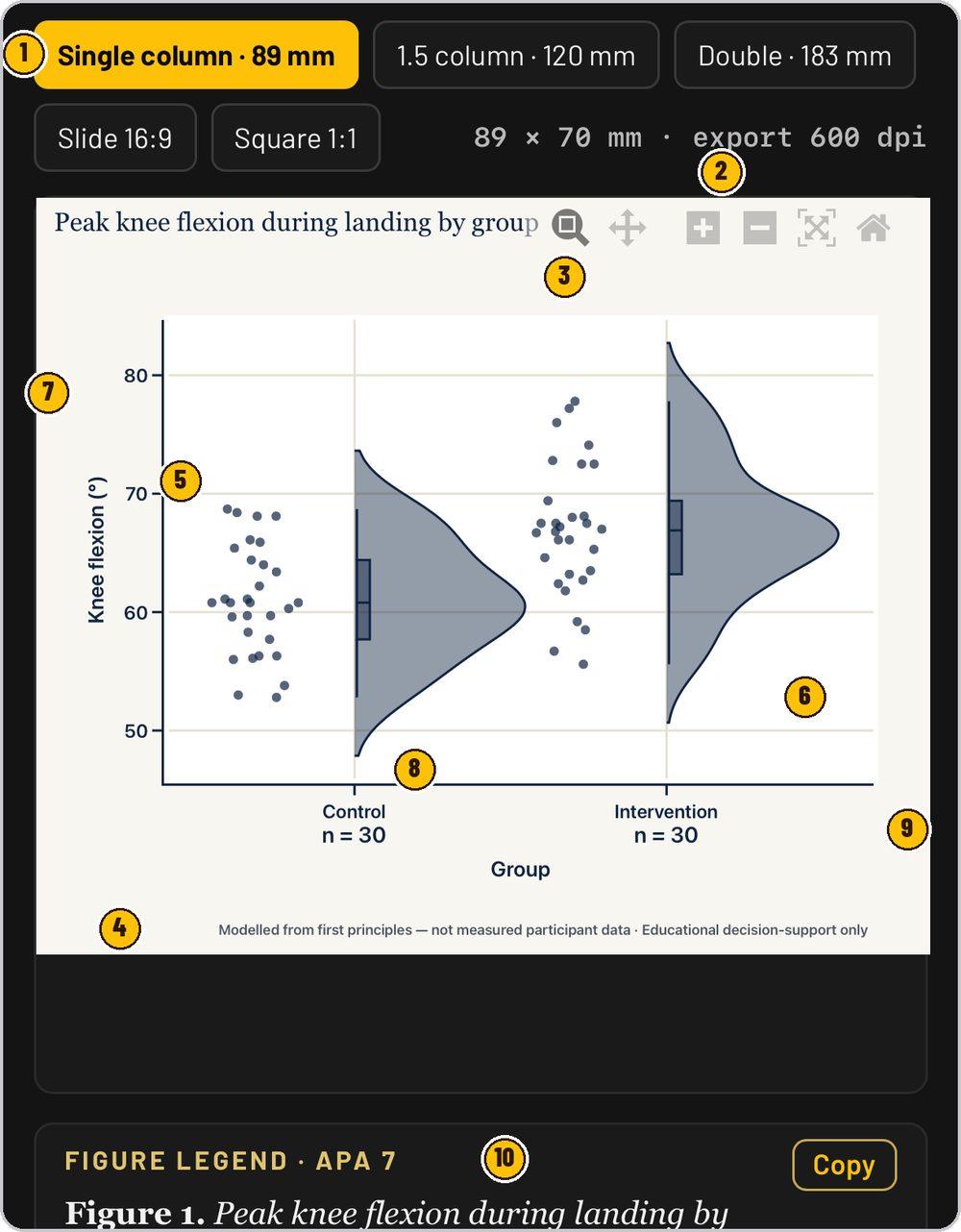
Single column 89 mm, 1.5 column 120 mm, double 183 mm, slide 16:9, square 1:1.
The figure's dimensions in millimetres and the export resolution — 600 dpi.
Sentence-case title in the house serif.
Where the data comes from — the demo set is modelled from first principles, not measured participant data; educational decision-support only.
Every individual observation, jittered beside its group.
The kernel density — the shape of the distribution.
Knee flexion in degrees, on a journal grid.
Median and quartiles inside the density.
Each group named with its sample size.
The legend written for the figure, ready to copy as its caption.
Figure Intelligence is part of TrainersEye
Support: support@trainerseye.com · trainerseye.com
MoPro Figure Intelligence, Research Edition · Backed by MMSx Authority Institute
Research figures — a figure is only as good as the data behind it: the demo sets are modelled from first principles, not measured participant data, and say so in their footer. Educational decision-support only; not medical advice.