

Mile Tracker
Every step counted. Every walk rewarded.
What is Mile Tracker?
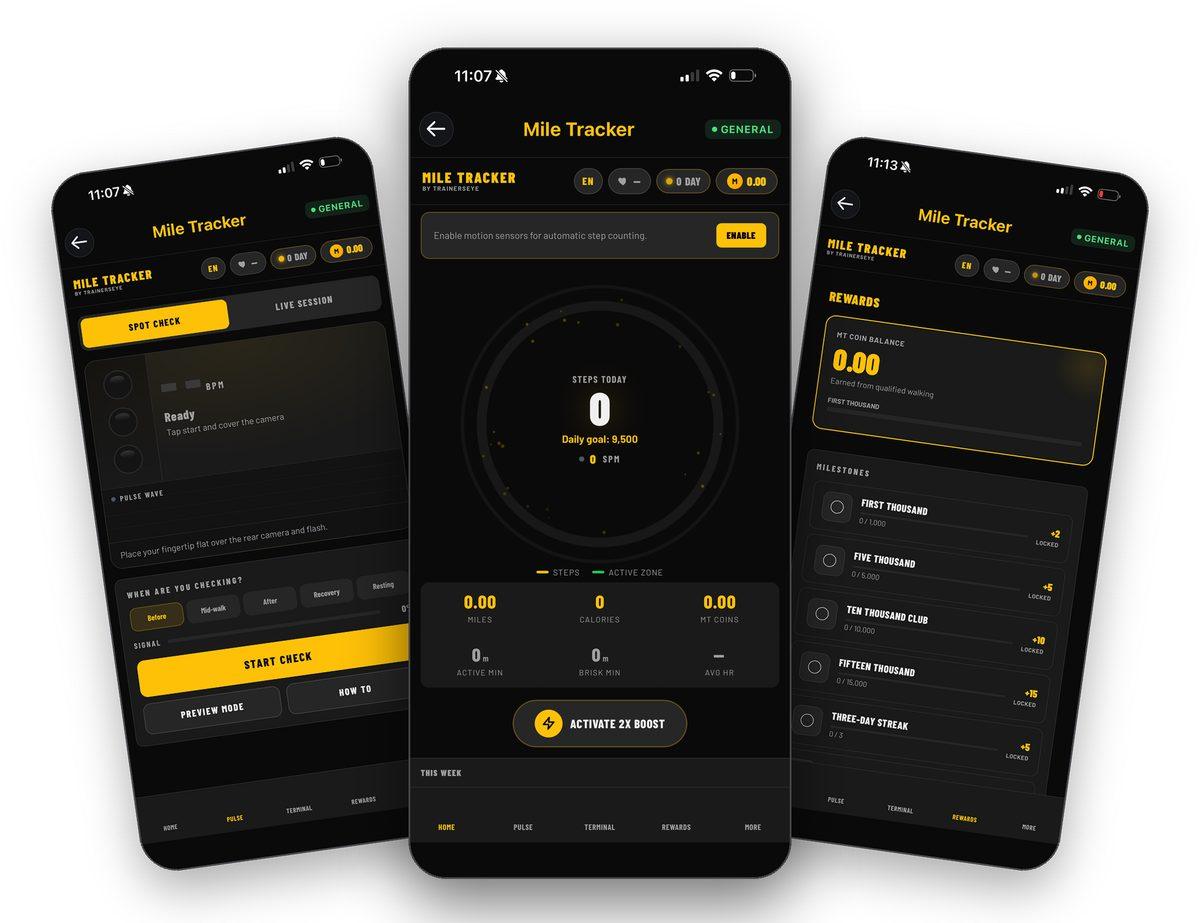
Mile Tracker turns your phone into a walking coach. It counts every step automatically, pays MT Coins for qualified walking, checks your pulse with the camera, and keeps three months of your walking on the phone so you can compare any two days or weeks. Everything sits on five tabs: Home, Pulse, Terminal, Rewards and More.
Steps counted automatically
Enable the motion sensors once and every walk is counted — with cadence, brisk minutes and active minutes.
MT Coins for real walking
Coins come from qualified walking bouts, boosts, streaks and milestones — not from shaking the phone.
Pulse from your camera
A fingertip spot check before, during or after a walk, or a live session with a Bluetooth monitor.
Three months on your phone
Ledger, calendar, records, trend and Compare — any two days or weeks side by side.
Where to find it
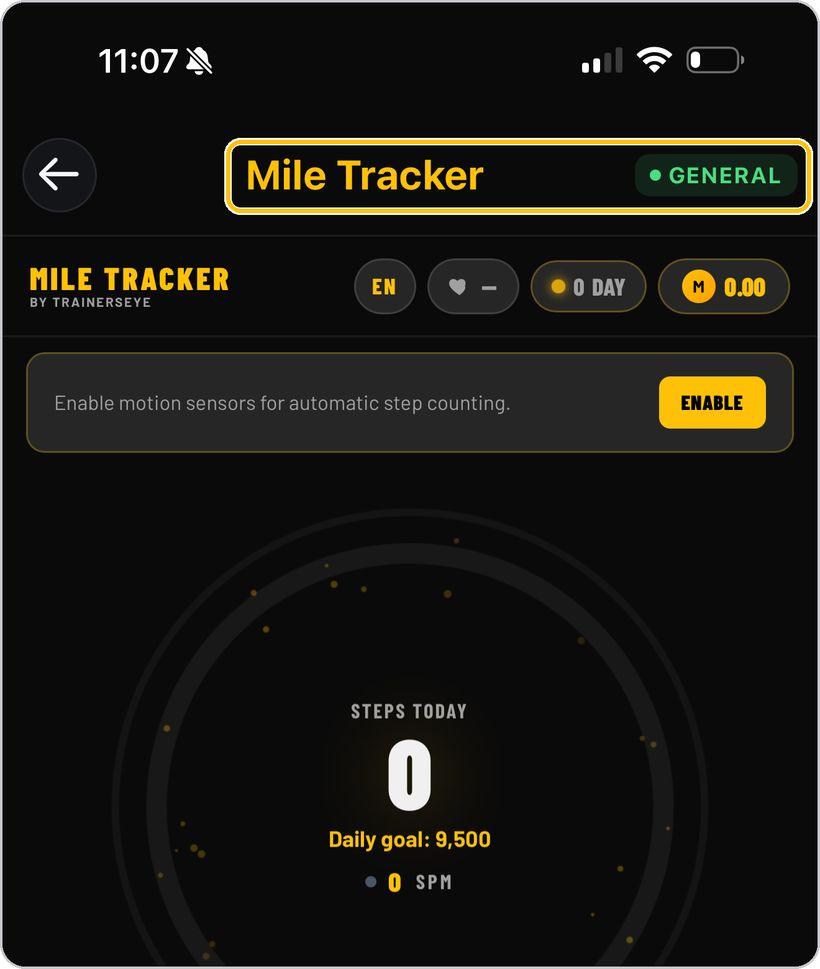
Open the TrainersEye app, go to the Dashboard and tap Mile Tracker. It is part of the General plan, so every subscriber can use it.
This guide in thirteen steps
Open the tool
From the Dashboard, tap Mile Tracker. It is part of the General plan, so every subscriber can use it.
Know the header
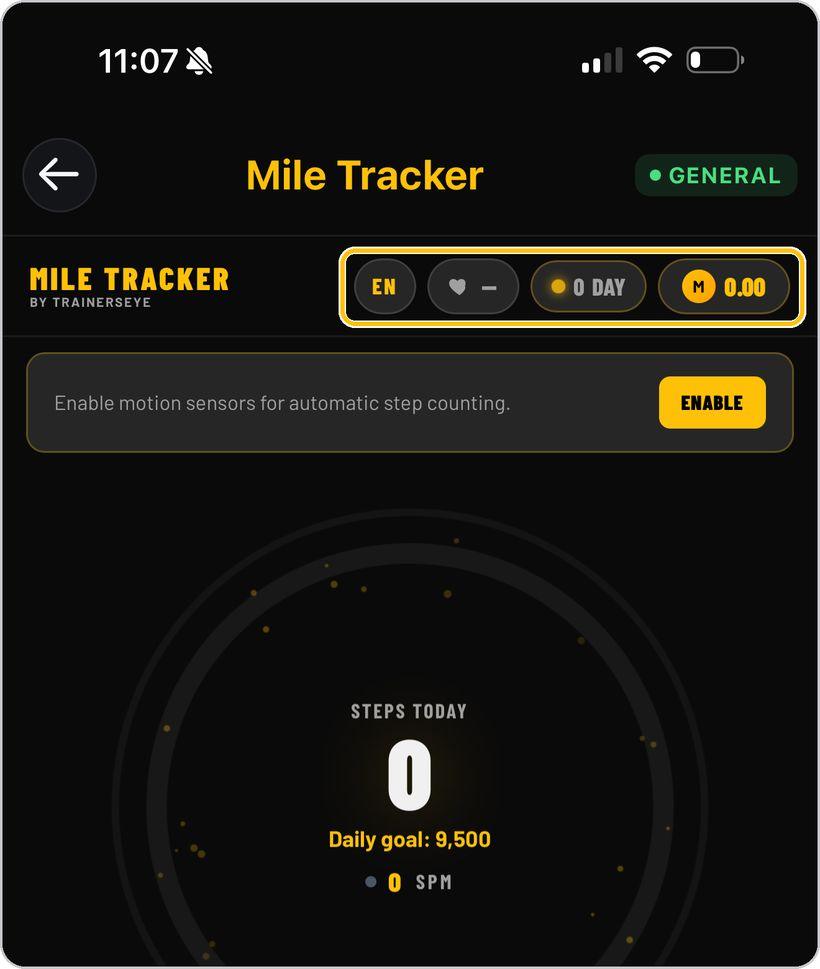
The four chips at the top are yours to watch: language, your latest heart rate, your streak in days and your MT Coin balance.
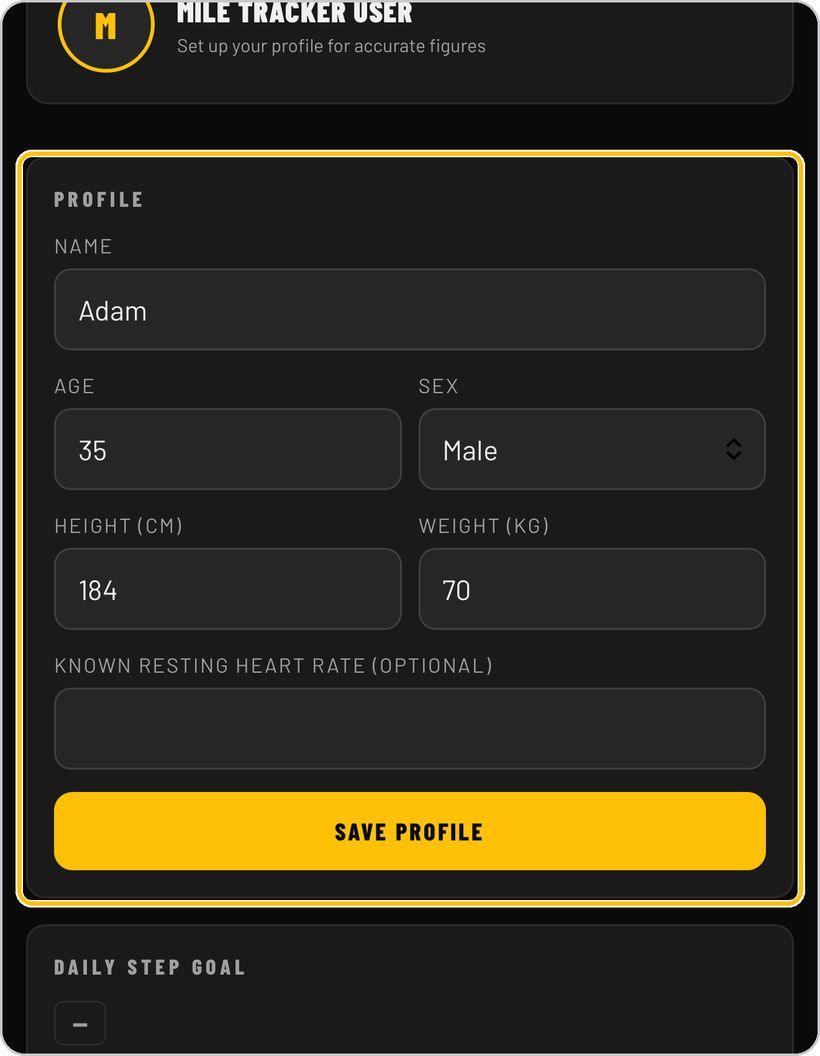
Set up your profile
Open More and fill in your name, age, sex, height and weight, plus your resting heart rate if you know it, then tap Save Profile. Distance, calories and heart-rate guidance are calculated from these.
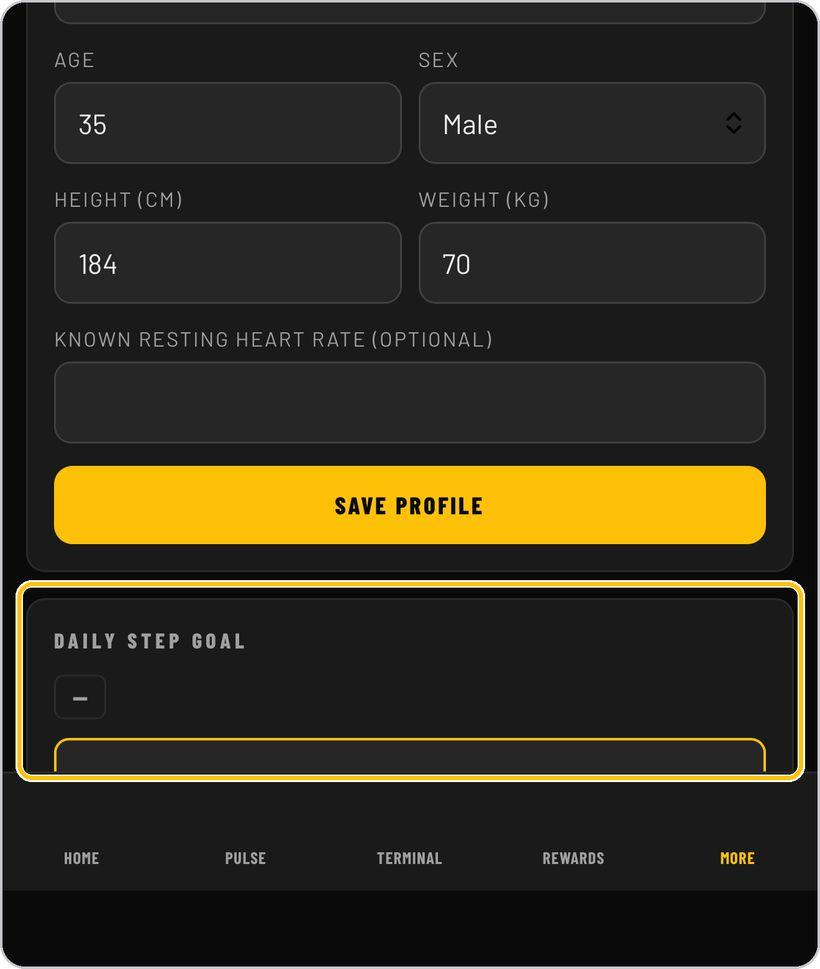
Set your daily goal
Below the profile, set your daily step goal with the minus and plus buttons. The ring on Home fills towards this number and your streak counts the days you reach it.
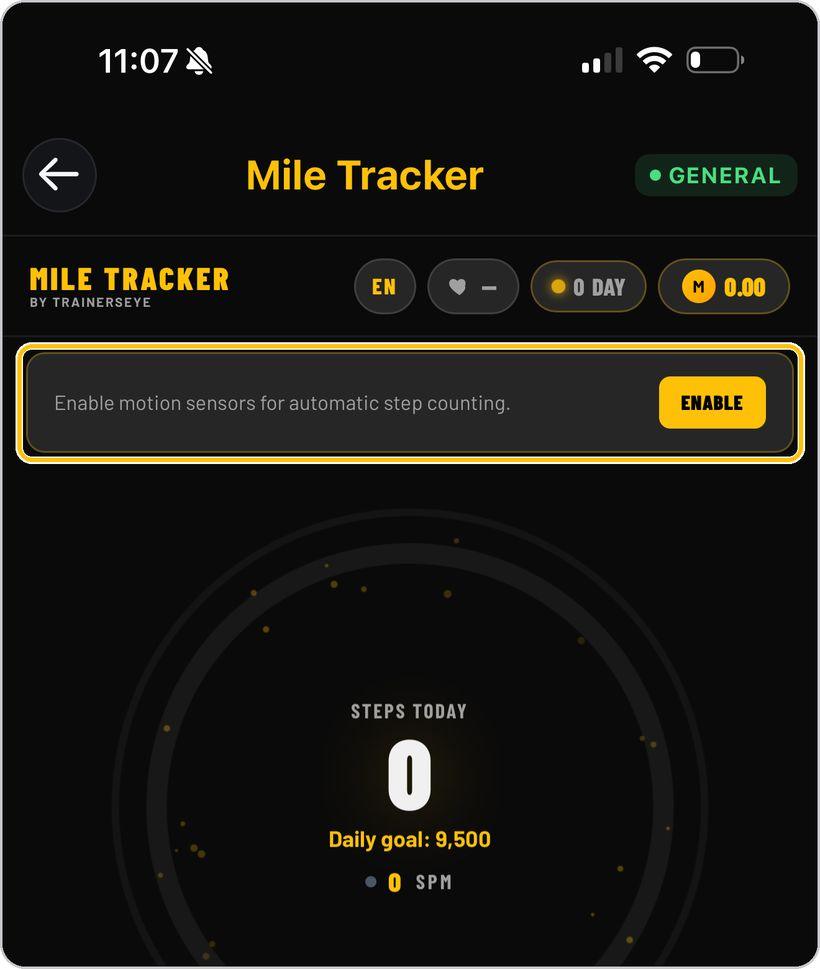
Enable motion sensors
On Home, tap Enable so the phone's motion sensors count your steps automatically. Without it nothing is counted.
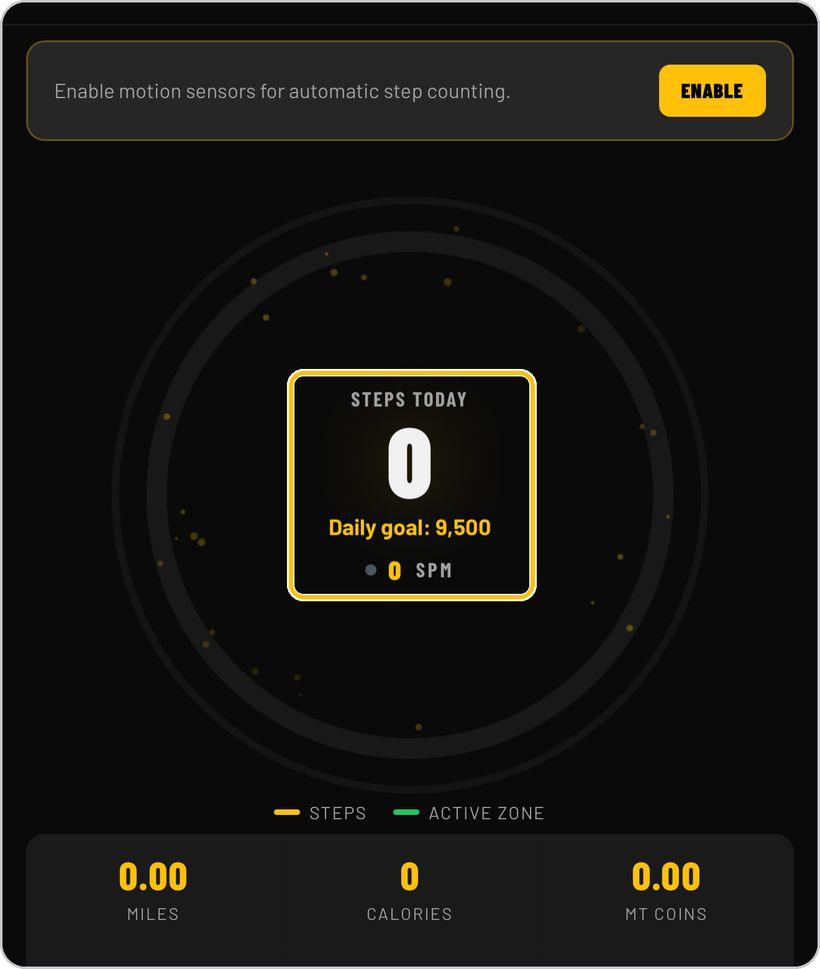
Read the ring
The centre shows today's steps against your daily goal and your cadence in steps per minute. The amber ring fills with steps; the green ring shows minutes in the active zone.
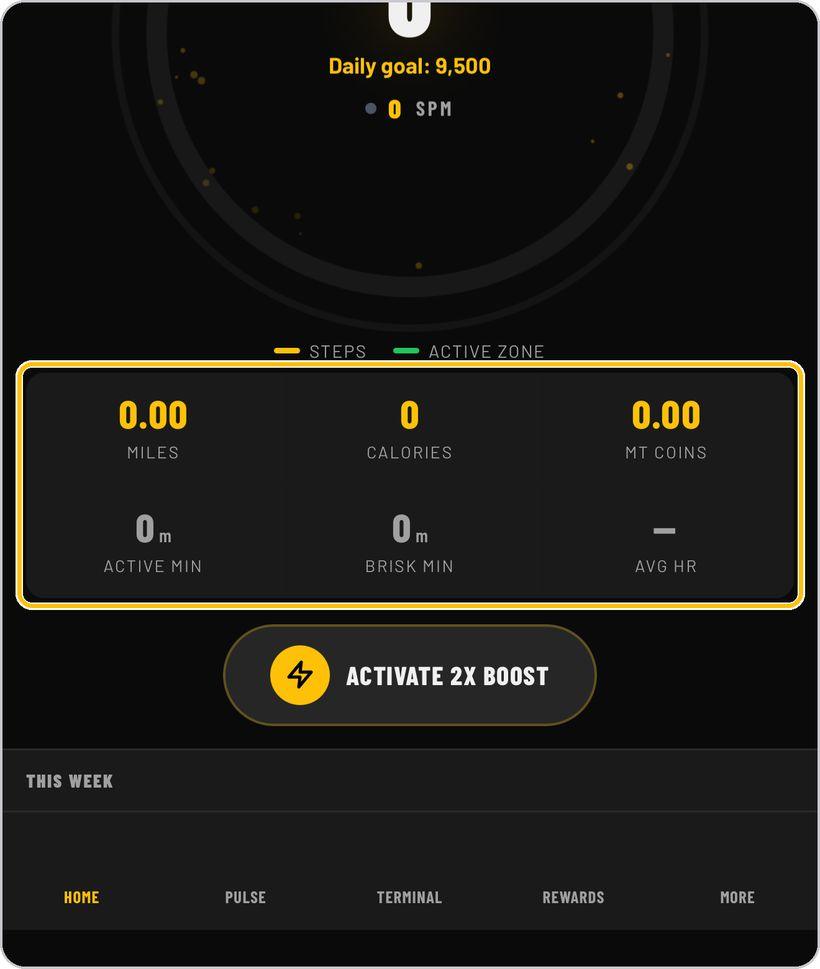
Today at a glance
Under the ring: miles, calories and MT Coins earned, then active minutes, brisk minutes and your average heart rate for the day.
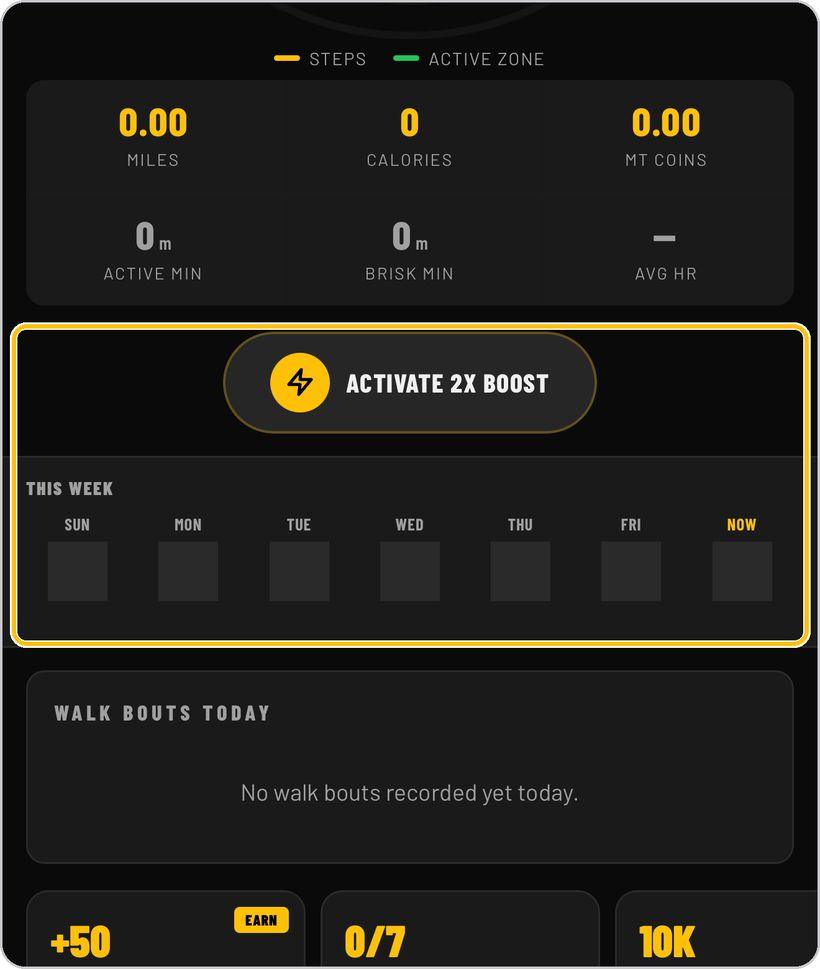
Boost, streak and your week
Tap Activate 2X Boost before a walk to double the coins it earns. This Week shows a box for each day; a filled box is a day you reached your goal.
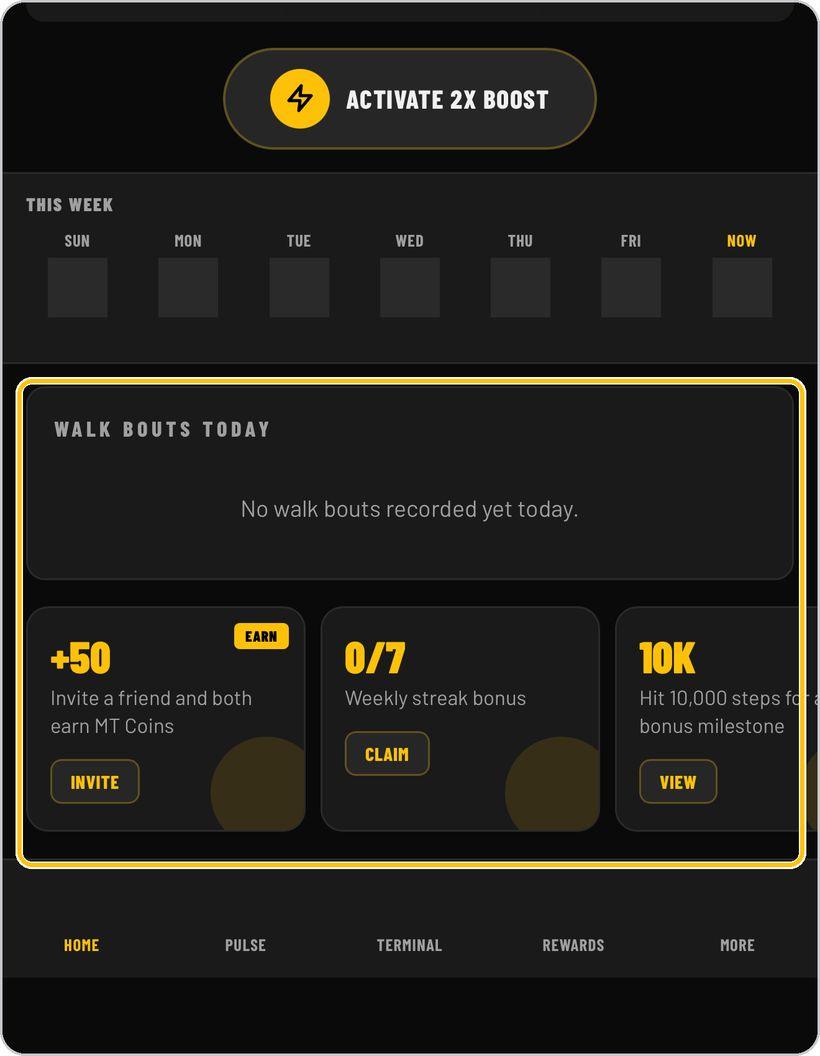
Walk bouts and bonus cards
Walk Bouts Today lists each qualified walk as it is recorded. Below it, the cards let you invite a friend for bonus coins, claim the weekly streak bonus and view the 10K milestone.
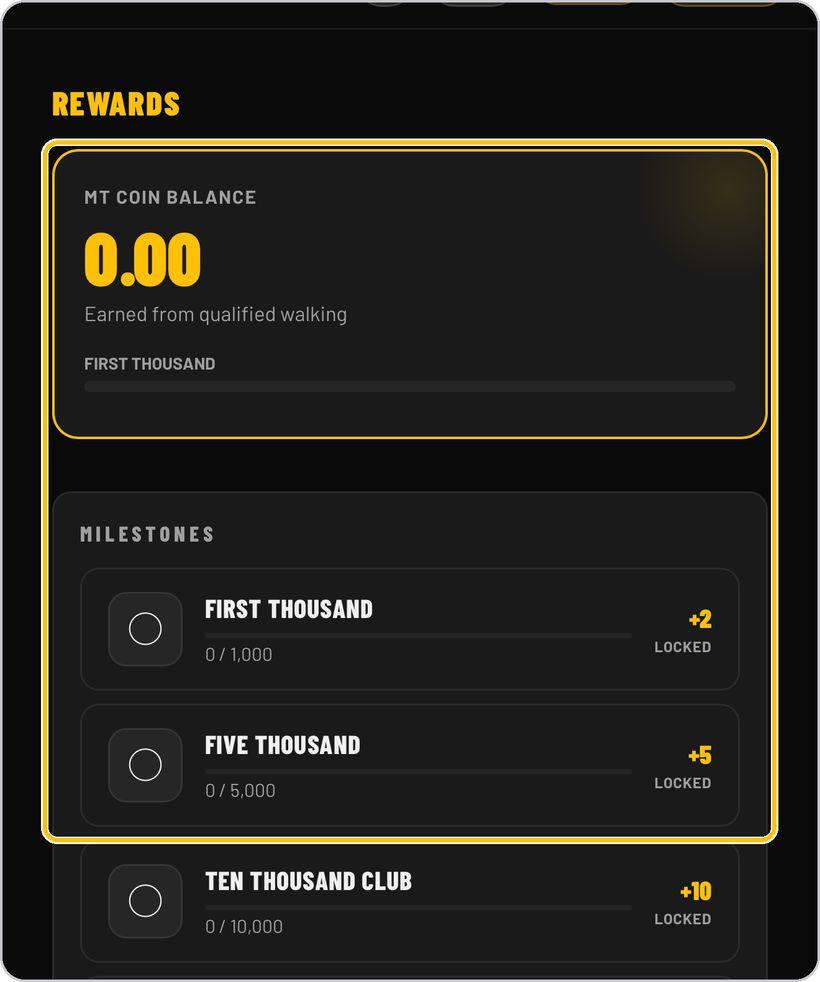
Rewards
Rewards shows your MT Coin balance and the milestones — first thousand, five thousand, the ten-thousand club, fifteen thousand and streaks — each with its coin bonus.
Check your pulse
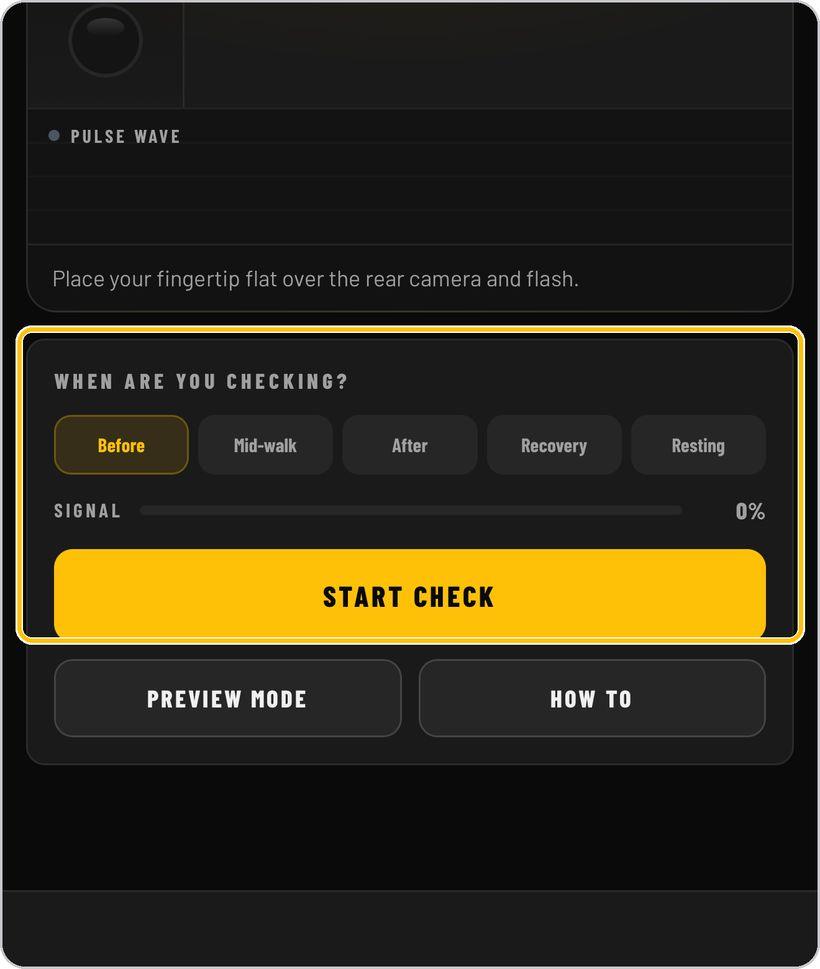
On Pulse, choose when you are checking — before, mid-walk, after, recovery or resting — then tap Start Check and place your fingertip flat over the rear camera and flash.
Hold still for the reading
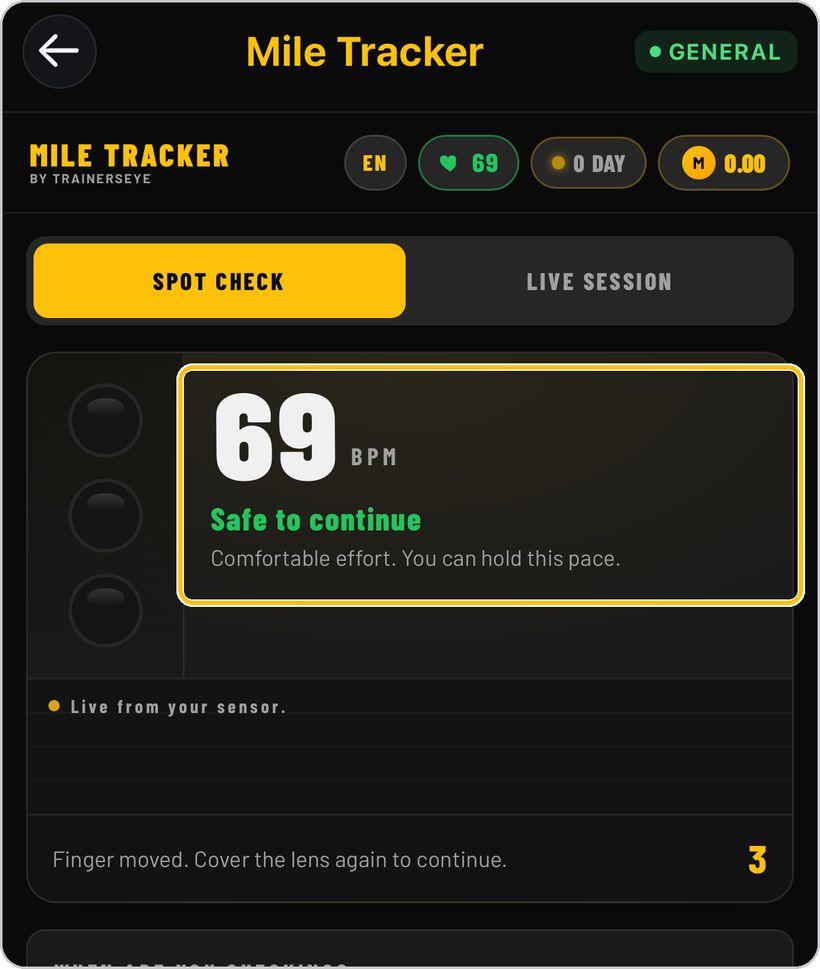
Keep your hand relaxed while the signal bar fills and the countdown runs. Your BPM appears with a verdict — such as Safe to continue — and is saved to the heart chip at the top.
The Terminal
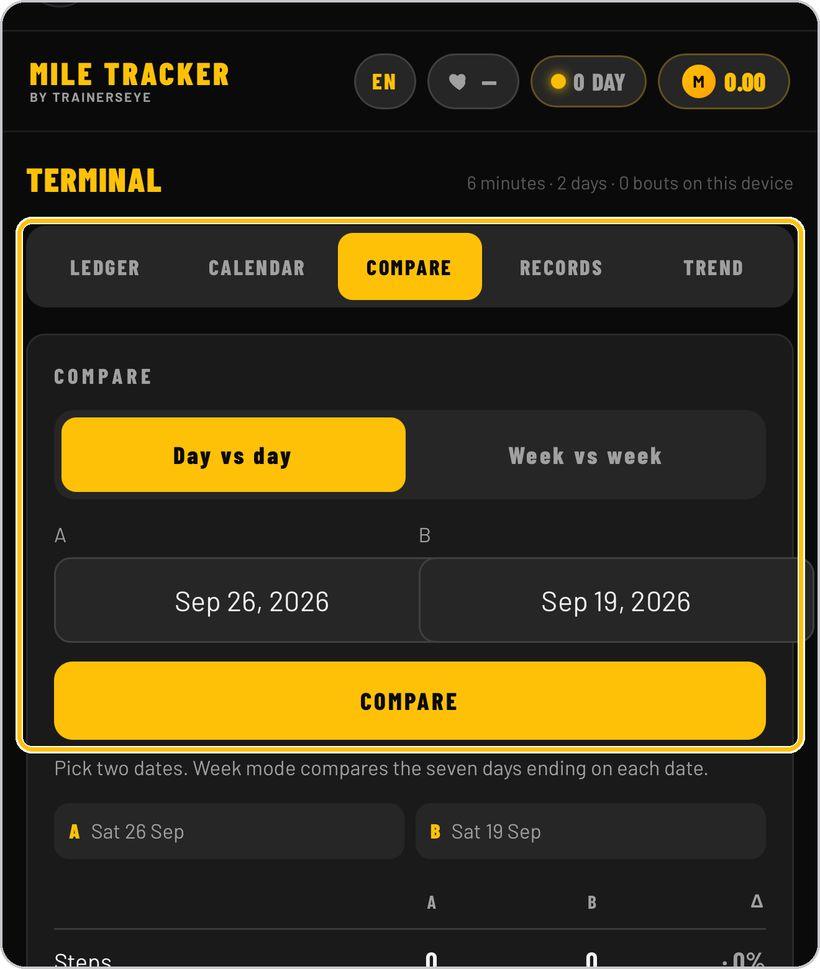
Terminal keeps three months of your walking on the phone: a day-by-day ledger, a calendar, records, a trend line and Compare, which sets any two days or weeks side by side — steps, distance, brisk and active minutes, walk bouts, energy and training load.
You're ready
That's it. Open Mile Tracker, enable the sensors and take your first walk.
Reading the Home screen
Home has everything at a glance. Here is what each part means.
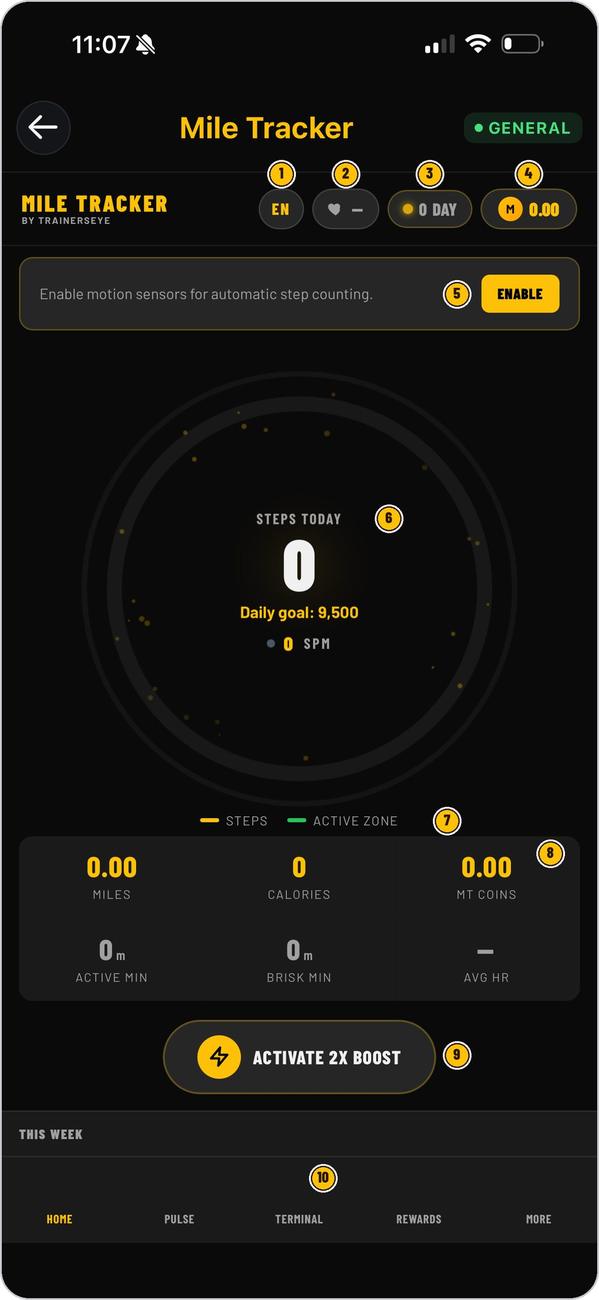
Tap EN to switch between English, Hindi, Spanish and Arabic.
Your latest pulse reading; a dash until you take one.
Days in a row you have reached your goal.
Coins earned from qualified walking.
Enable once so steps count automatically while you walk.
Today's steps against your daily goal, with your cadence in steps per minute.
The amber ring fills with steps; the green ring shows minutes in the active zone.
Miles, calories, MT Coins, active minutes, brisk minutes and average heart rate.
Doubles the coins your walking earns while the boost runs.
Home, Pulse, Terminal, Rewards and More — the five screens of the tool.
Mile Tracker is part of TrainersEye
Support: support@trainerseye.com · trainerseye.com
Backed by MMSx Authority Institute
Pulse readings are for guidance, not diagnosis. Stop if you feel unwell. Educational content — not medical advice.