
Quick Builder
A complete professional session in 30 seconds.
What is QuickBuilder?
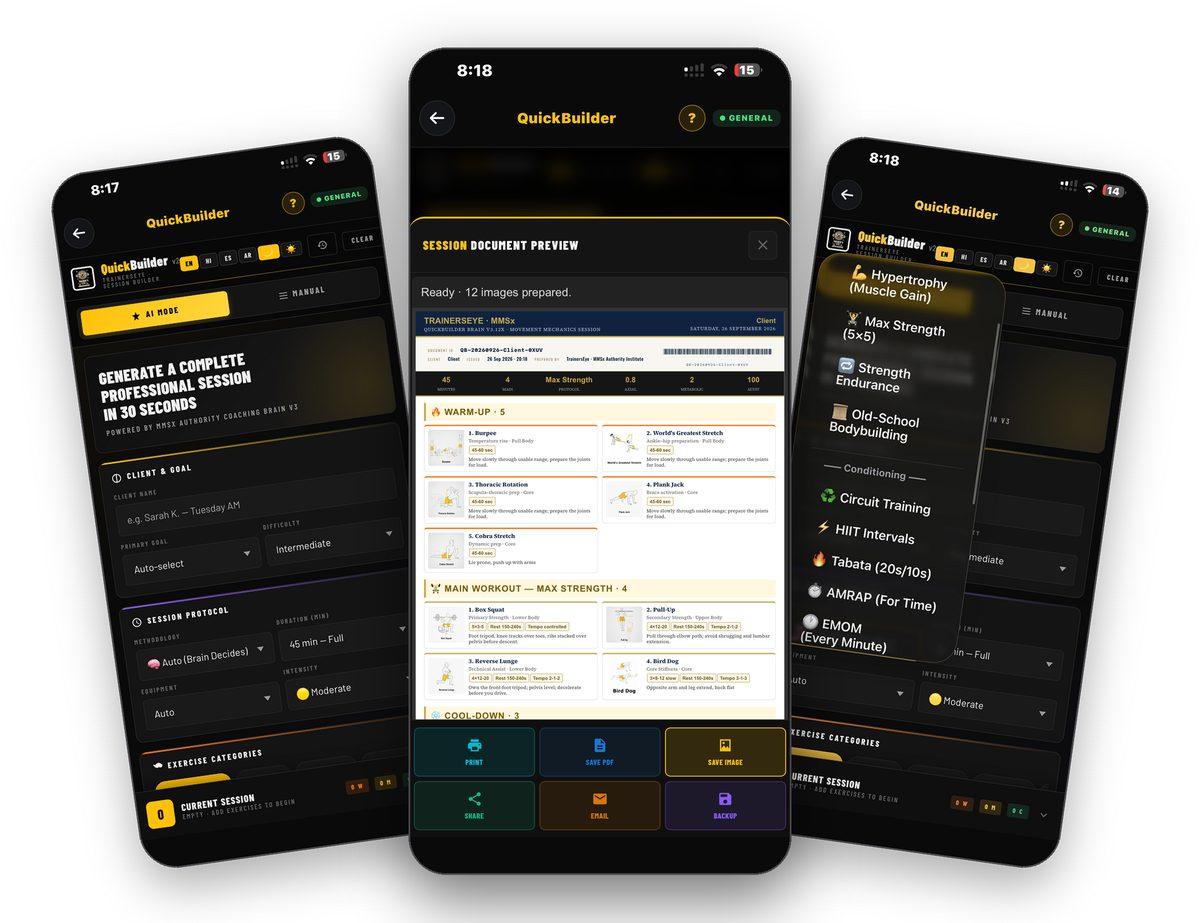
QuickBuilder builds a complete, professional training session for a client in about thirty seconds. AI Mode lets one of 21 coaching brains write the session for the goal, time, equipment and intensity you set; Manual lets you pick every exercise yourself. Either way you get warm-up, main work and cool-down on one clean, illustrated document you can print, save, share or email.
Two ways to build
AI Mode writes the session for you; Manual lets you choose each exercise and place it in warm-up, main or cool-down.
21 coaching brains
One brain per methodology — hypertrophy, max strength, circuits, HIIT, Tabata, EMOM and more; Auto lets the brain decide.
Ready in 30 seconds
Set the goal, tap Generate, and the finished document appears with every exercise illustrated.
Print, PDF, image, share, email
Six ways to hand the session to a client, plus a backup you can restore later.
Where to find it
Open the TrainersEye app, go to the Dashboard and tap QuickBuilder. It is part of the General plan, so every subscriber can use it.
This guide in thirteen steps
Open the tool
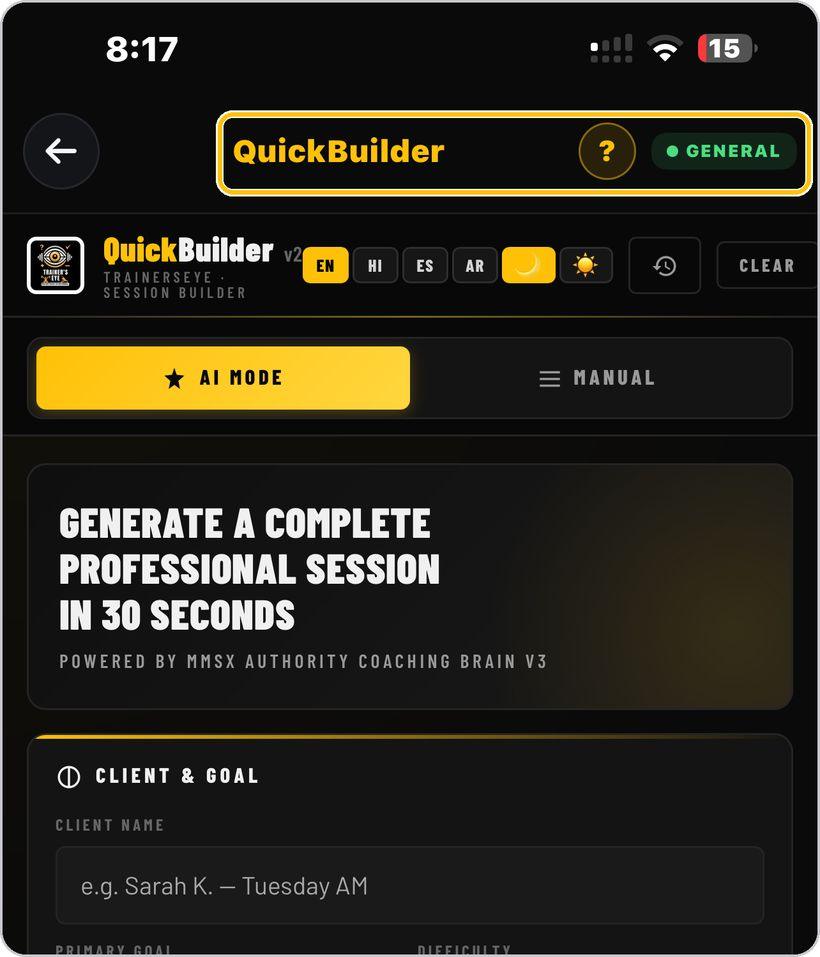
From the Dashboard, tap QuickBuilder. It is part of the General plan, so every subscriber can use it.
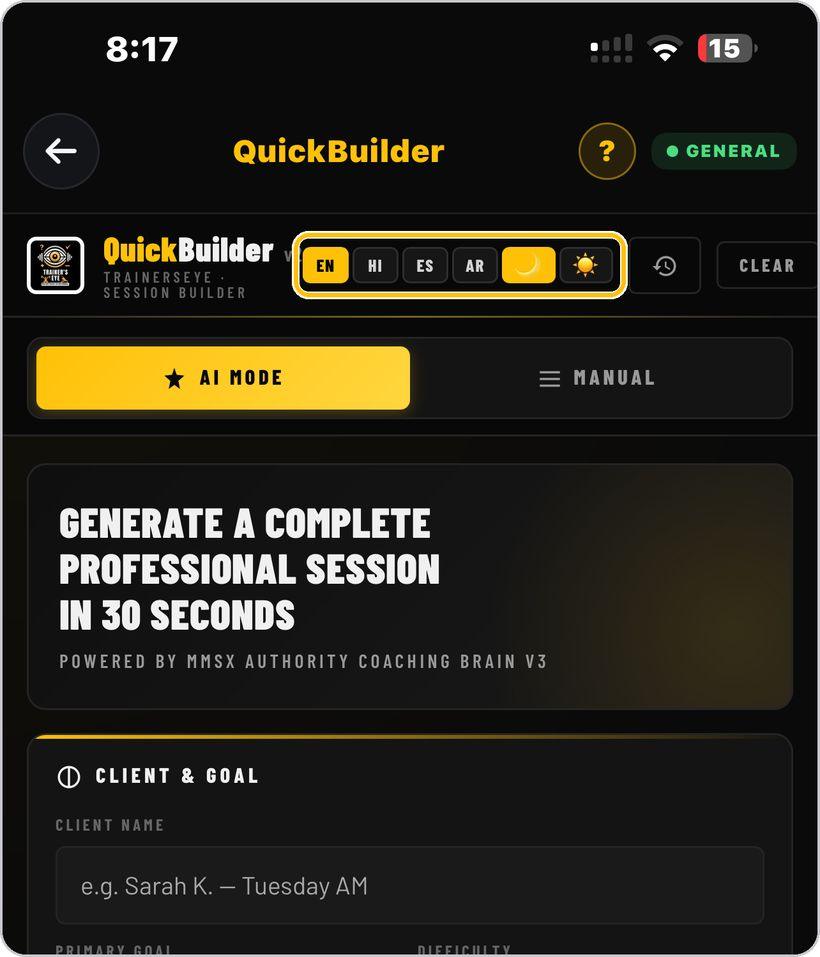
Choose your language and look
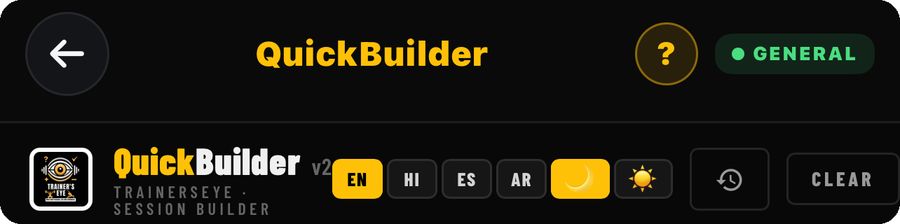
At the top, pick English, Hindi, Spanish or Arabic, and switch between the dark and light look with the moon and sun buttons.
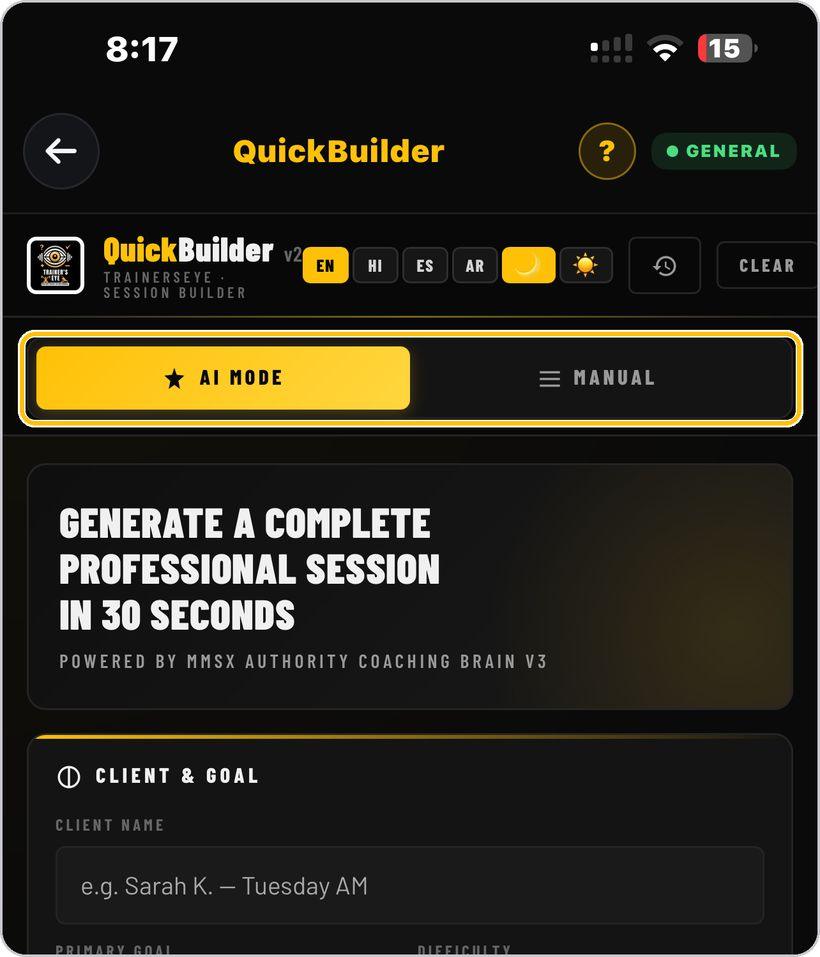
Two ways to build
AI Mode writes the whole session for you from a few choices. Manual lets you pick every exercise yourself. Start in AI Mode; switch to Manual any time.
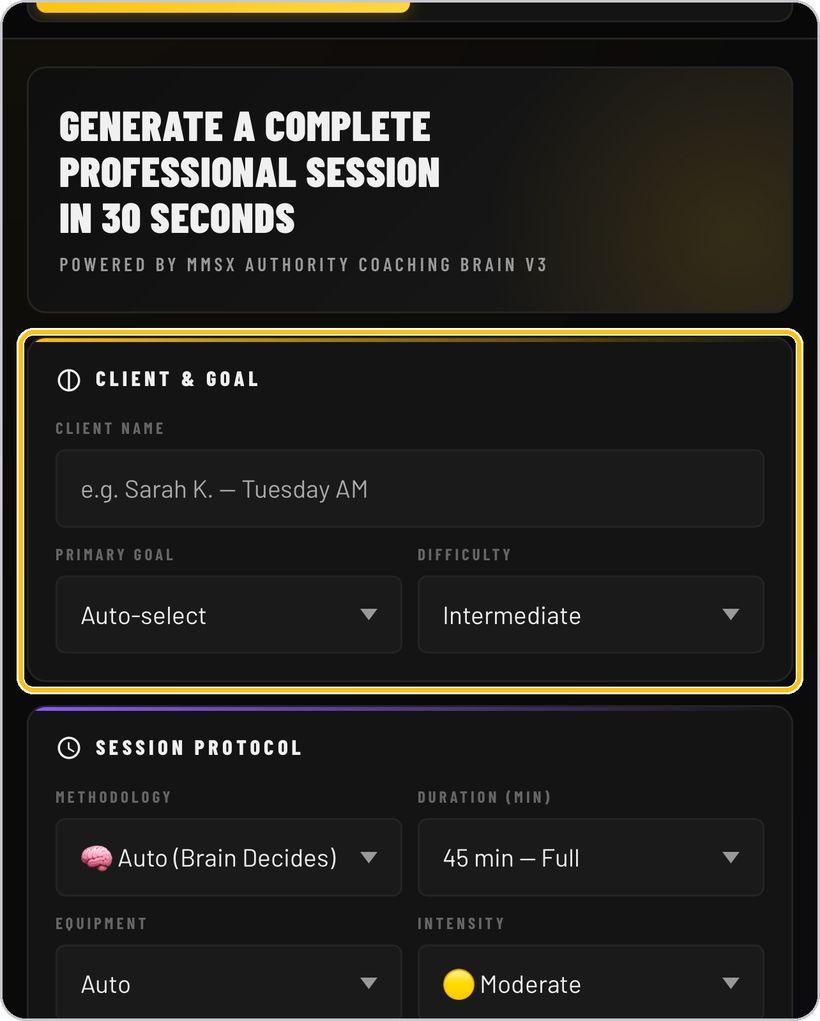
Name the client and set the goal
Type the client's name — it goes on the document — then choose the primary goal and the difficulty level. Auto-select lets the brain choose the goal for you.
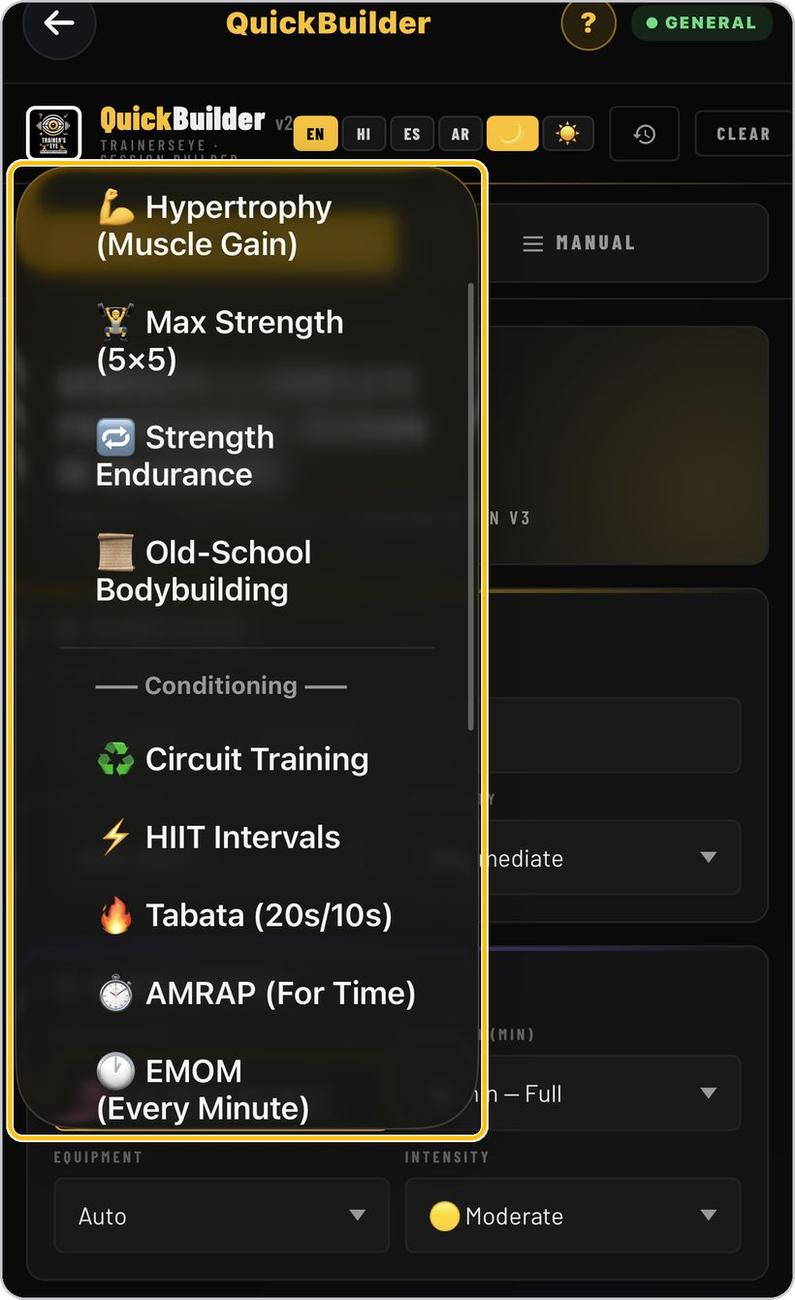
Choose the coaching brain
Open Methodology and pick a brain. Each of the 21 brains builds that type of session — hypertrophy, max strength, strength endurance, circuits, HIIT, Tabata, AMRAP, EMOM and more. Auto lets the brain decide.
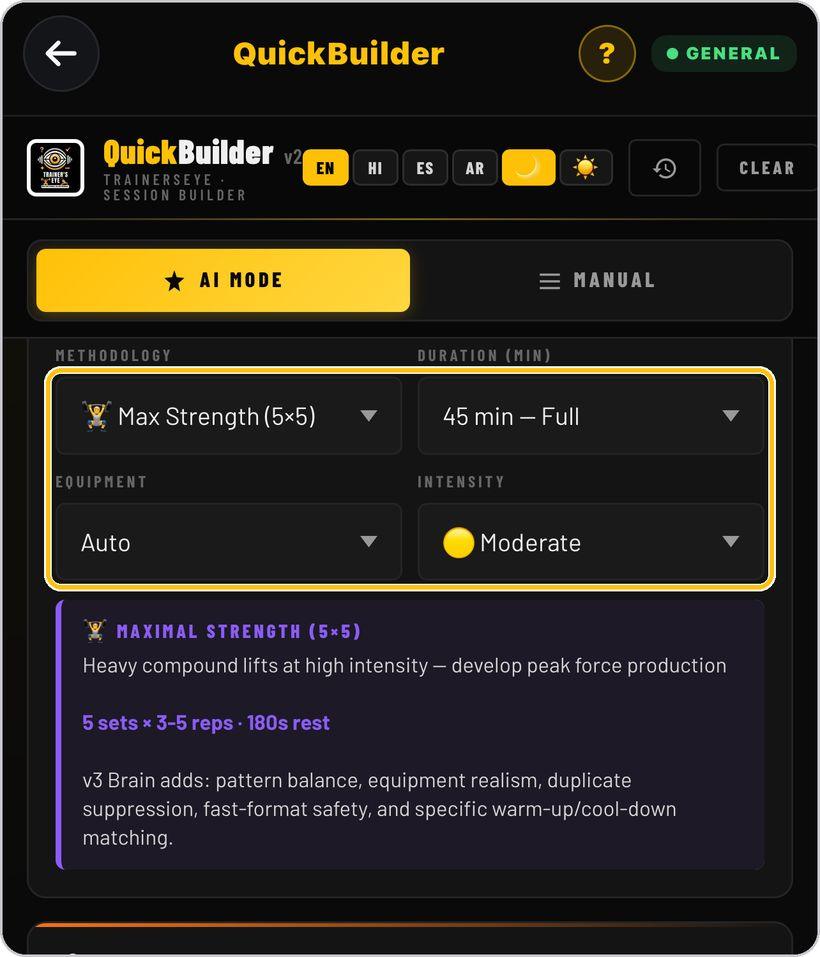
Set time, equipment and intensity
Choose the session length, the equipment available and the intensity. Equipment on Auto leaves the choice to the brain.
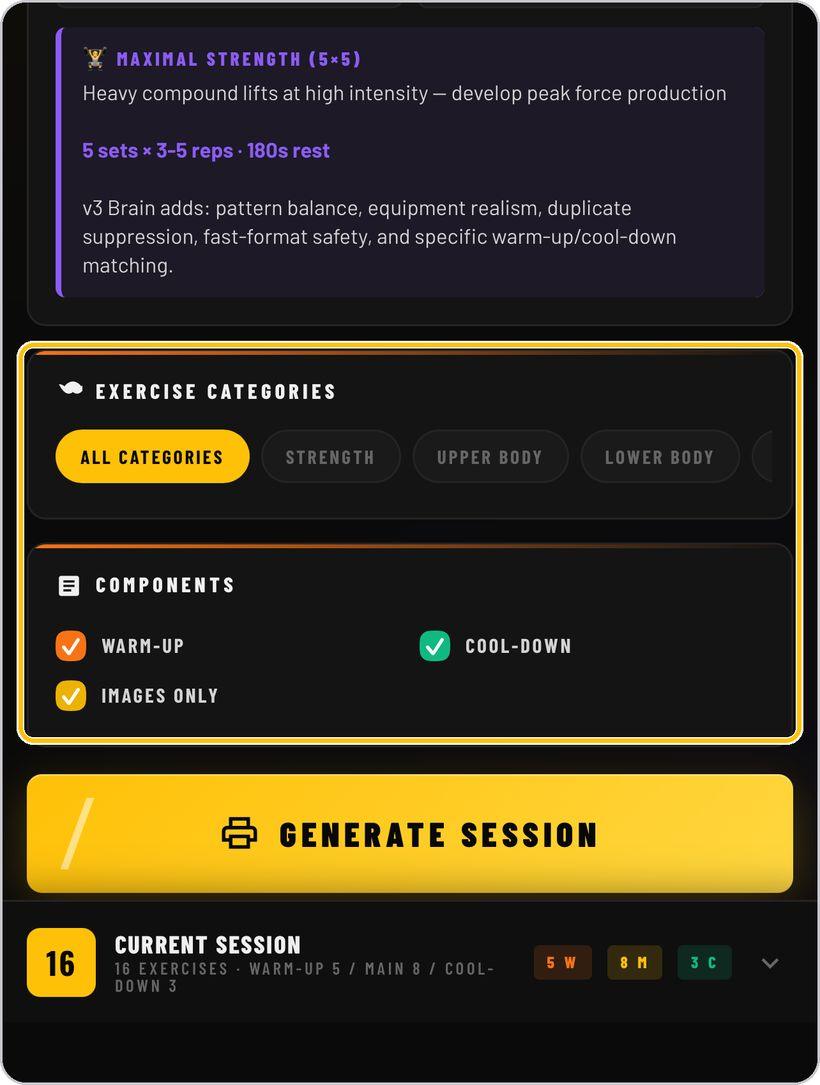
Categories and components
Narrow the exercise pool with the category chips, or leave All categories on. Tick Warm-up and Cool-down to include them, and Images only to keep every exercise illustrated.
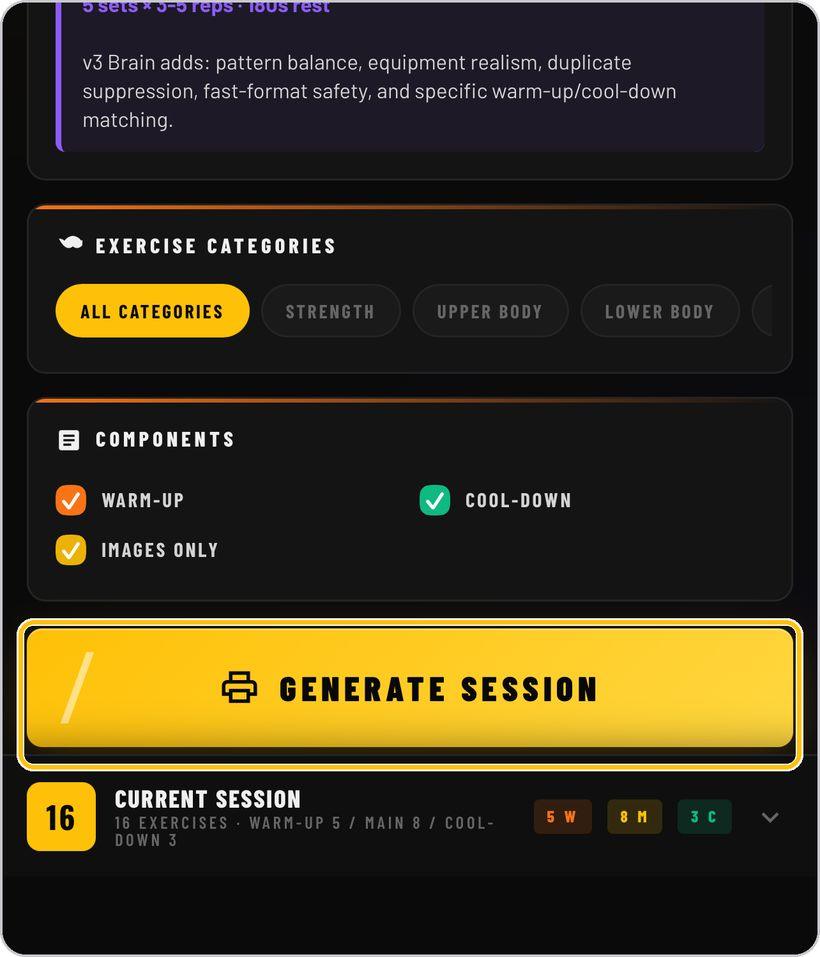
Generate the session
Tap Generate Session. In about thirty seconds the brain builds the full session and opens the document preview.
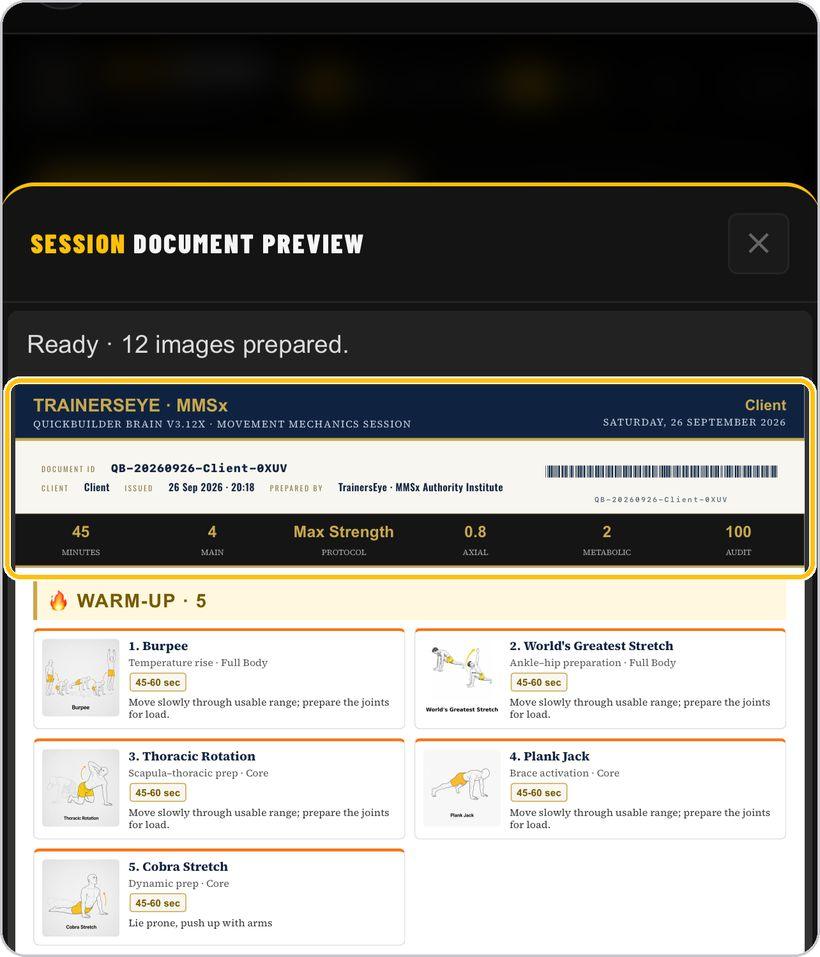
Read the document
The preview shows the finished document: client and date, the document ID and barcode, the session numbers, then every exercise with its picture, dose and coaching cue.
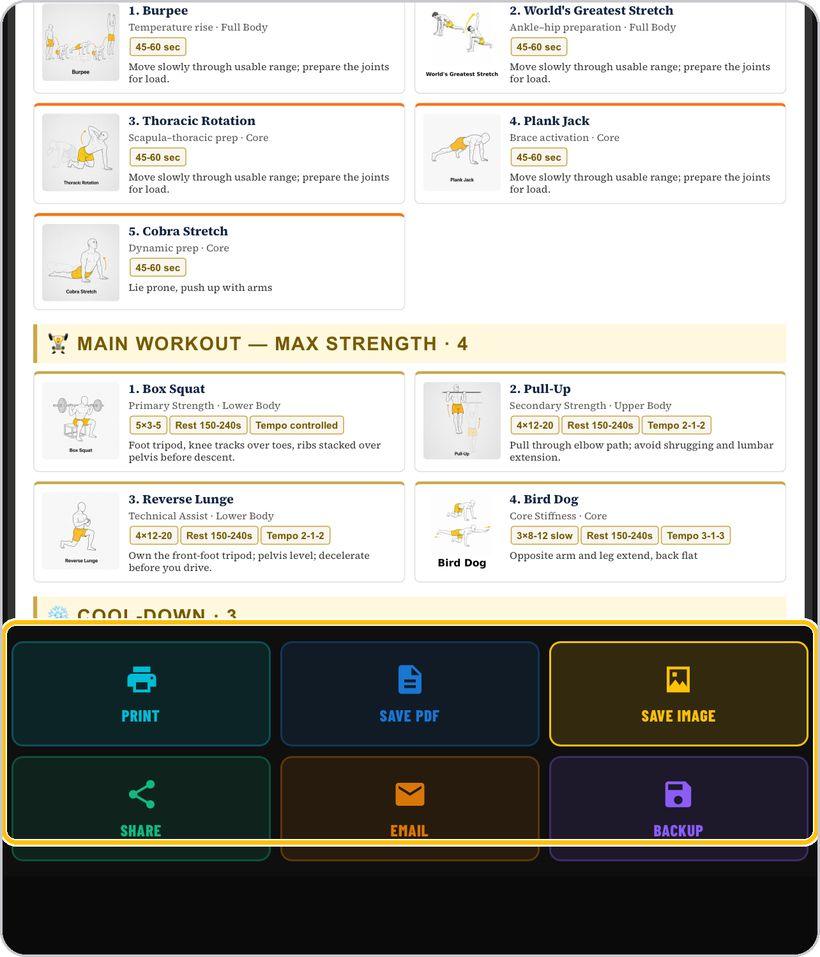
Print, save, share or email
Use the six buttons under the preview: Print, Save PDF, Save Image, Share, Email and Backup. Close the preview to return to the form.
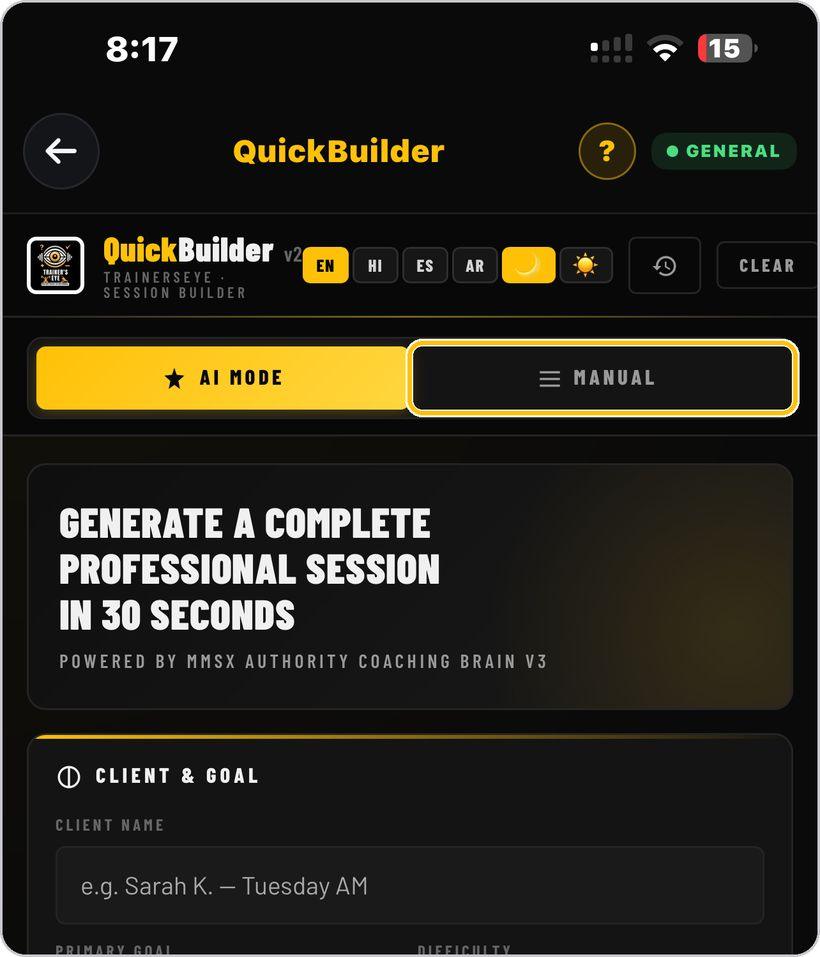
Or pick every exercise yourself
Switch to Manual to browse the exercise library. Tap W, M or C on an exercise to place it in the warm-up, main work or cool-down, then tap Build to make the document.
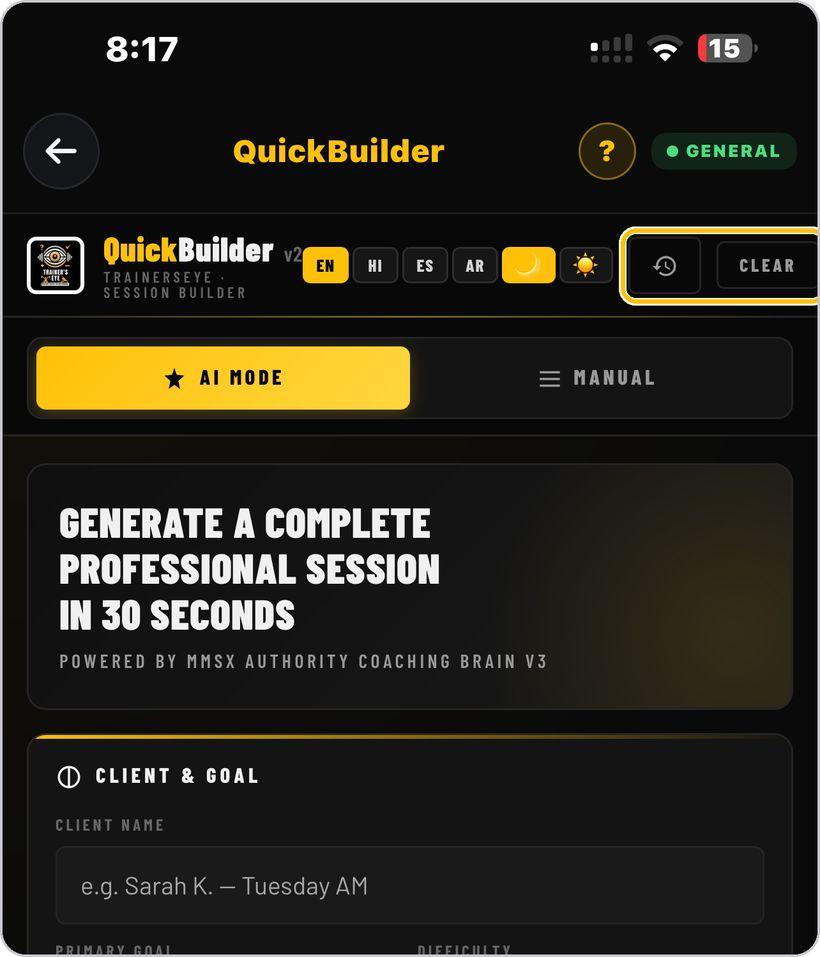
Start again or bring back a session
Clear empties the form for a new client. The clock icon opens your session history.
Get help any time
Tap the question mark at the top whenever you need help.
You're ready
That's it. Open QuickBuilder and build today's session.
Reading the session document
Every session is one document. Here is what each part means.
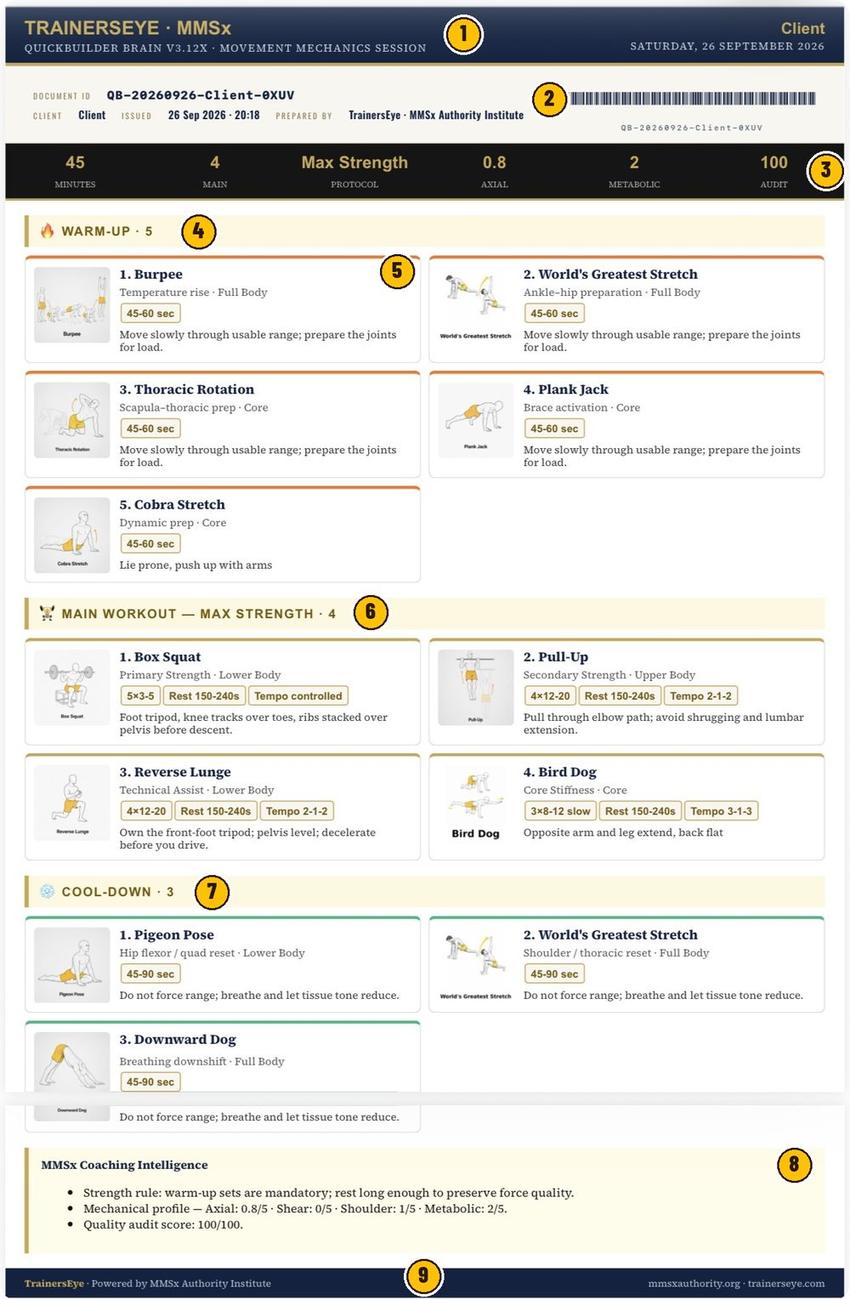
TrainersEye · MMSx branding, the client's name and the date.
A unique ID for the session, when it was issued and who prepared it.
Minutes, main exercises, protocol, axial and metabolic ratings out of 5, and the quality audit score out of 100.
Preparation exercises, each timed in seconds.
Picture, name, purpose and body area, the dose chips — sets, reps, rest, tempo — and one coaching cue.
The working exercises, named for the coaching brain that built them.
Reset exercises to finish, timed in seconds.
The rule behind the session, its mechanical profile and the audit score.
TrainersEye, powered by MMSx Authority Institute, with the web addresses.
QuickBuilder is part of TrainersEye
Audio version of this guide: trainerseye.com/guides/quickbuilder-guide.html
Support: support@trainerseye.com · trainerseye.com
Powered by the MMSx Authority Coaching Brain · Backed by MMSx Authority Institute
Scale every session to the client's level and stop at pain. Educational content — not medical advice.