
ProMobility
Mobility drill builder — a smart session from the brain, a hand-picked list, or an evidence-referenced Pro Card.
What is ProMobility?
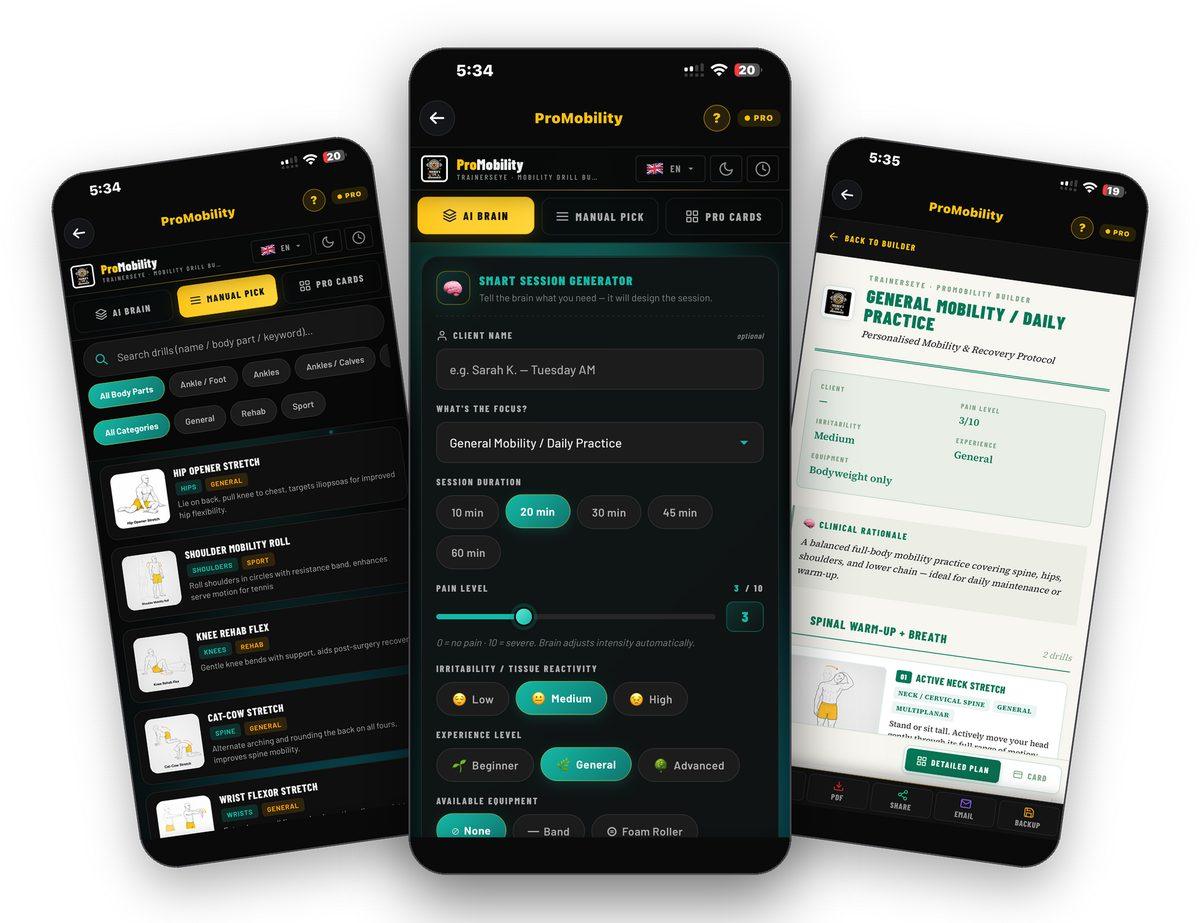
ProMobility is the TrainersEye mobility drill builder. Three ways in: AI Brain designs a session from the focus, duration, pain level, irritability, experience and equipment you give it; Manual Pick lets you search the drill library by name, body part or keyword and choose drills yourself; Pro Cards are evidence-referenced, levelled drill sets by joint and region, timing and context, and sport, backed by MMSx Authority Institute. Every session becomes a personalised mobility and recovery protocol — parameters, clinical rationale, blocks of drills with image, instructions, dose and the reason — as a detailed plan or a card, to print, save as PDF, share, email or back up.
AI Brain
Tell the brain the focus, duration, pain, irritability, experience and equipment — it designs the session and adjusts intensity to the pain level.
Manual Pick
Search the drill library by name, body part or keyword; filter by body part and by General, Rehab or Sport; pick the drills yourself.
Pro Cards
Evidence-referenced drill sets by joint and region, timing and context, and sport, levelled L1 to L3, each with a code, a time and a drill count.
A protocol you can hand over
Parameters, clinical rationale, drill blocks with dose and reason — detailed plan or card — Print, PDF, Share, Email, Backup.
Where to find it
Open the TrainersEye app, go to the Dashboard and tap ProMobility. It is part of the Pro plan. The question mark at the top opens help on every screen.
This guide in thirteen steps
Open the tool
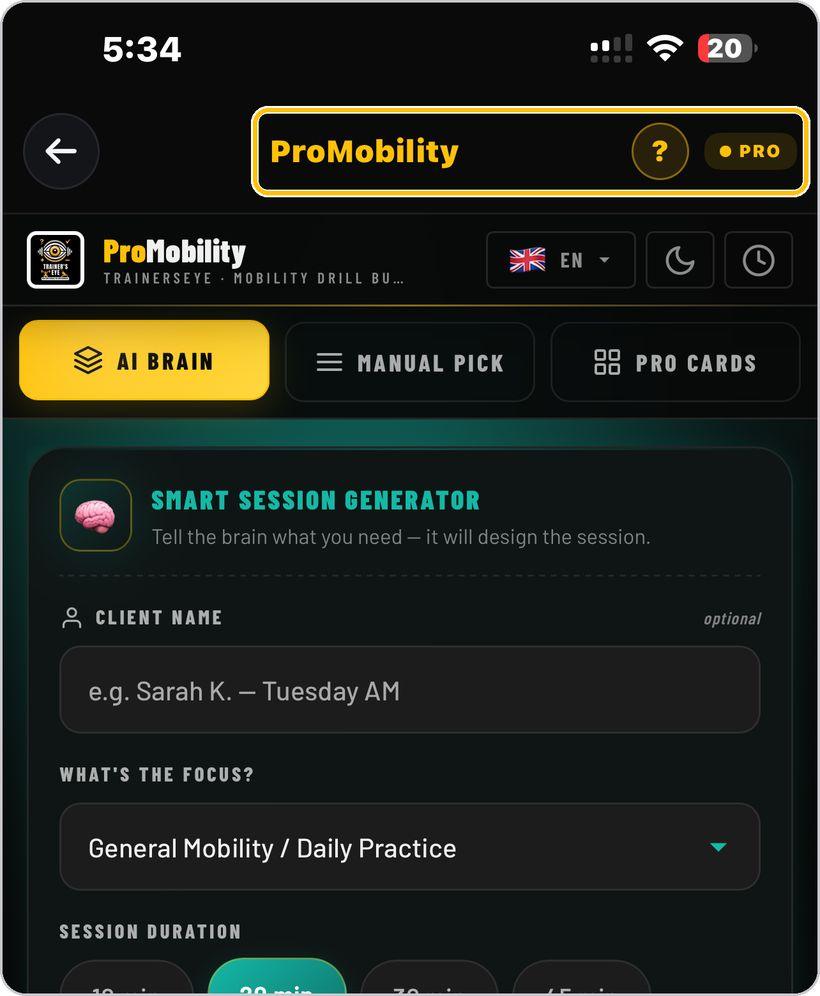
From the Dashboard, tap ProMobility — the TrainersEye mobility drill builder. It is a Pro-plan tool.
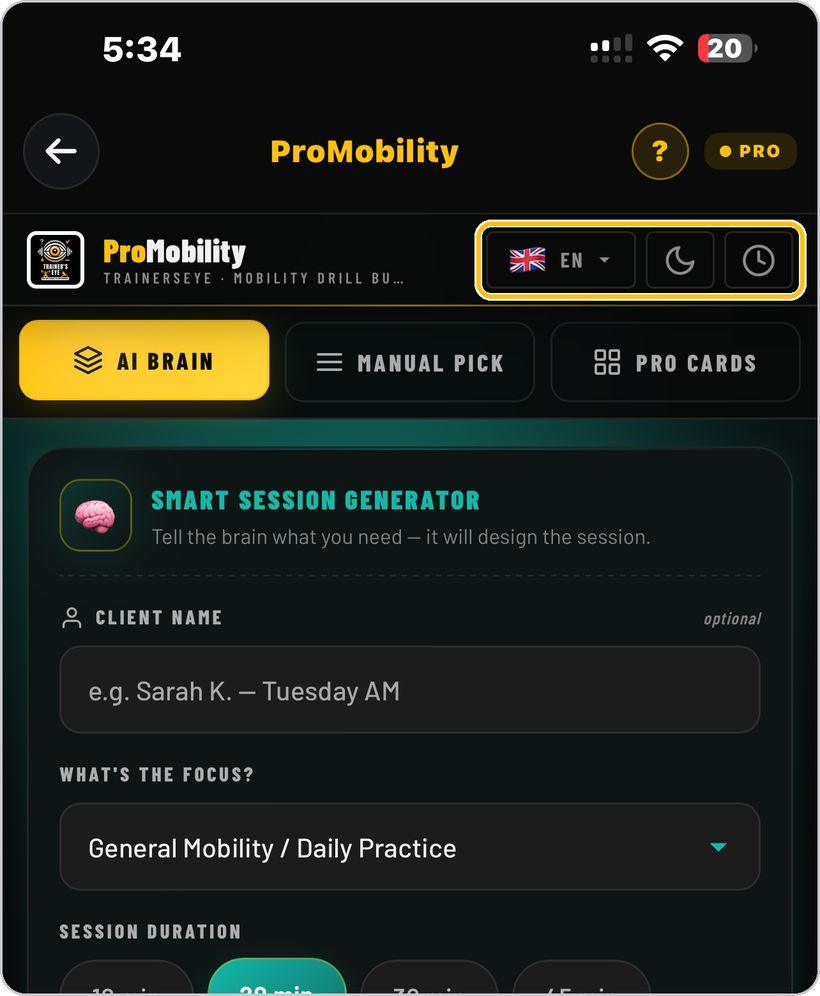
Language, look and history
The flag sets the language — English, Hindi, Spanish or Arabic; the moon switches the dark and light look; the clock opens your session history.
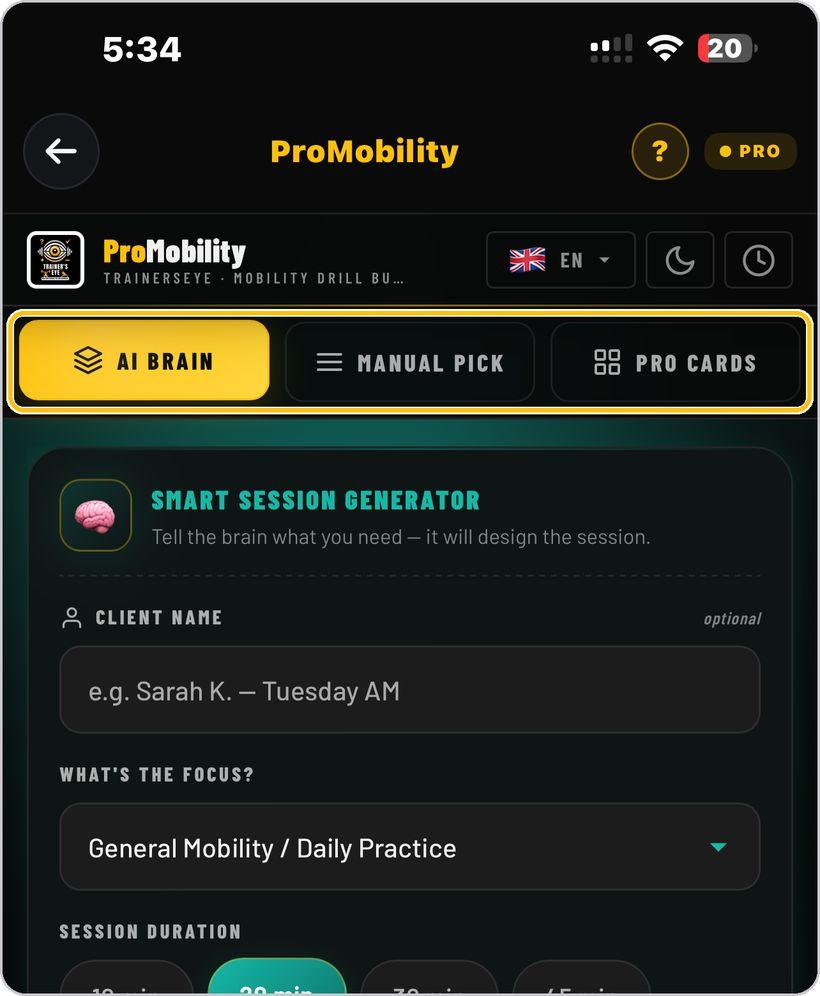
Three ways in
AI Brain designs a session for you; Manual Pick lets you choose drills from the library; Pro Cards are ready, evidence-referenced drill sets.
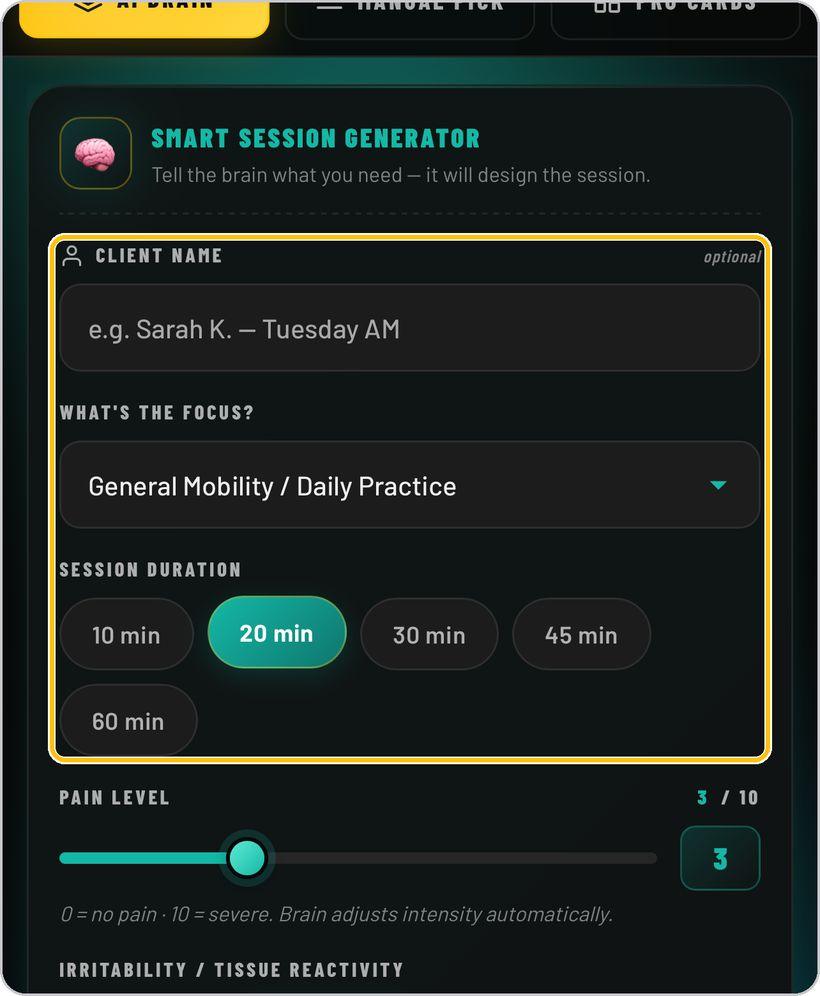
Client, focus and duration
Name the client if you wish, choose the focus — general mobility and daily practice, or a specific condition — and the session duration: 10, 20, 30, 45 or 60 minutes.
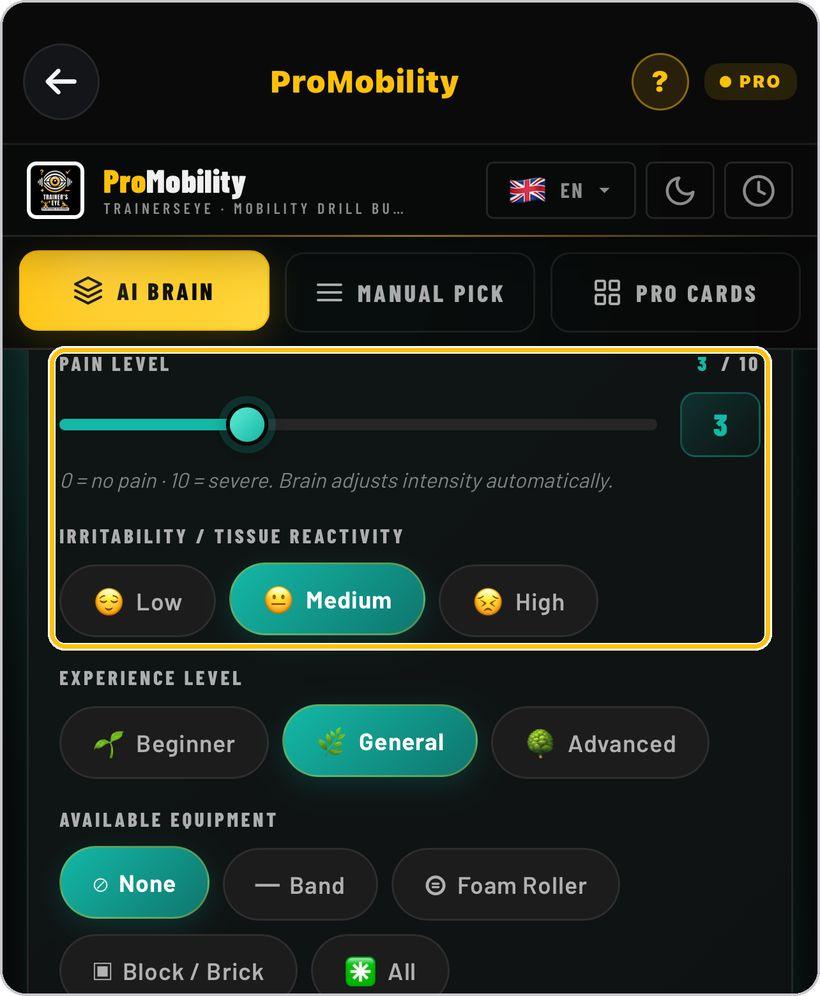
Pain and irritability
Set the pain level from 0 to 10 — the brain adjusts intensity automatically — and the tissue irritability: low, medium or high.
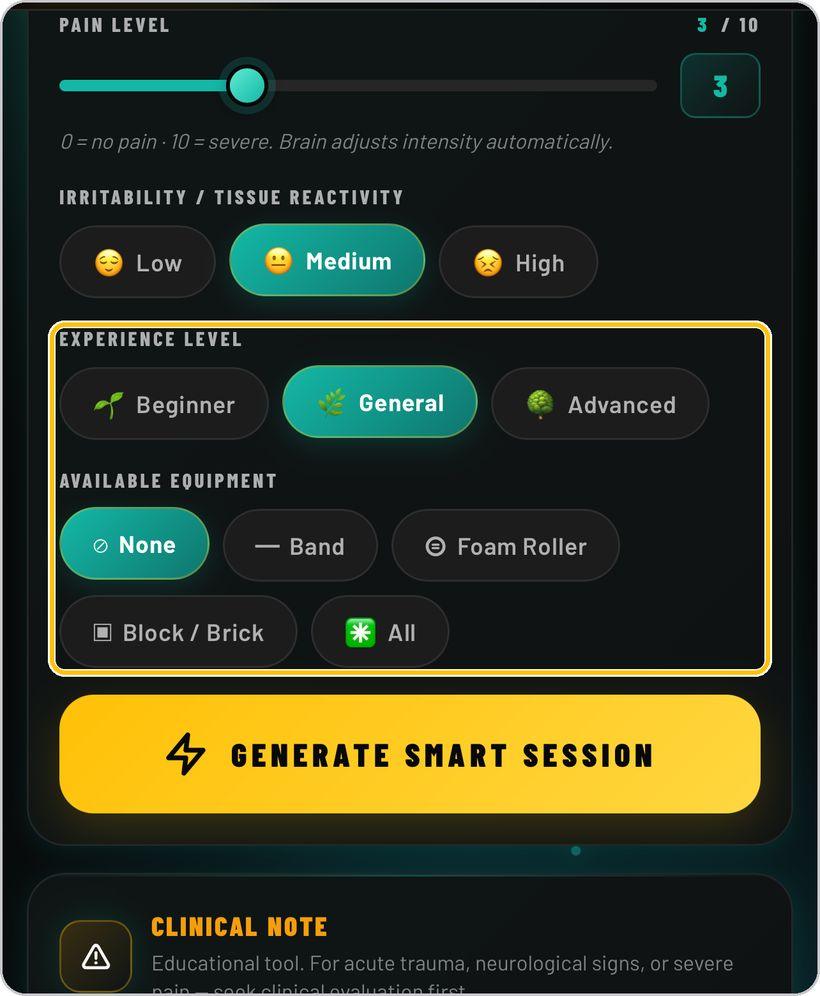
Experience and equipment
Choose the experience level — beginner, general or advanced — and the equipment available: none, band, foam roller, block or brick, or all.
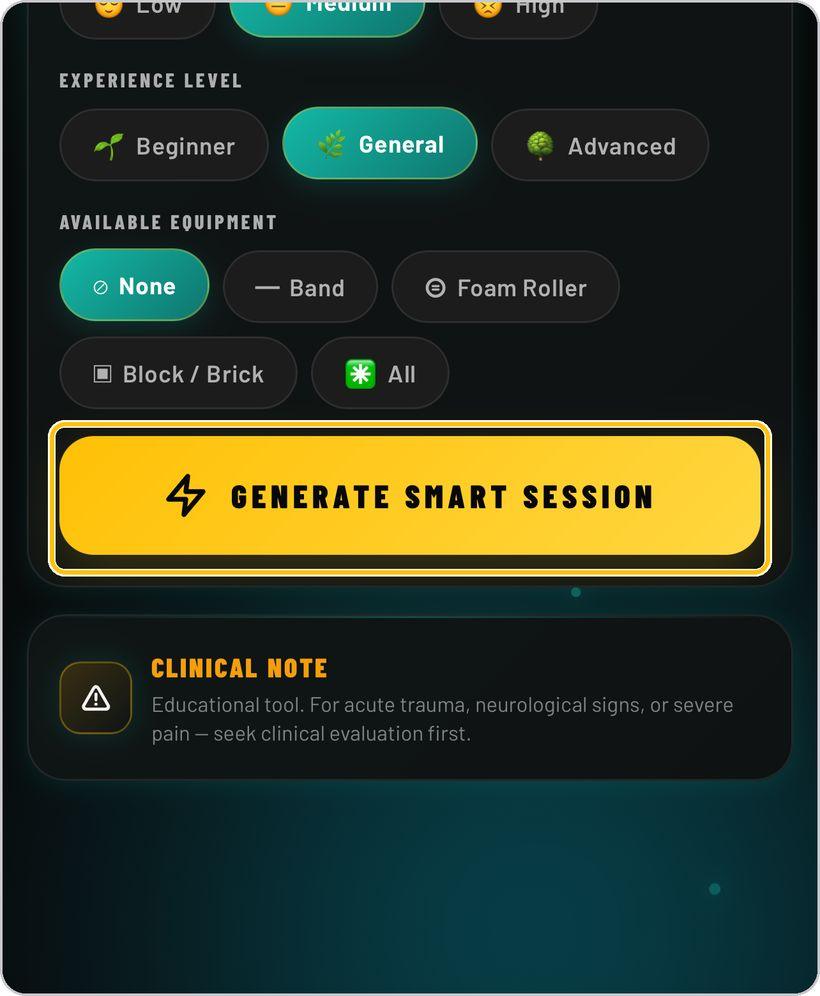
Generate the smart session
Tap Generate Smart Session. The brain builds the protocol and opens it as a document.
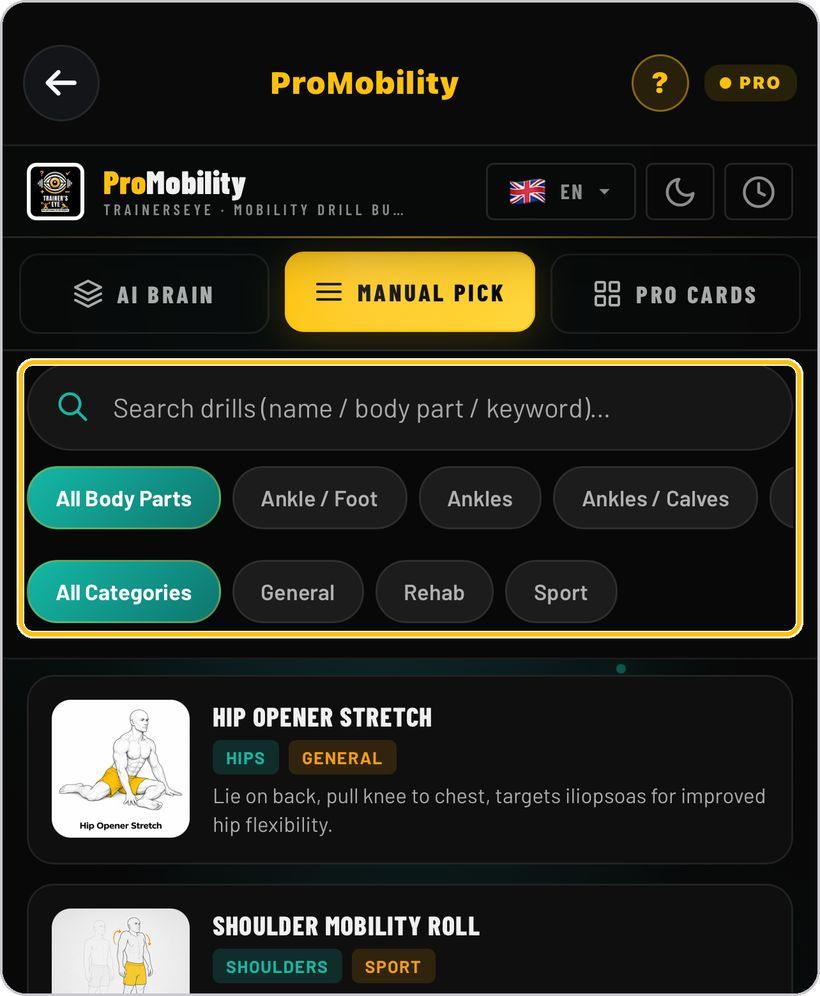
Manual Pick — search and filter
Search drills by name, body part or keyword, then narrow with the body-part chips and the category — General, Rehab or Sport.
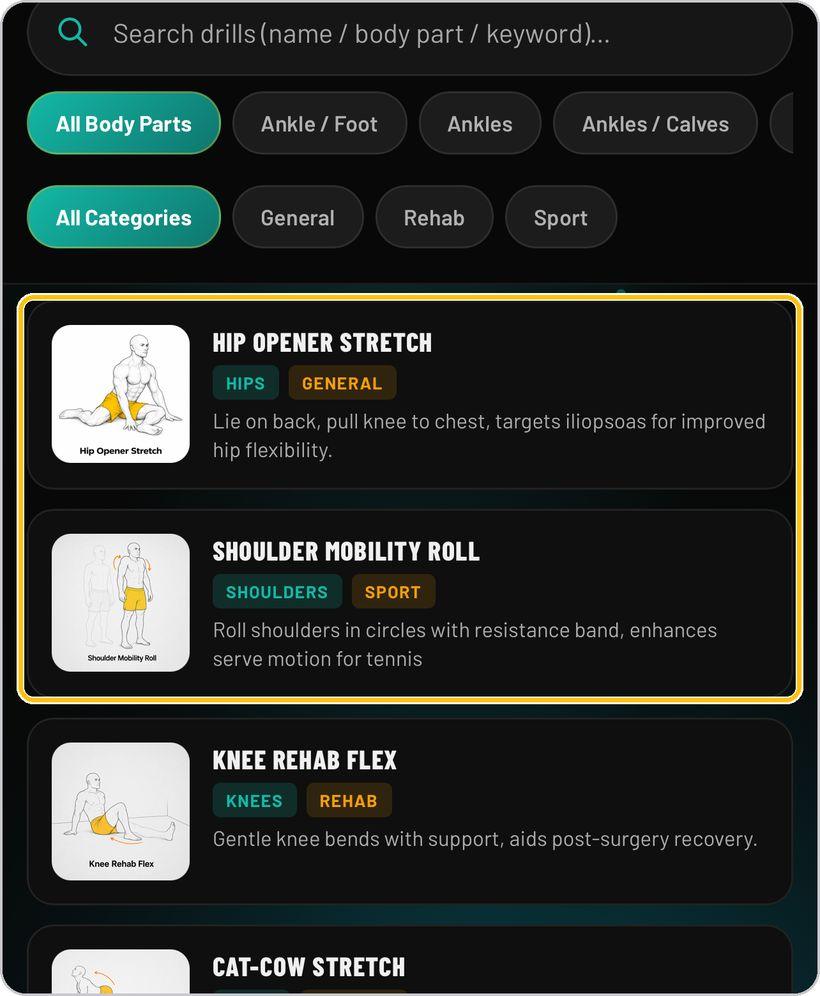
Choose drills from the library
Each drill shows its image, body part, category and a one-line description. Tap the drills you want and they join the session.
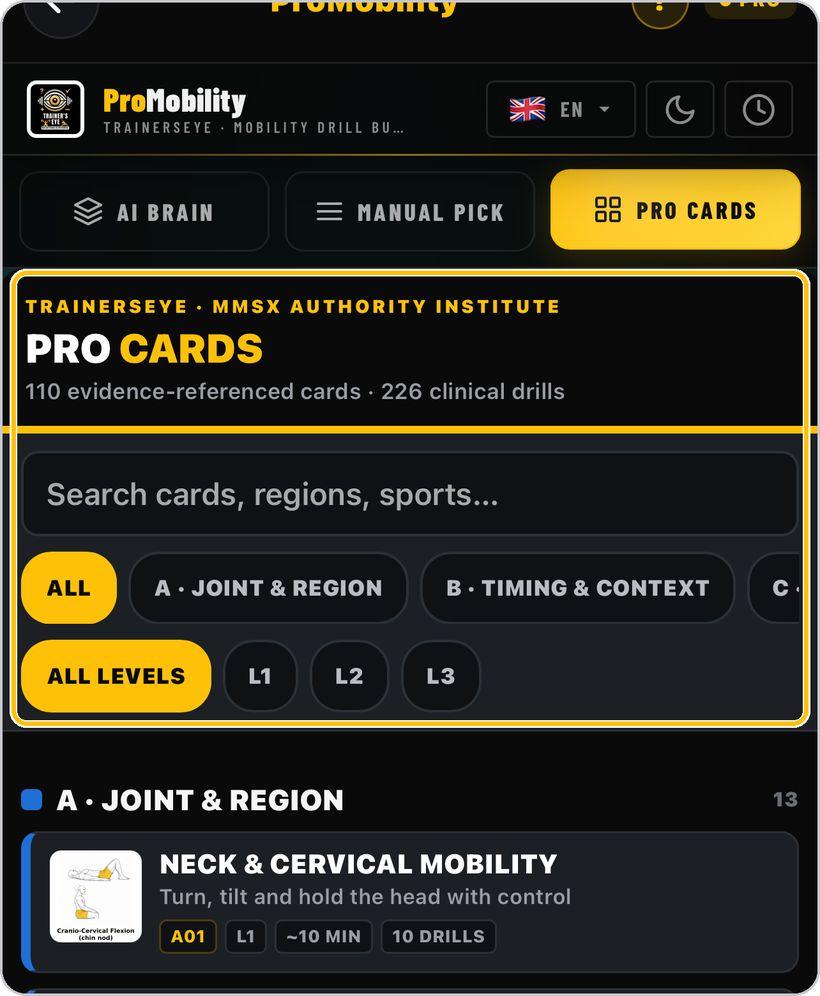
Pro Cards
Ready, evidence-referenced drill sets by joint and region, timing and context, and sport, at levels L1 to L3 — each with its code, level, time and drill count. Search cards, regions or sports and open one.
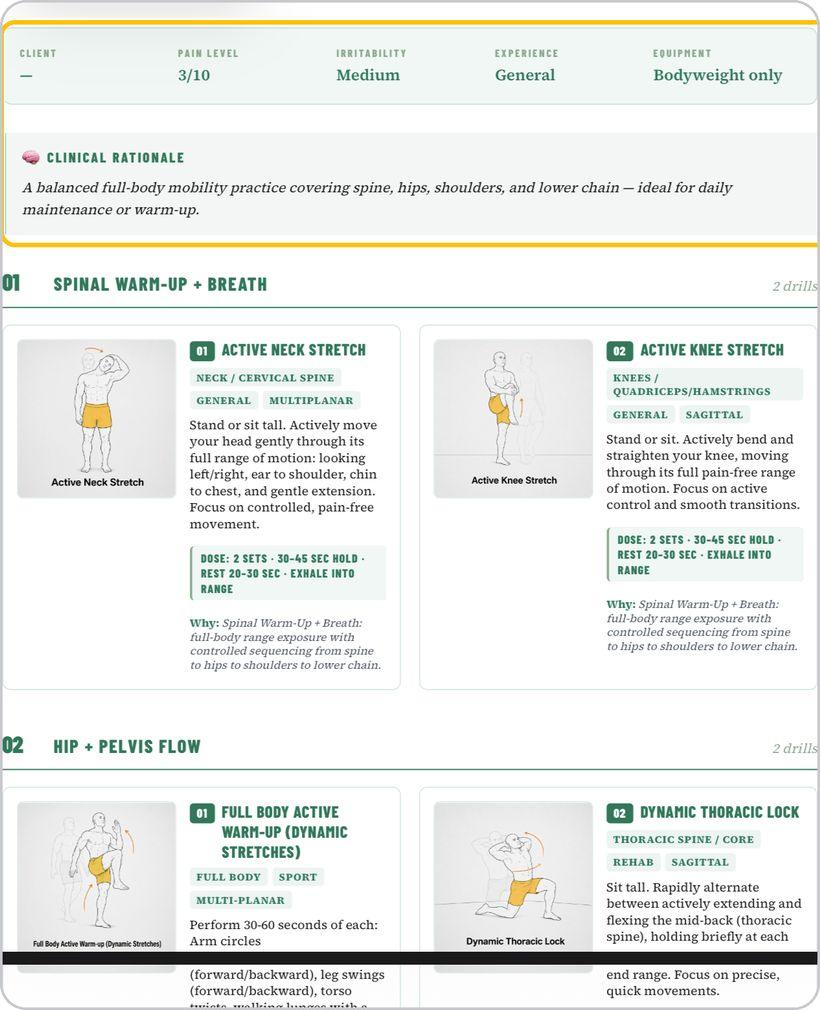
The session document
The session opens as a personalised mobility and recovery protocol: the parameters, the clinical rationale, then numbered blocks — each with its drills, image, tags, instructions, dose and the reason it is there.
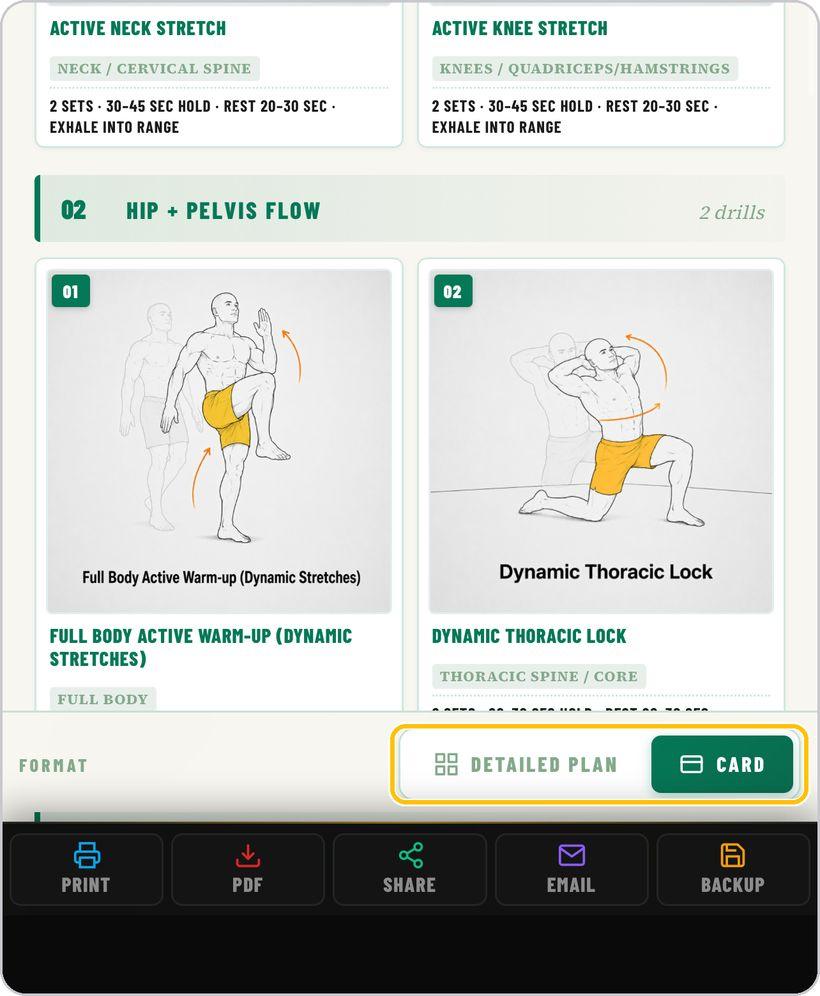
Detailed plan or Card
Switch the format: Detailed Plan for the full protocol with instructions and reasons, Card for the compact two-column grid of images and doses.
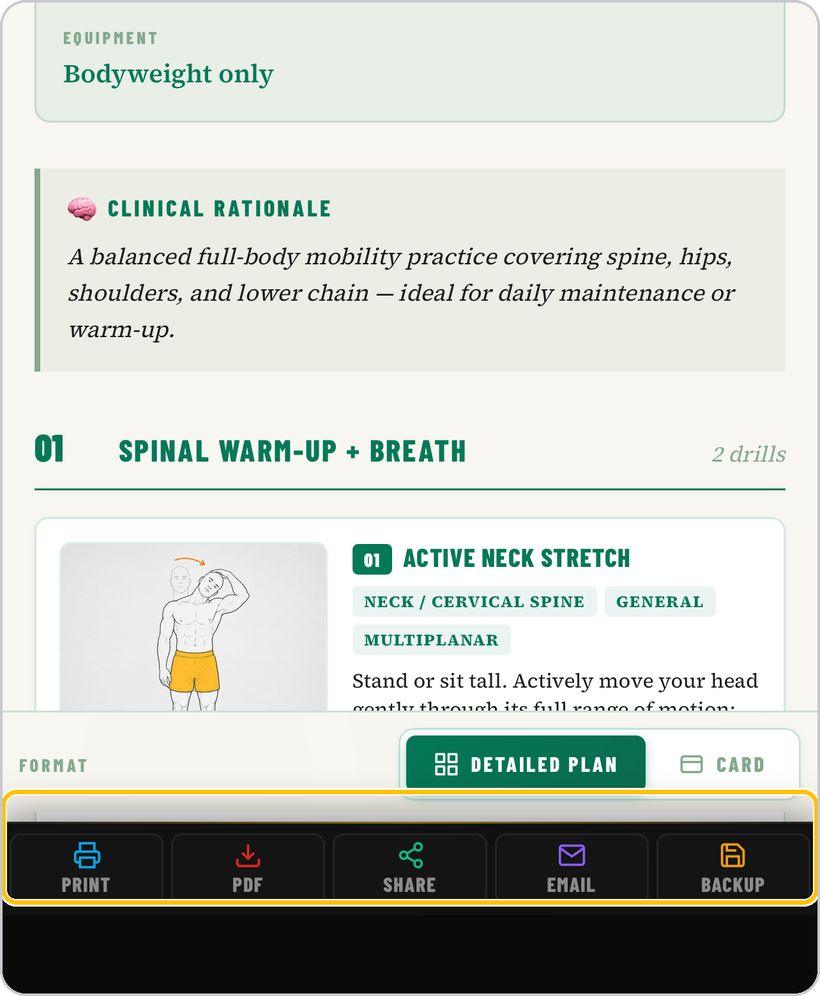
Print, PDF, Share, Email, Backup
The bar at the bottom prints the session, saves it as a PDF, shares it, emails it or backs it up. Back to Builder returns you to the tool.
You're ready
That's it. Open ProMobility, tell the brain what you need and hand over the session.
Reading the session document
Every session opens as the same document. Here is what each part means.
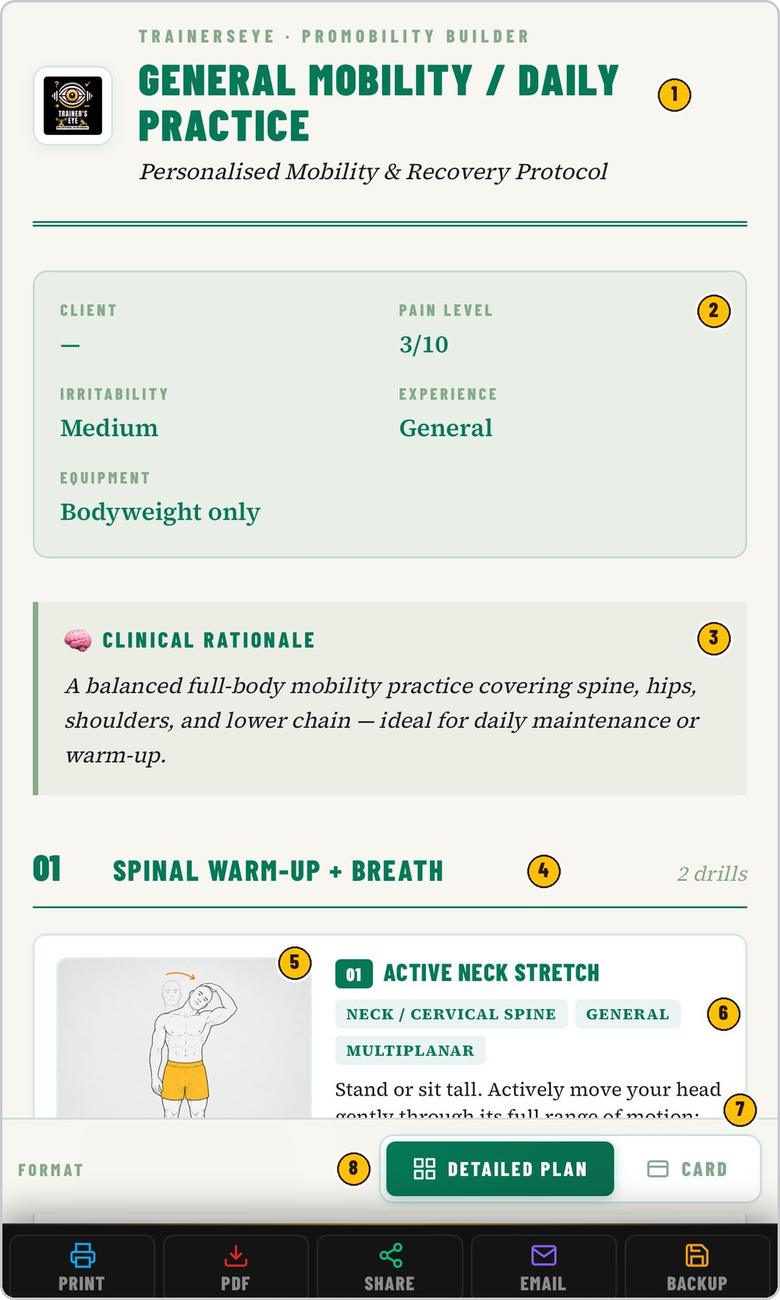
The focus you chose, as a personalised mobility and recovery protocol.
Client, pain level, irritability, experience and equipment as set.
Why the session is built the way it is.
Numbered block, its name and drill count — warm-up, flow, and so on.
The movement, from the TrainersEye library.
Drill name; region, category and plane.
How to perform it — followed by the dose and the reason.
Detailed Plan or Card; Print, PDF, Share, Email, Backup.
ProMobility is part of TrainersEye
Support: support@trainerseye.com · trainerseye.com
ProMobility · TrainersEye mobility drill builder · Pro Cards by MMSx Authority Institute
Educational tool for movement professionals. For acute trauma, neurological signs or severe pain, seek clinical evaluation first. Sessions support a practitioner's judgement; they are not a medical diagnosis.